
After completing the checkout, it is important to display a thank you page (or order completion page) to the customer according to the result of the transaction that has just been carried out.
You can configure the display of order completion pages and take advantage of this moment to increase consumer engagement. This is an excellent opportunity to encourage payment, display cross sell, upsell offers or present related instructions that the customer can take advantage of while awaiting product delivery.
For example:
-
If you offer a subscription with a trial period, you can direct the customer to the URL Trial containing instructions about the trial period or your platform's login form.
-
If the transaction results in an approved sale, you can direct the customer to the Approved URL containing explanations about the next steps of the order or you can make an offer, cross sell / upsell.
Offer an additional product on the “Approved URL” page by publishing the URL One Click Buy or URL One Click Upgrade to make a new sale with just 1-click from the customer.
To display personalized order completion pages, you must create the pages in a page builder of your choice and register the respective URL in the checkout settings. Otherwise, the standardized order completion pages (invoice) will be displayed.
Order completion page settings can be applied at 3 levels:
-
Global Level: applies to the checkout of all registered products - default setting;
-
Product Level: applies to the product in question - overrides the definitions of item 1;
-
Offer Level: applies to the product offer in question - overrides the definitions of items 1 and 2.
In this tutorial, whenever possible, you will be guided to perform the configuration at a global level (recommended). To configure at other levels, access the Checkout tab in the registration of the product or offer in question.
On this page:
-
Configure order completion pages
-
What are the types of redirect pages available
Before you start, you need…
-
To be an administrator user or have permission to perform the following actions.
-
To have the URL of the order completion pages.
Configure order completion pages
You can add your own order completion pages to be displayed as soon as the customer completes the purchase in Checkout Guru.
Steps:
1 - According to the configuration level you want to apply:
1.1 - Global Level: access Settings » Checkout.
1.2 - Product Level: access Products » (desired product) » Checkout.
1.3 - Offer Level: access Products » (desired product) » Offers » (desired offer) » Checkout.
2 - Click on Redirect.

3 - Click on Add Redirect.
4 - Then, inform:
-
Type: the type of redirect page;
-
URL: the URL of the redirect page - the URL cannot be longer than 191 characters1.
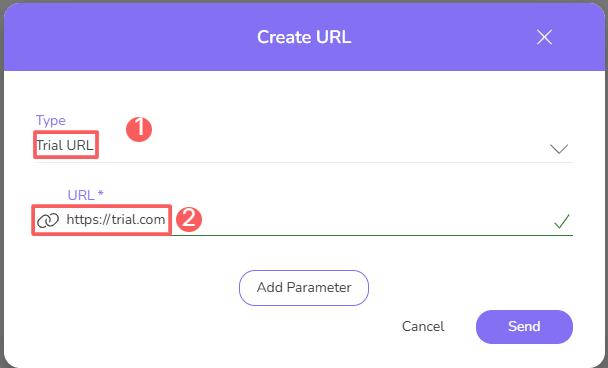
(1) The 191 character limit was set to avoid redirection problems. Very long URLs can exceed browser limits, causing failures when directing the user to the destination page.
5 - If desired, you can add dynamic parameters to the redirect URL. To do this:
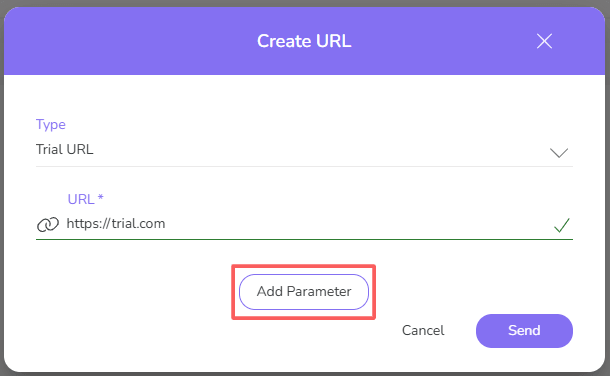
6 - Click on Add Parameter.
7 - Then, inform:
-
Parameter: the name of the dynamic parameter;
-
Variable: the parameter variable.
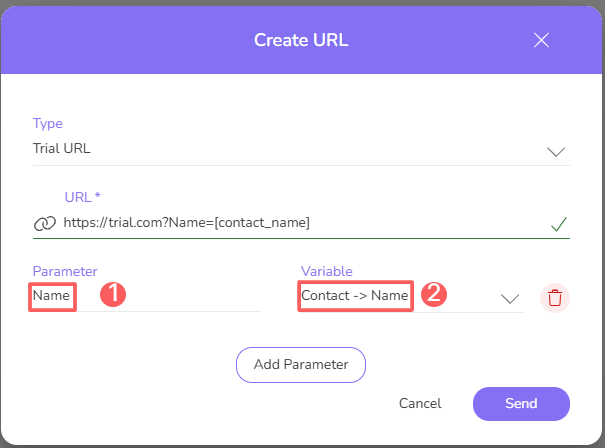
8 - Click on Send.
It is possible to present the payment screen for Boleto and PIX without using an iframe. To do this, you must manually insert the parameter "no-iframe=1" and pass the boleto or PIX data through the Guru parameters.
Attention: Do not perform this configuration if you do not have more advanced knowledge. If you intend to do so, contact your developer.
What types of redirect pages are available?
You can add the following types of redirect pages:
|
Page type |
Applies to |
Note |
|---|---|---|
|
|
Approved Sale |
|
|
|
Sale by Baloto |
Available only in South America. |
|
|
Sale by Boleto Bancário |
Available only for Brazil. |
|
|
Sale by Crypto |
|
|
|
Sale by Efecty |
Available only for Colombia. |
|
|
Sale by MBWay |
Available only for Portugal. |
|
|
Sale by Multibanco |
Available only for Portugal. |
|
|
Sale by Multicaja |
Available only for Chile. |
|
|
Canceled Sale |
|
|
|
Sale by Oxxo |
Available only for Mexico. |
|
|
Sale by OxxoPay |
Available only for Mexico. |
|
|
Sale by PIX |
Available only for Brazil. |
|
|
Sale by PagoEfectivo |
Available only for Peru. |
|
|
Pending Sale |
|
|
|
Sale by SafetyPay |
Available only for Peru. |
|
|
Sale by Sencilito |
Available only for Chile. |
|
|
Sale by SEPA |
Available only in Europe. |
|
|
Sale by Servipag |
Available only for Chile. |
|
|
Sale by Spei |
Available only for Mexico. |
|
|
Subscription with Trial started |
Available only when the subscription has a trial period configured. |
|
|
Sale by Webpay |
Available only for Chile. |
More Resources