
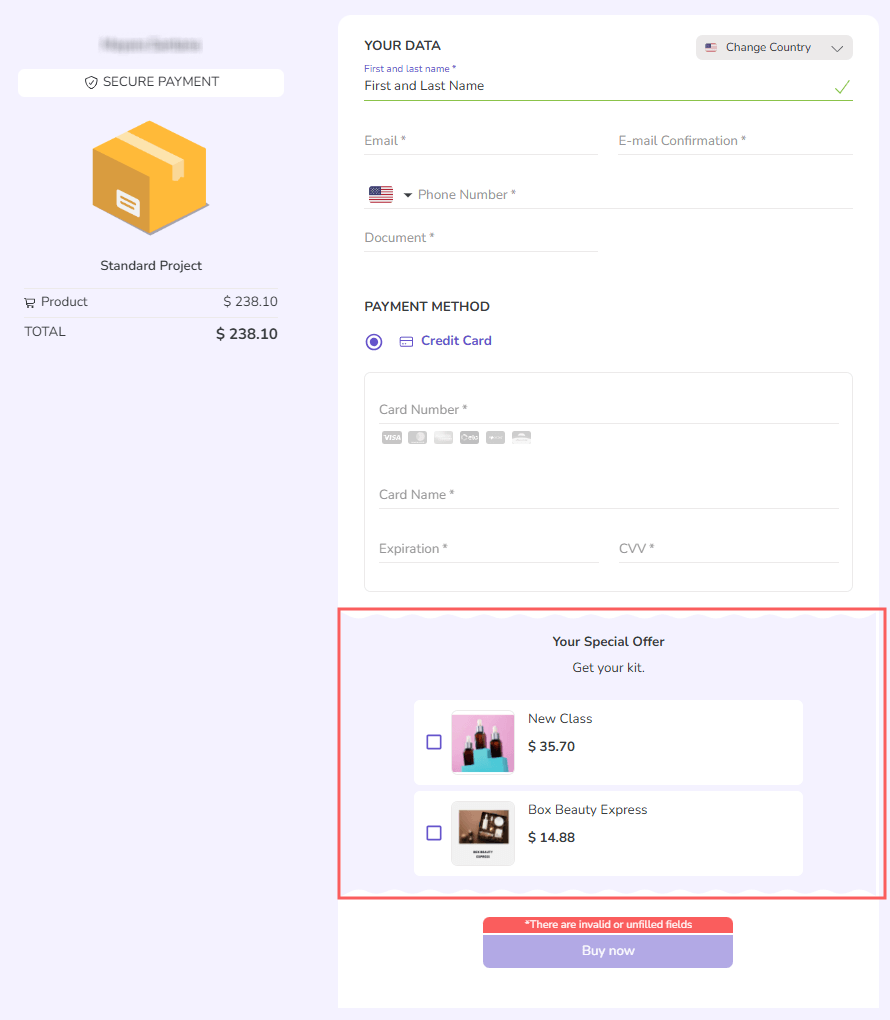
In Checkout Guru, you can display one or more complementary products along with the main offer. This feature is useful for increasing your average ticket, encouraging the customer to make other orders during the payment of the main product.
For example:
-
If you sell weight loss capsules, you can offer a recipe book and/or an exercise guide in the order bump of the main product's checkout.
-
If you sell a course or training, you can offer book(s) and/or handout(s) as class material in the order bump of the main product's checkout.
When you have an order bump activated, the list with complementary products is displayed in the last part of the checkout, in the payment step. Your customer may or may not select the offer(s) displayed.
How it works
If the customer selects one or more order bump options and completes the checkout, Guru performs the following actions according to the selected payment method:
-
If a credit card was used and payment was approved: Guru processes the orders selected in the order bump sequentially using the same payment data as the previous order. When a transaction in the sequence is rejected, the processing of subsequent orders is interrupted.
-
If a credit card was used and payment was rejected: the orders selected in the order bump are ignored.
-
If an offline payment method was selected: Guru processes the orders selected in the order bump sequentially using the payment method selected in the order - each order will have a different payment code.
You add or remove products from the order bump in the offer information of the main product. It is also possible to customize this section with text, description, and a limit for the number of offers that can be selected.
On this page:
-
Customize the Order Bump section
-
Offer products in the Order Bump
Before you start, you need to…
-
Be an administrator user or have permission
Customize the Order Bump section
You can customize the order bump section with text, description, and a limit for the number of offers that can be selected.
See:
How to customize the Order Bump section.
Offer products in Order Bump
You can add one or more products to the Checkout Guru order bump. The list of products to be offered in this section is configured in the respective product offer.
See:
How to add products to Order Bump.
More Resources