
It is possible to add and remove/disconnect ad accounts. This functionality is essential for you to manage all your campaigns in an organized and efficient way.
On this page:
-
Add Account
-
Remove/Disconnect Ad Accounts
Before you start, you need to…
-
Be an administrator or have permission to perform the following actions
Add Account
In this step, you will add your TikTok ad account to Guru.
Steps:
1 - Access the Guru admin with your username and password.
2 - In the side menu, go to Settings > Integrations > Publishers > TikTok.

3 - Click on the Ads Accounts tab.
4 - Then, click on Add Account.
5 - Fill in the following information:
-
User Account: choose the user account you want to associate;
-
Ads Accounts: choose the ad account you want to associate.
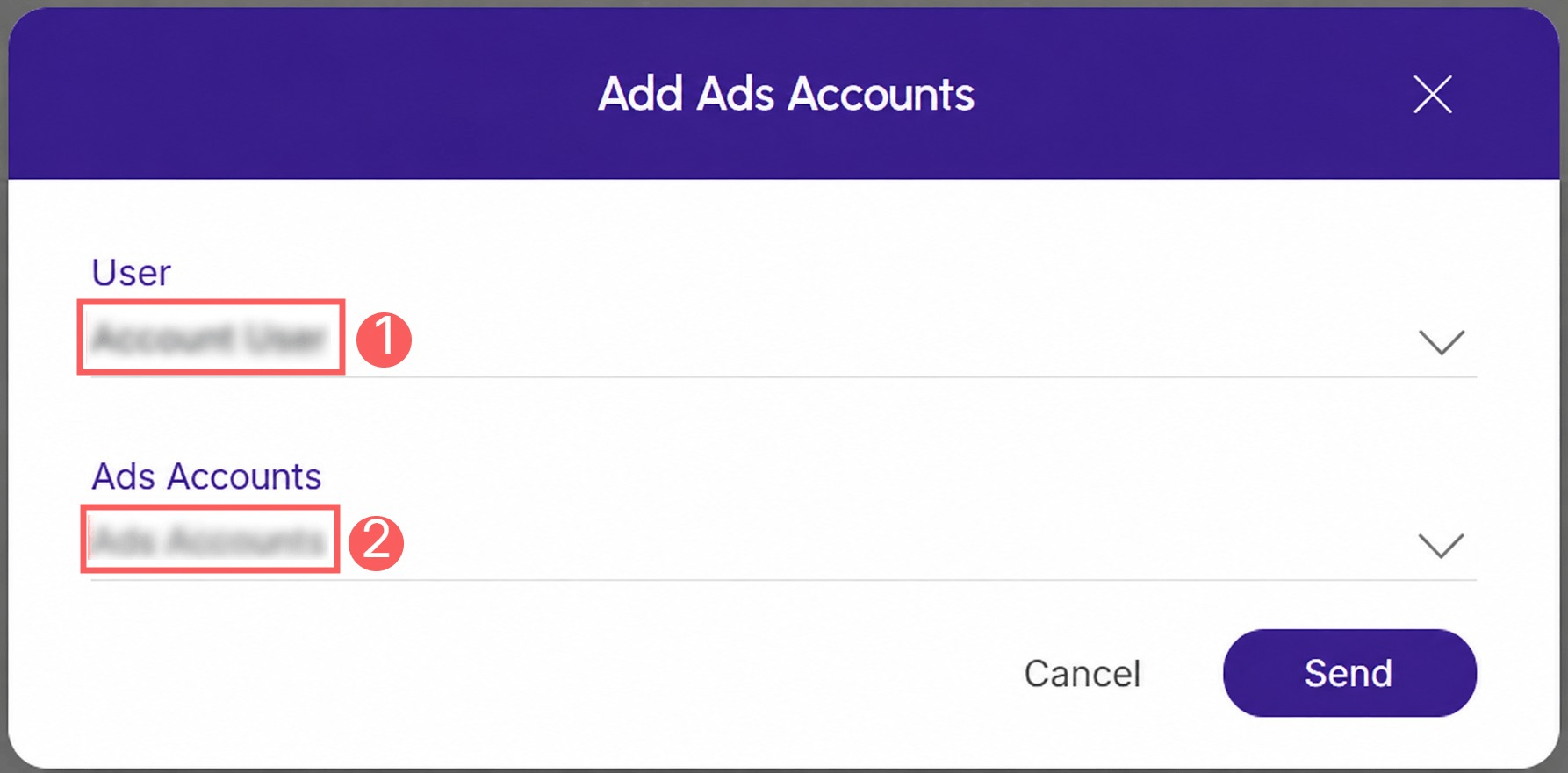
6 - Click on Send.
Repeat this step for each ad account you want to connect.
Remove/Disconnect ad accounts
Once created, it is possible to remove an ad account. This feature is useful when you do not want to link the ad account.
Steps:
1 - Click on the Ad Accounts tab and then click on Remove.

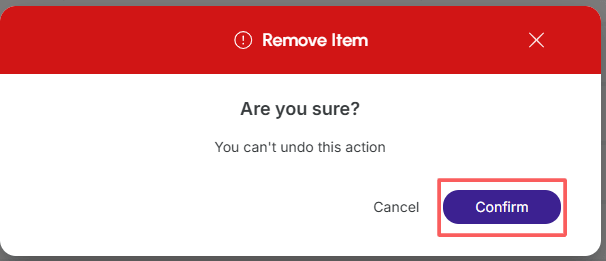
2 - Confirm if you want to proceed with the deletion. To confirm that the ad account has been deleted, a message will be displayed for a few seconds at the top right of the page.
From this moment on, Guru will no longer manage access to the TikTok Ad Account you removed.
More Resources