
By integrating your uSendit account, you can automatically trigger messages to your customers according to the sale status.
To enable the integration, you need to create an account on uSendit, enter your username and password in Guru and request a custom sender in your account, and then define the sale status rules for sending messages.
On this page:
-
Step 1: Create custom sender on uSendit
-
Step 2: Activate the integration
-
What to do next
Before starting, you need to:
-
Have an account on uSendit.
-
Have a custom sender created and approved on uSendit.
-
Be an administrator user or have permission to perform the following actions.
Step 1: Create custom sender on uSendit
In this step, you will request the creation of the custom sender in your uSendit account.
Steps:
1 - Log in to your account with your username and password at uSendit.
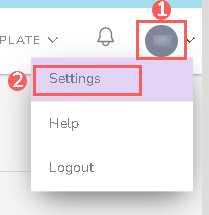
2 - Under Meu Perfil, click Settings.
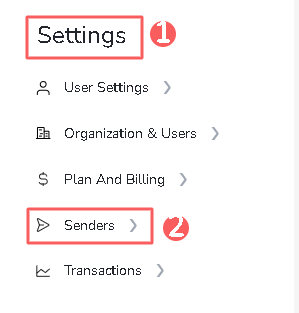
3 - In Settings, click Senders.
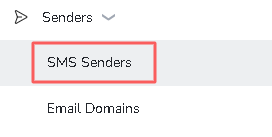
4 - Next, in Senders, click SMS Senders.
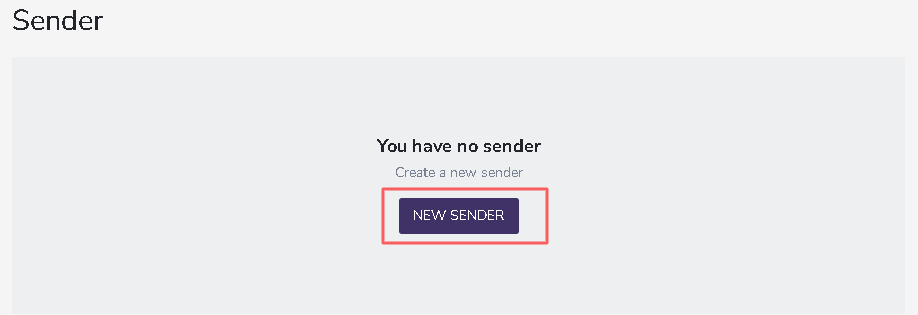
5 - Click New Sender.
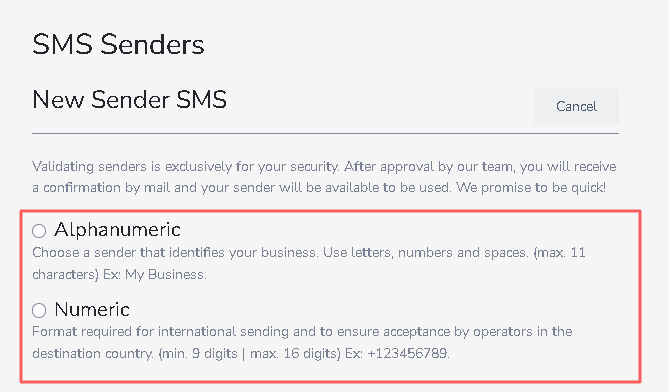
6 - Next, specify:
-
Alphanumeric: select if you want your sender to be alphanumeric;
-
Numeric: select if you want your sender to be in number format.
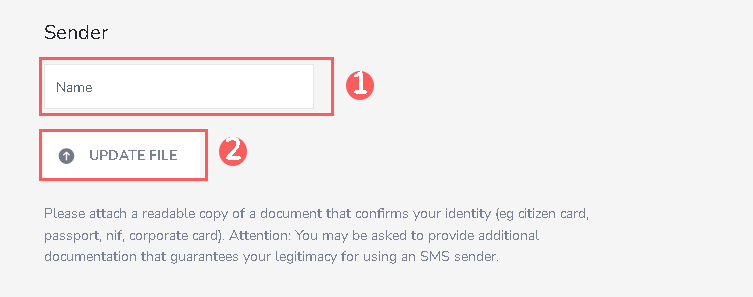
7 - Under Sender, specify:
-
Name/Number: the sender name or number according to the option selected in the previous step;
-
Update file: the document file with identity verification proofs as requested.
8 - Next, Accept terms and conditions.
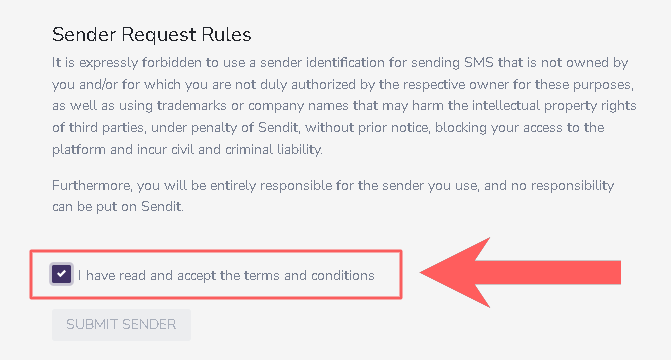
9 - Click Submit Sender.
You need to wait for the sender created by uSendit to activate the integration.
Step 2: Enable Integration with uSendit
In this step, you will enter your uSendit account username and password in Guru.
User credentials will not be available after saving the integration. If you change credentials, they will no longer be valid, requiring you to return to the uSendit environment to obtain the key.
This change will bring greater security to your account, making it impossible to view integration data.
Steps:
1 - Access the Guru admin with your username and password.
2 - In the side menu, go to Settings > Integrations > SMS > uSendit.

3 - In the Detail tab, enter:
-
Username: username of your uSendit account;
-
Password: password of your uSendit account;
-
Sender: custom sender created in step 1 - item 7;
-
Active: toggle the button to the on position.
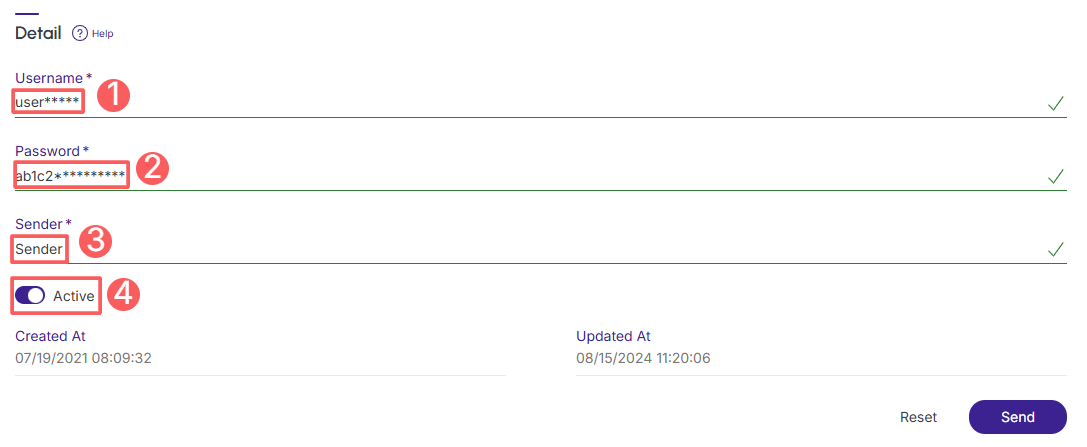
4 - Click Send.
To confirm that the integration is active, you should see a notification in the upper right corner.
What to do next
Once the integration with uSendit is active, you must configure the sale status rules for sending messages.
This setup is done through: