
It is possible to opt for standardized messages for transactional emails or you can customize them according to your company's parameters.
To configure personalized emails, you must access your Guru account, create the email content, and add elements and variables of your choice, such as images, contact name, order number, among others. Finally, you need to associate it with a sales or subscription status.
In this way, as soon as there is a sale with one of the configured statuses, the email will be automatically sent to the customer.
Buyer responses to standard or customized transactional emails are sent to the email address configured at checkout.
On this page:
-
Types of Transactional Emails
-
Emails about a Subscription
-
Emails about a Sale
-
Emails about a Sale (E-tickets)
-
Emails about the My Orders area
-
-
Add Transactional Email
Before you start, you need to…
-
Be an administrator user or have permission to perform the following actions.
Types of Transactional Emails
When the transactional email function is activated, Guru sends an email according to the situations below.
Emails about a Subscription
For each subscription status, a specific type of email is sent.
|
Email type |
Sent when… |
|---|---|
|
Active |
The subscription changes to |
|
Overdue |
The subscription changes to |
|
Expired card notice1 |
The card provided for subscription payment is expired. |
|
Card about to expire notice |
The card configured for the subscription charge for the product |
|
Start of trial |
The subscription trial period is starting. |
|
End of trial 2 |
The subscription trial period is about to end. |
|
Renewal notice |
The subscription is about to be |
|
Canceled |
The subscription changes to |
|
Canceled at the end of the cycle |
The subscription will be |
|
Renewed |
The subscription changes to |
(1) 2 reminder emails are sent: 14 and 7 days before the subscription renewal. We recommend activating the “Customer can change payment type” option in the My Orders area.
(2) 2 reminder emails are sent: 7 and 3 days before the 1st subscription charge.
(3) The reminder email is sent 14 days before renewal. Subscriptions with renewal periods shorter than 14 days will not receive a renewal notice.
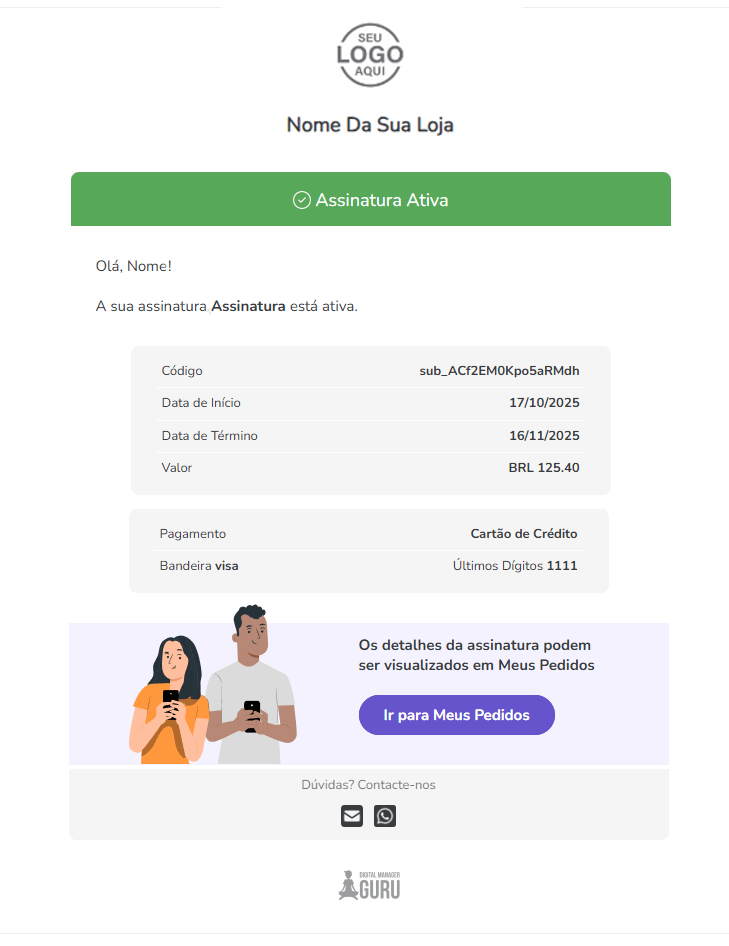
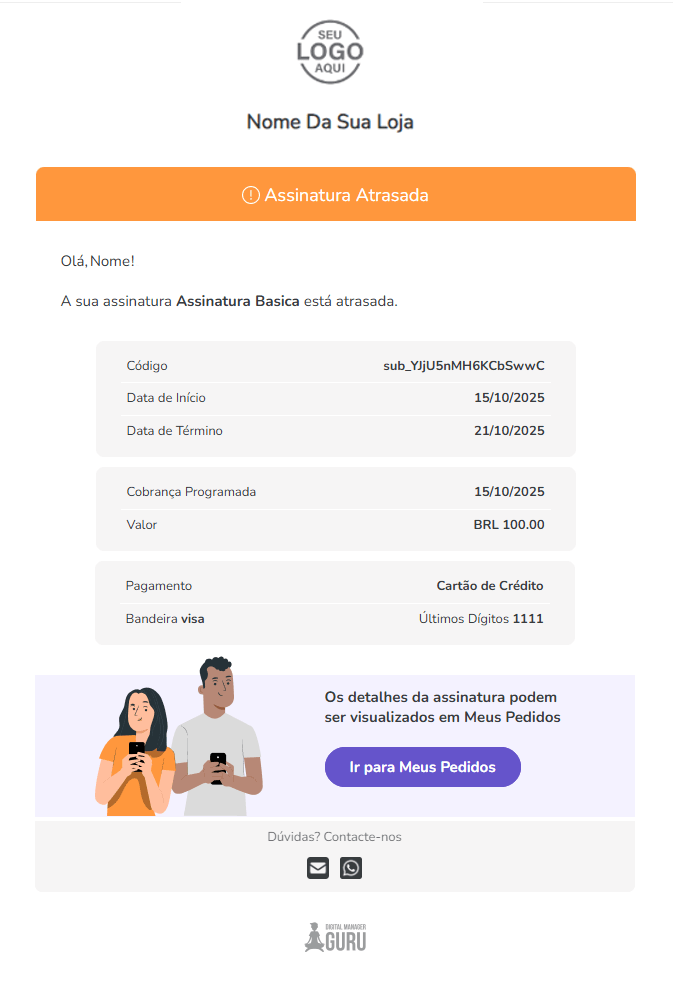
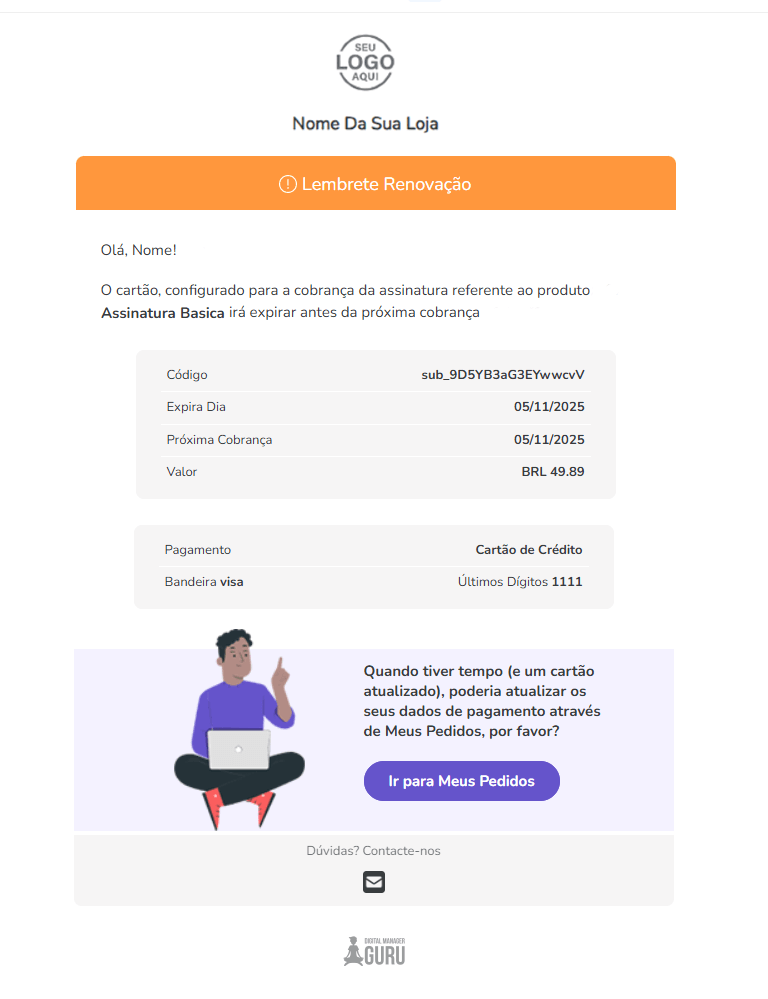
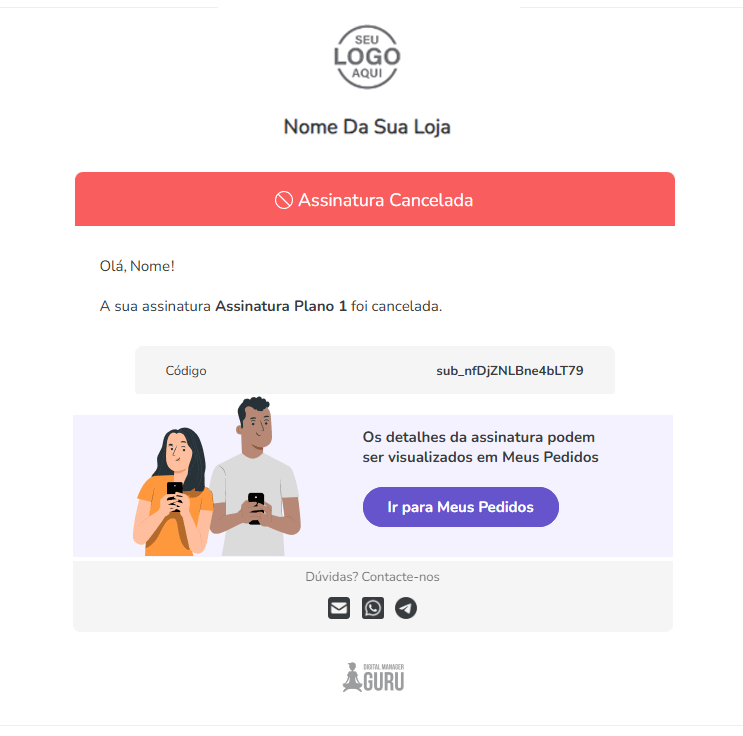
Previews of Guru's standard transactional emails for subscriptions
Click on the available sections to view the appearance of the standard emails:
Active
Overdue
Expired card
Canceled
Canceled at the end of the cycle
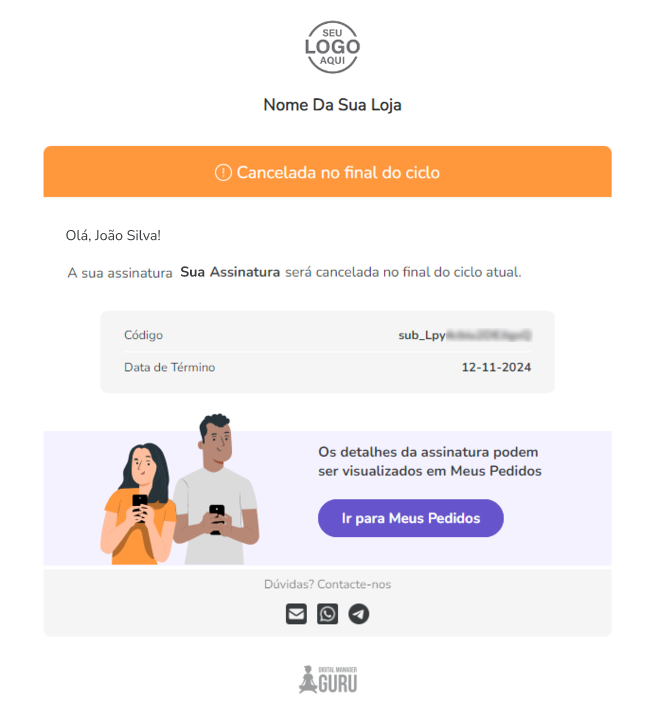
Expired
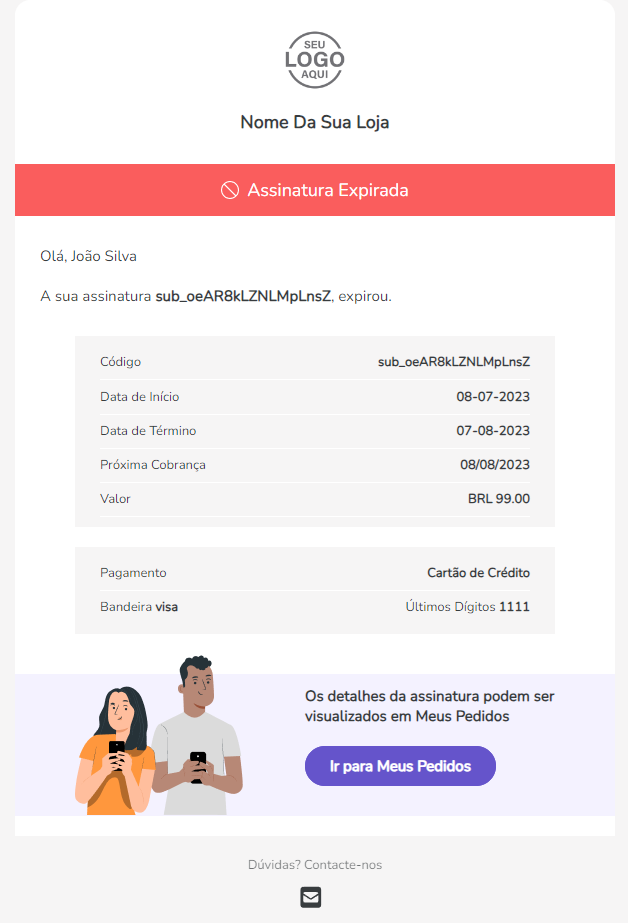
Renewal
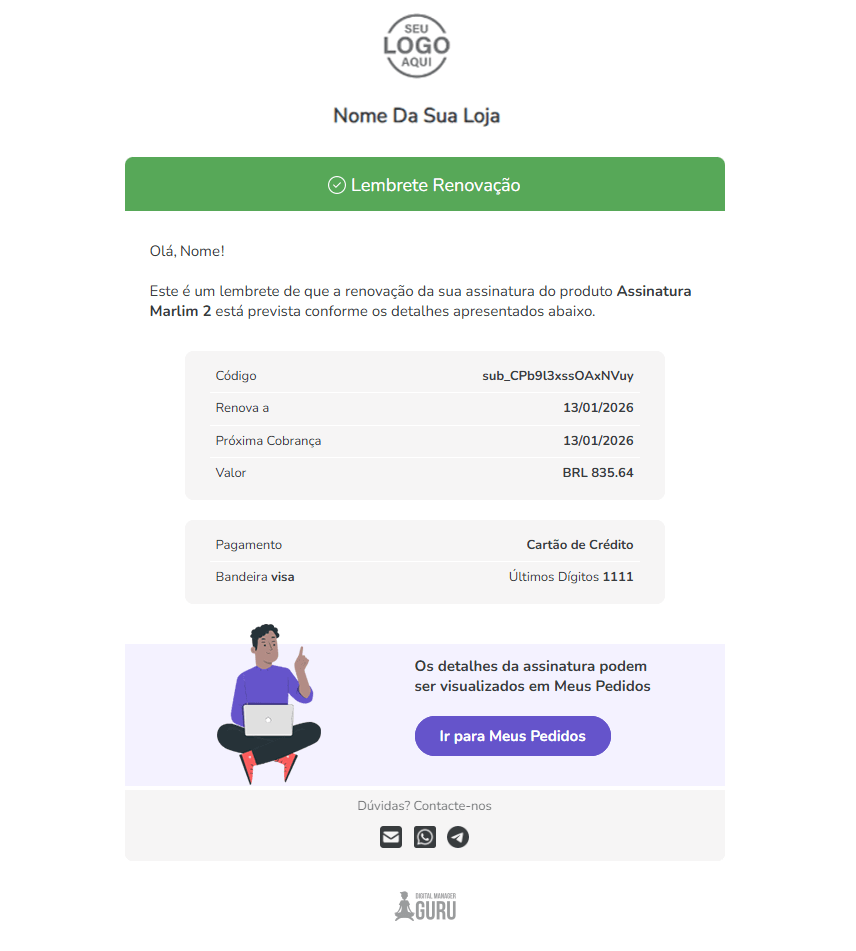
Renewed
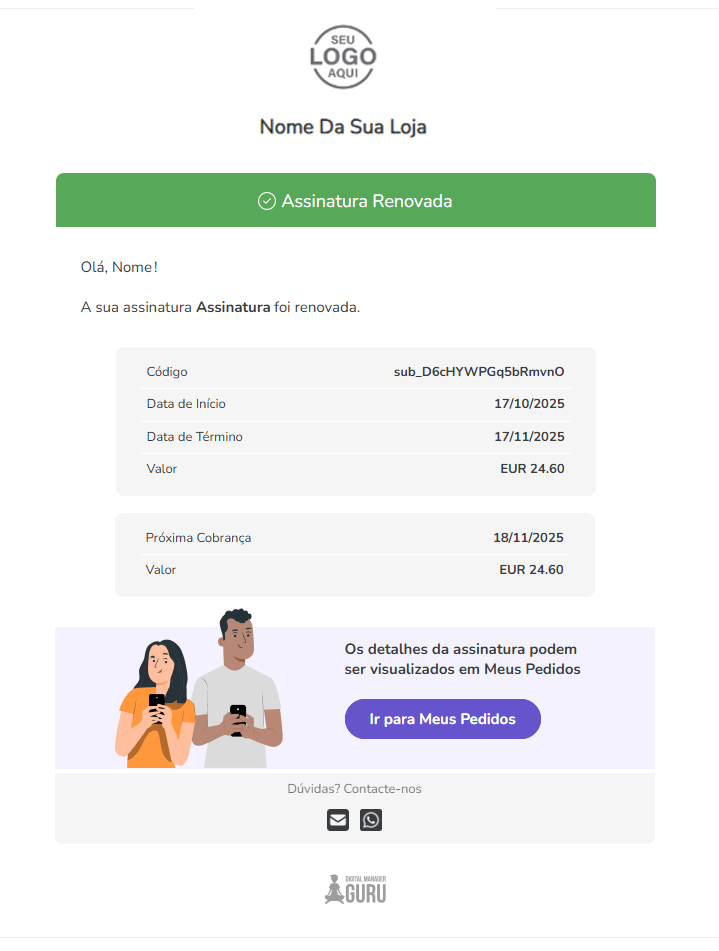
Trial Start
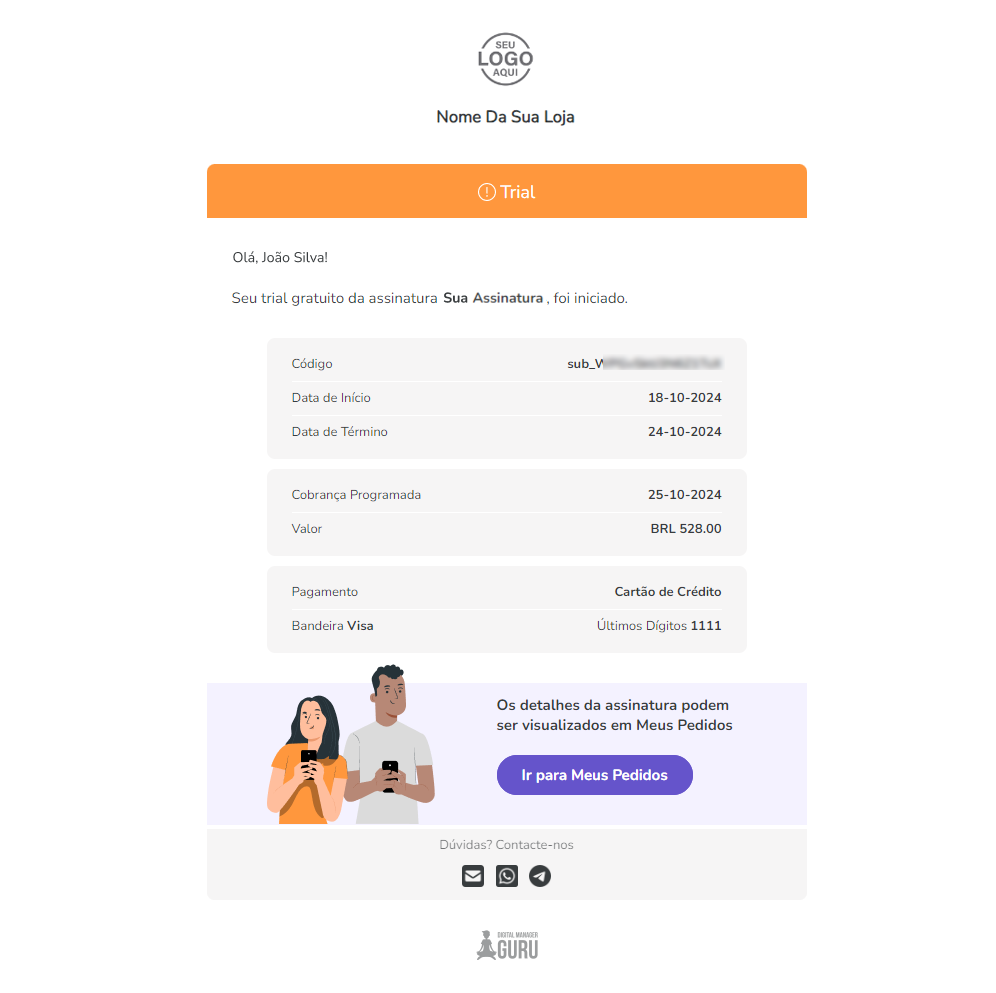
Trial End
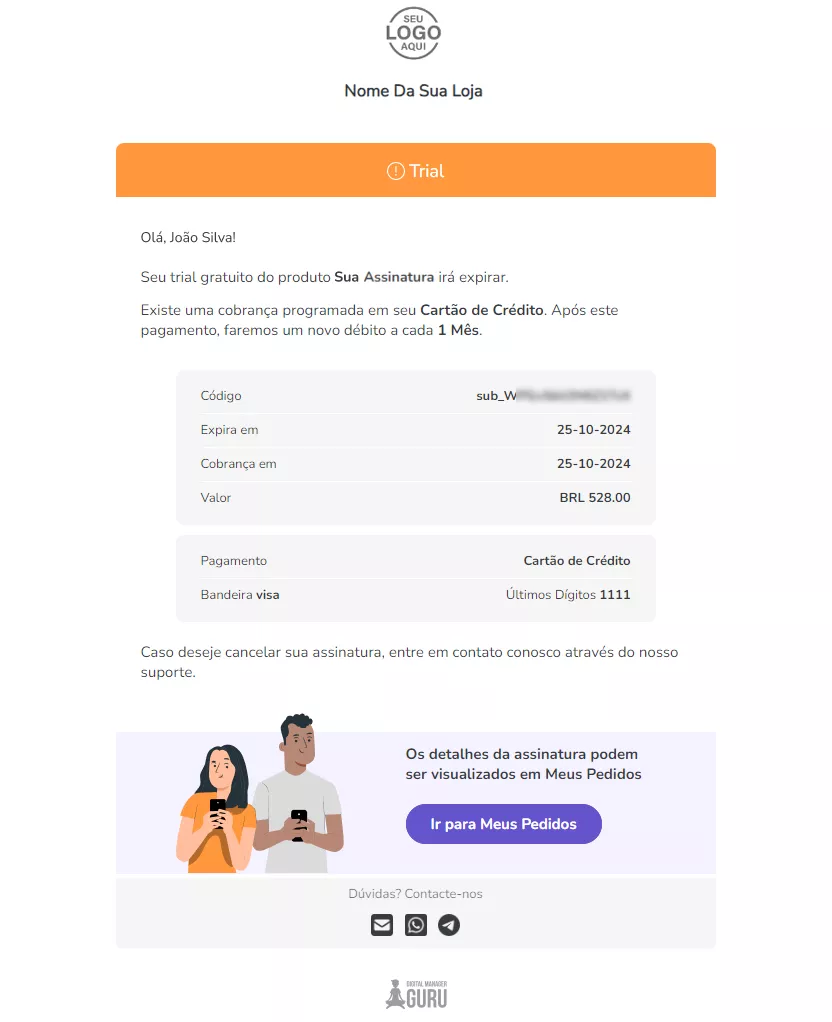
Access the subscription settings to enable sending these transactional emails.
Emails about a Sale (order)
For each sales status, a specific type of email is sent.
|
Email type |
Sent when… |
|---|---|
|
Abandoned |
Checkout is not completed within 15 minutes - abandoned sale. |
|
Affiliate1 |
The sale was made through an affiliate's referral. |
|
Awaiting Payment |
The sale changes to status |
|
Approved |
The sale changes to status |
|
Boleto Printed |
The sale changes to status |
|
Canceled |
The sale changes to status |
|
Expired |
The sale changes to |
|
Claimed |
The sale changes to status |
|
Refunded |
When the sale is |
(1) The notification email about the completed sale is sent to the affiliate in question.
Previews of Guru's standard transactional emails for sales
Click on the available sections to view the appearance of the standard emails:
Abandoned
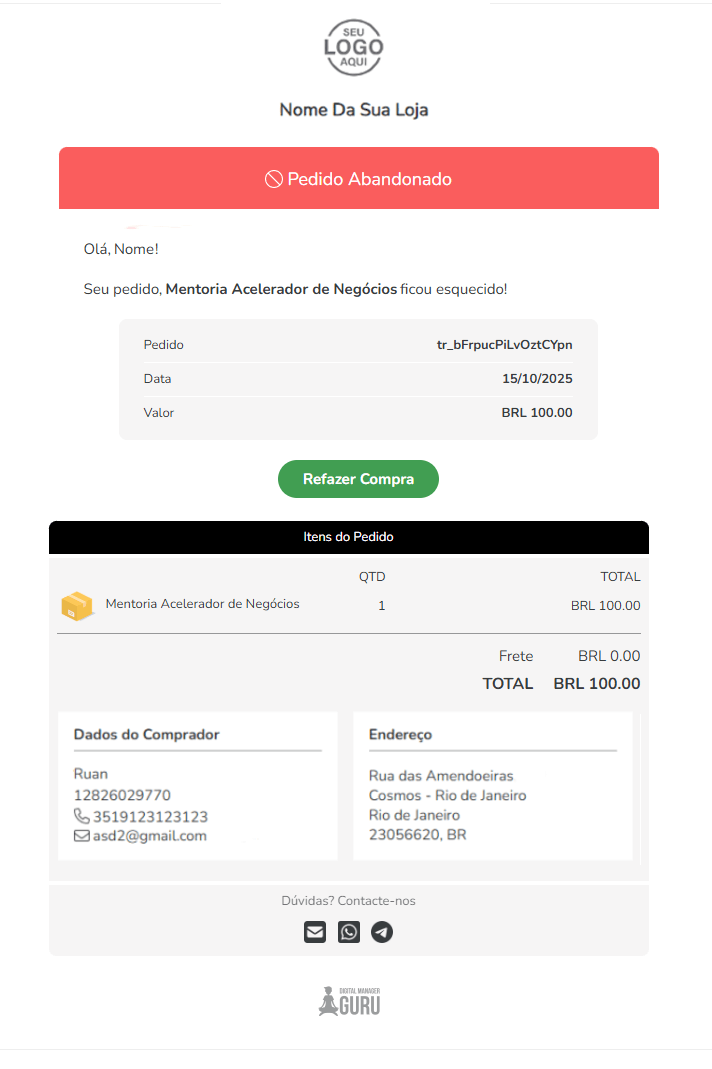
Awaiting payment
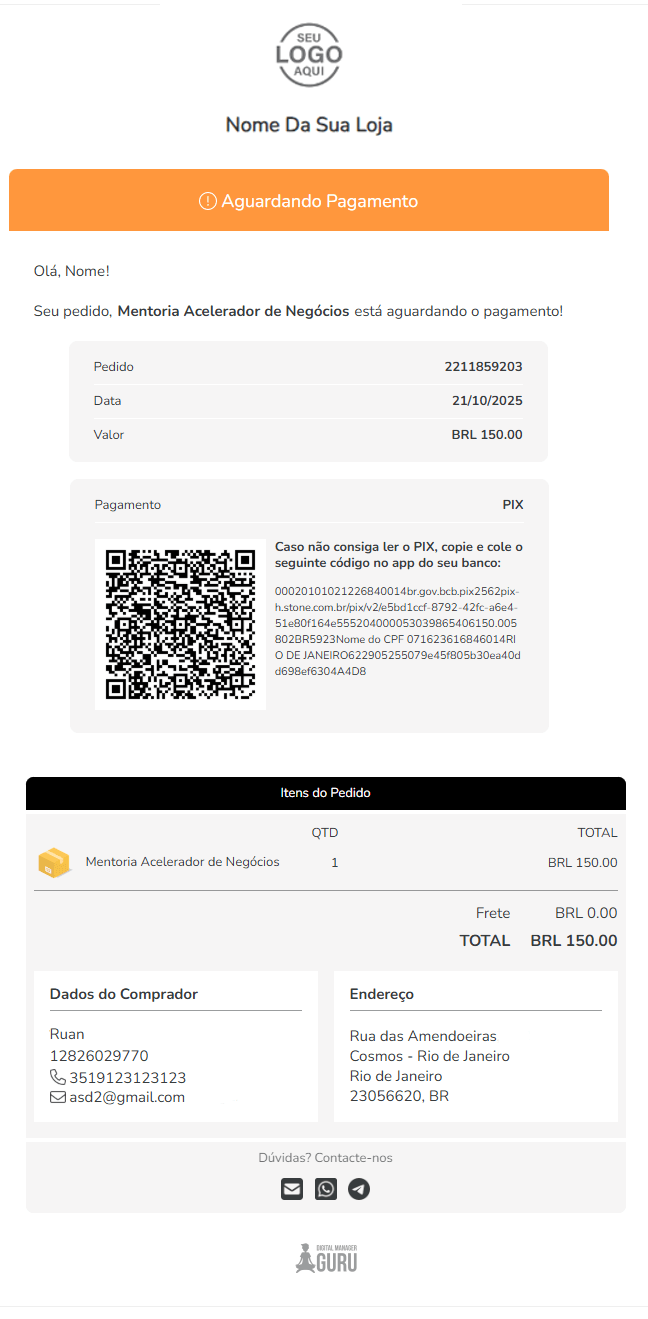
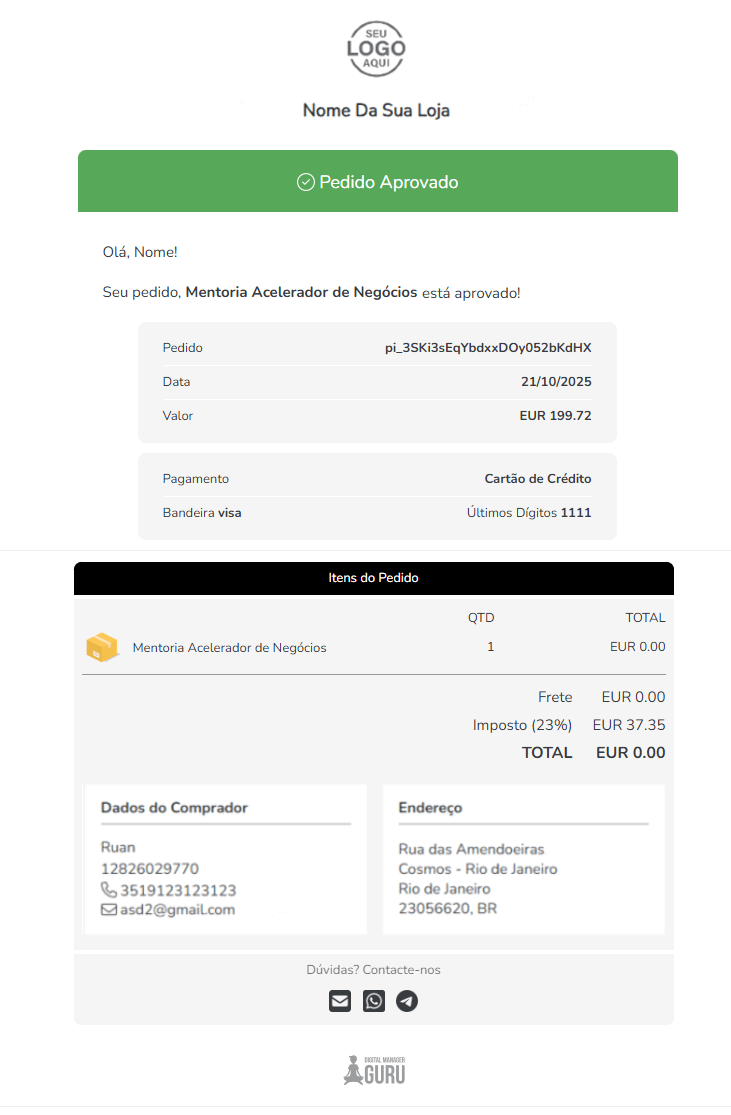
Approved
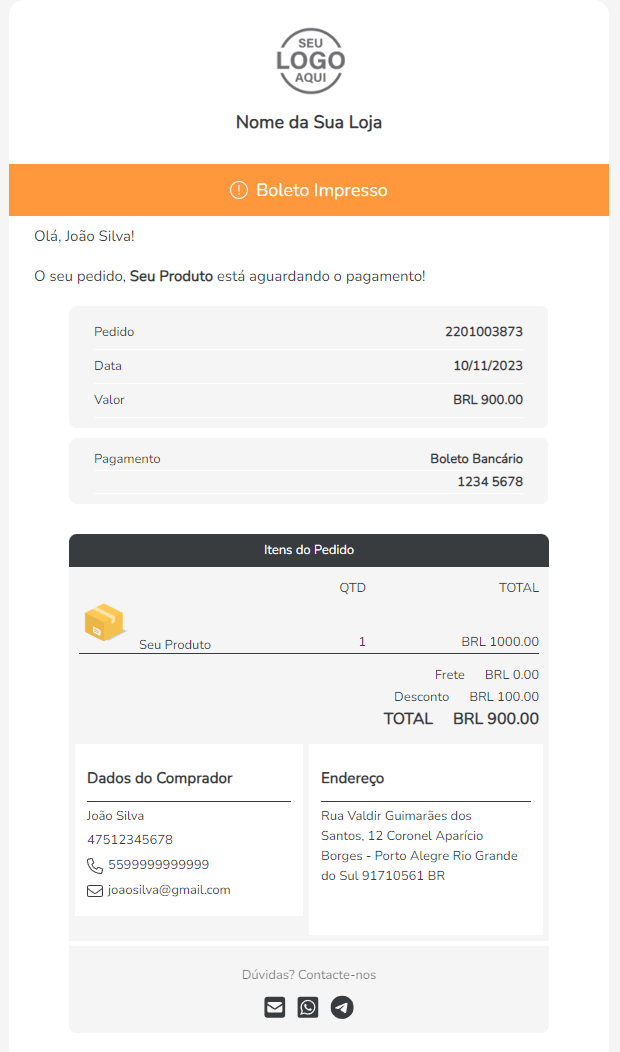
Boleto printed
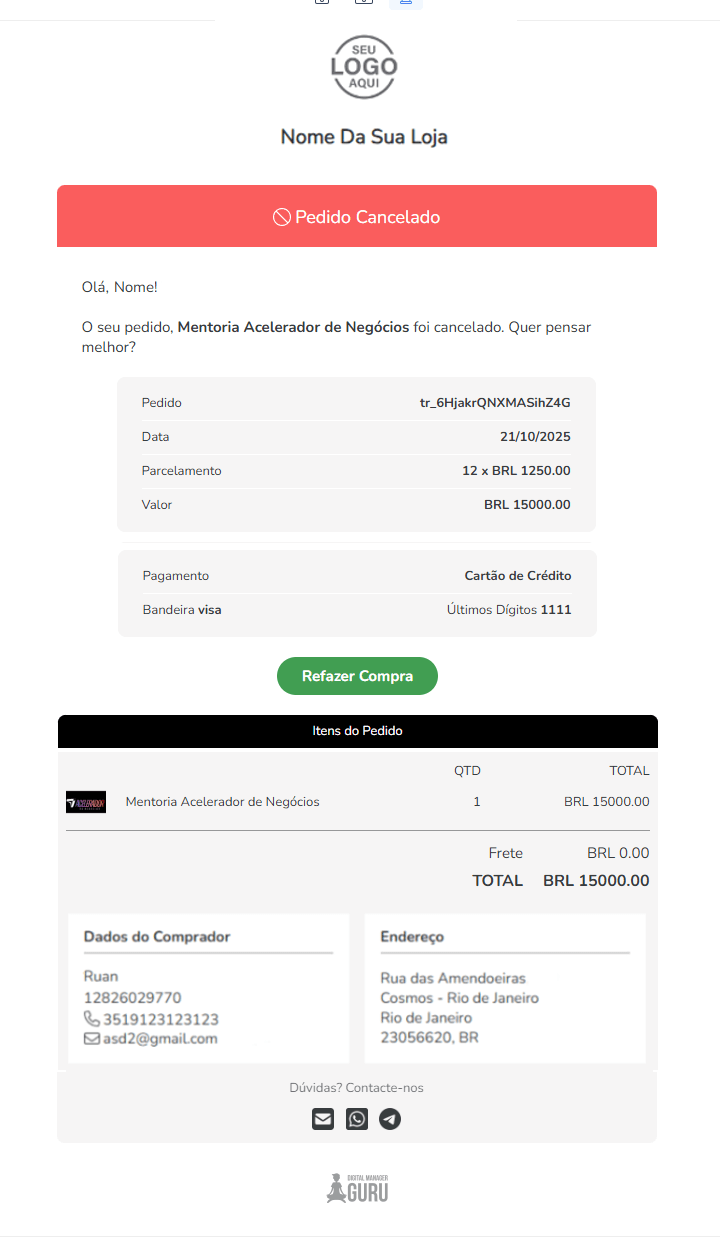
Canceled
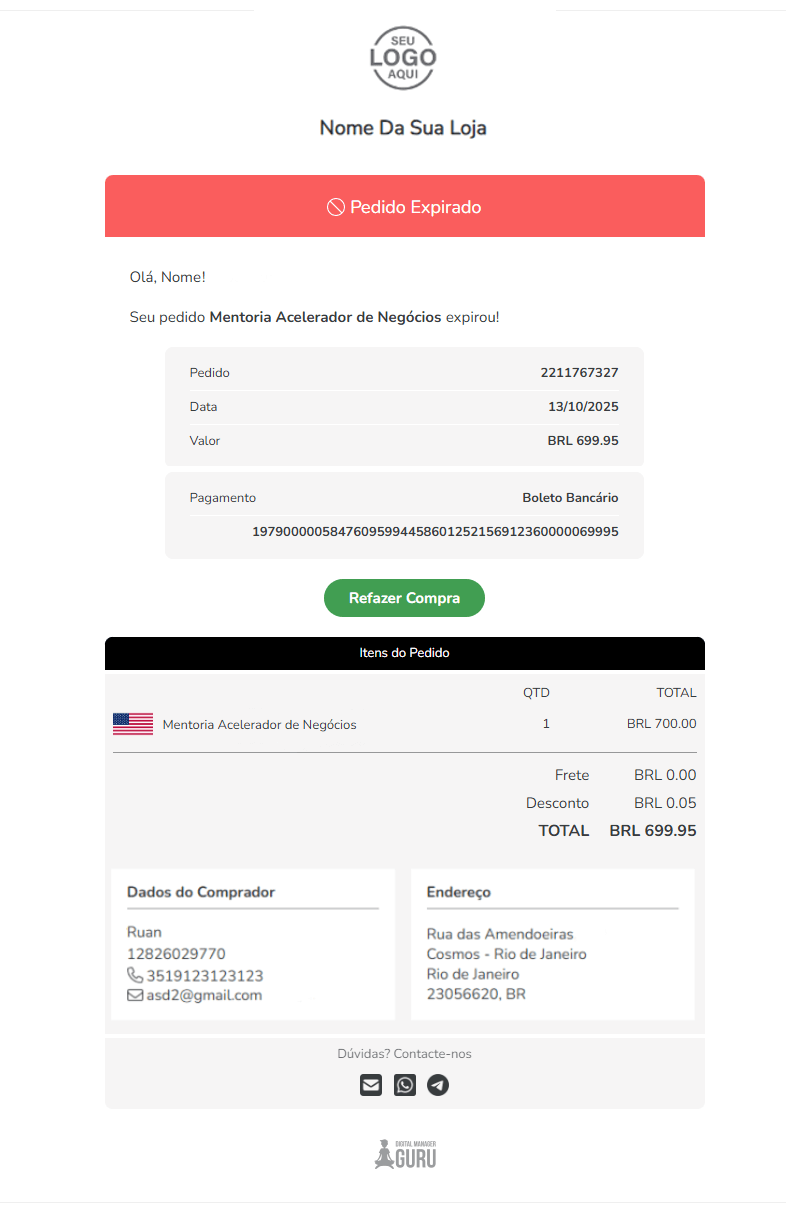
Expired
Refunded
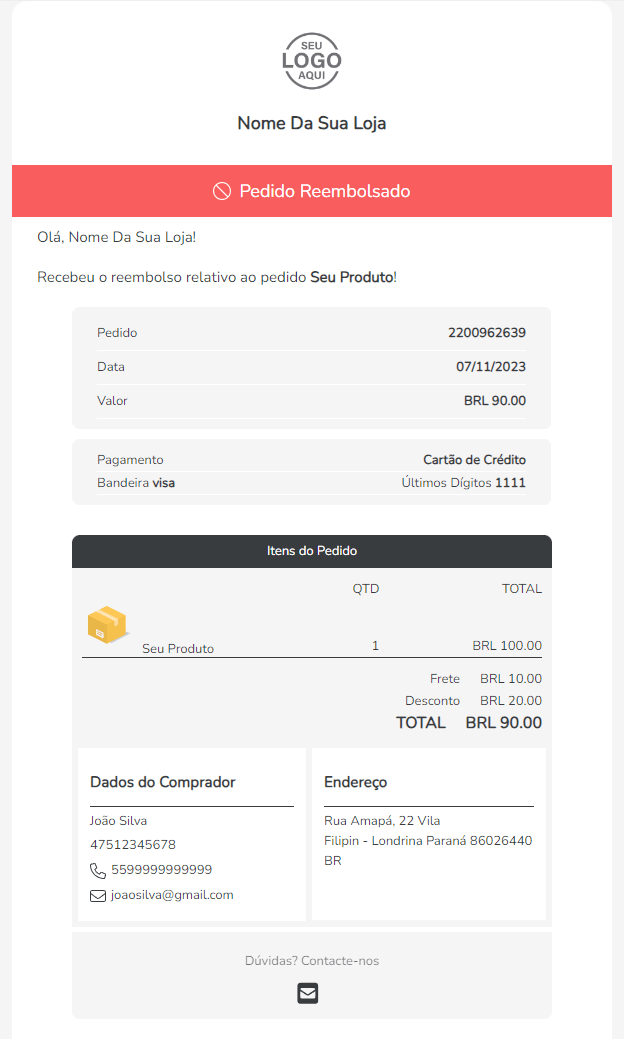
Access the checkout settings to enable sending these transactional emails.
Emails about a Sale (E-tickets)
For each ticket status, a specific type of email is sent.
|
Email type |
Sent when… |
|---|---|
|
Open1(ticket created) |
Tickets have not yet been assigned to a participant - event invitation not sent. |
|
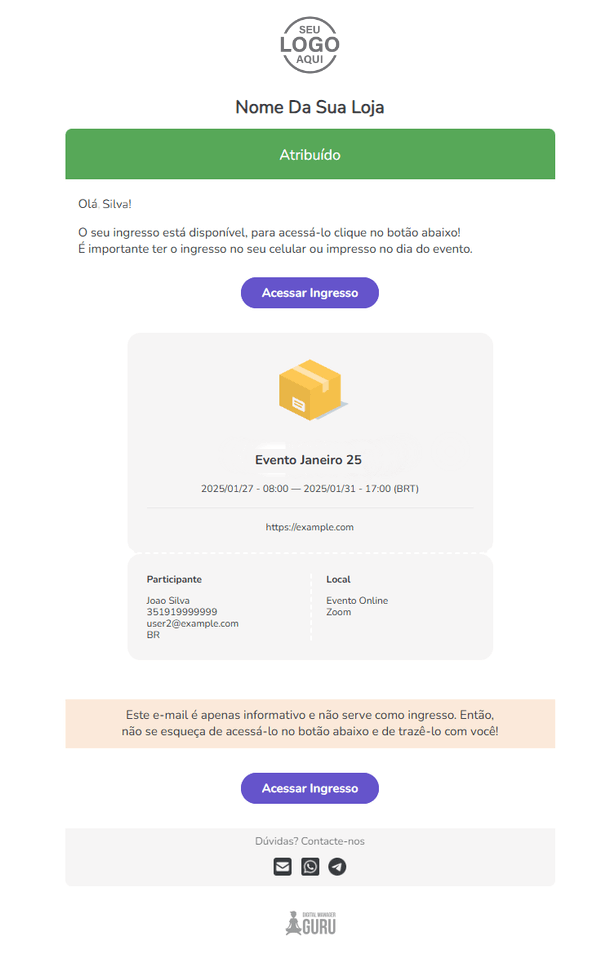
Assigned2 |
The ticket was |
|
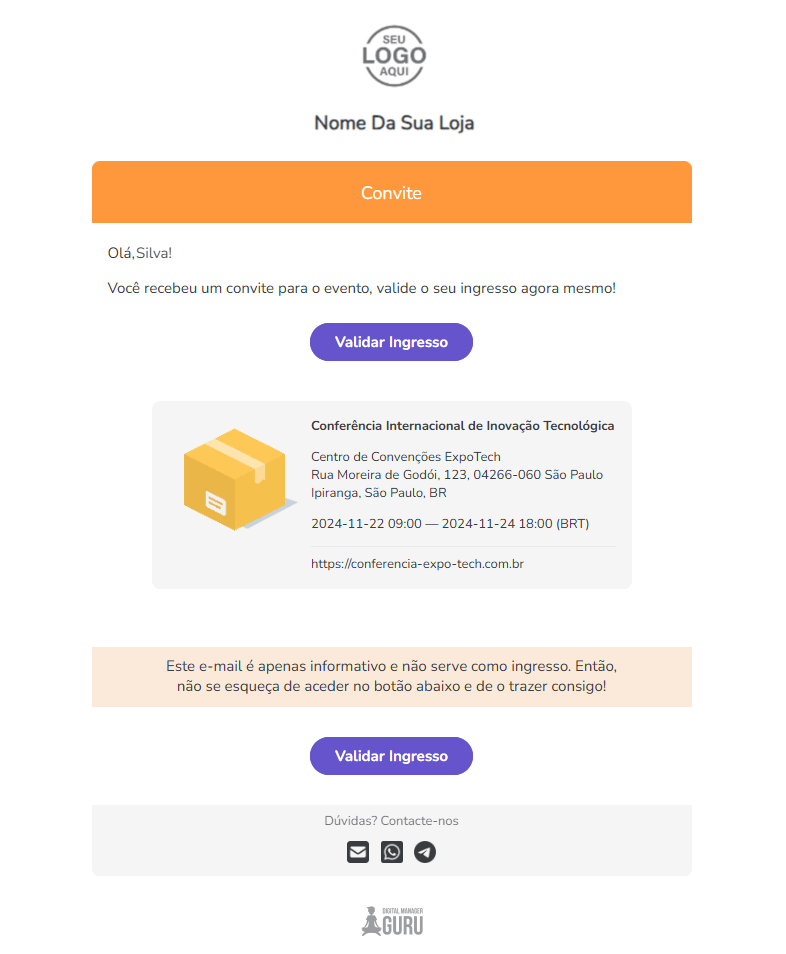
Invited3 |
The event invitation was |
|
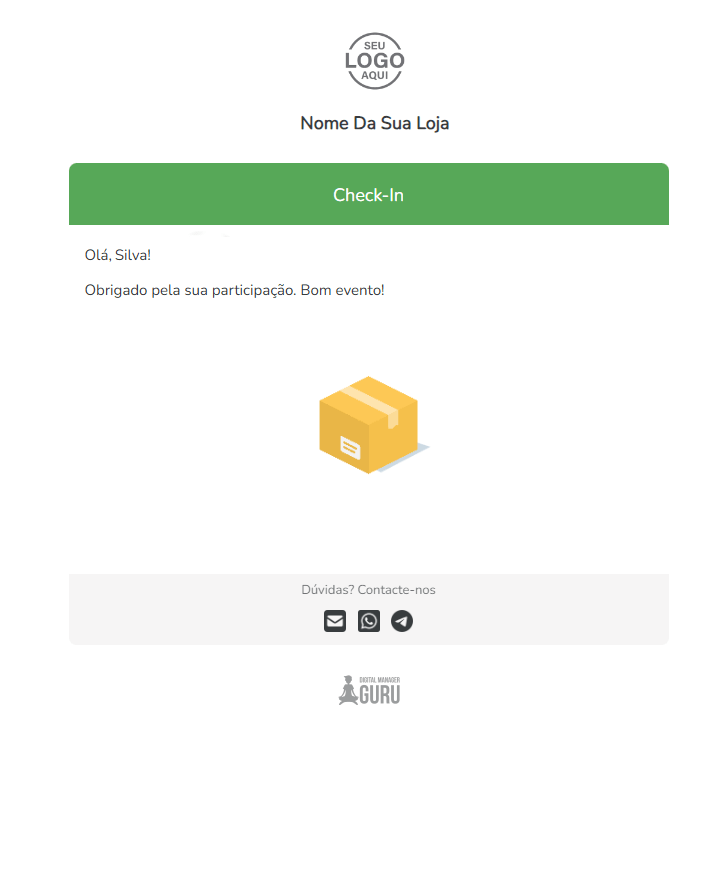
Check-in performed |
The participant performed the |
|
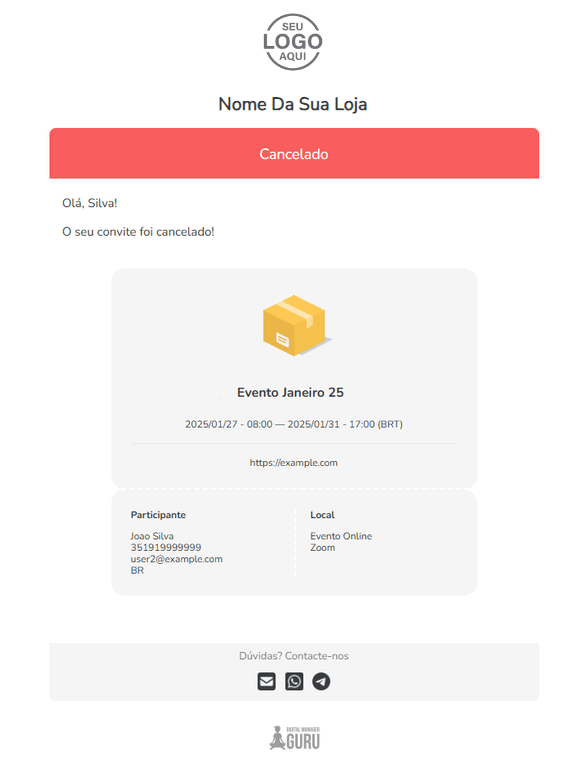
Canceled |
The ticket was |
|
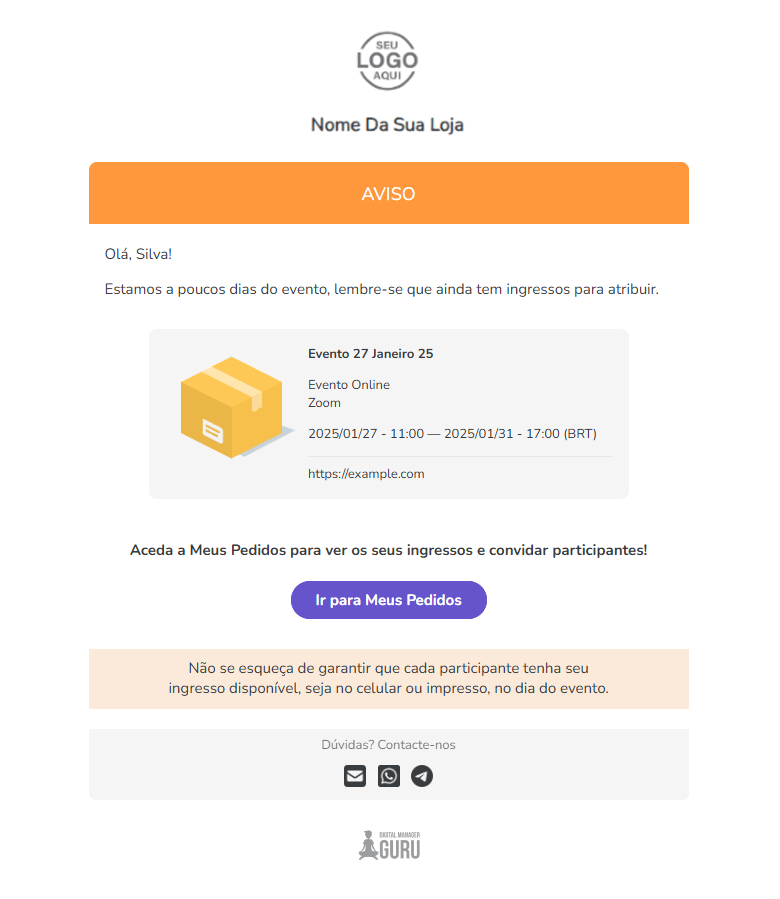
Notices/Reminders (Buyer - Tickets to assign)1 |
The ticket still |
|
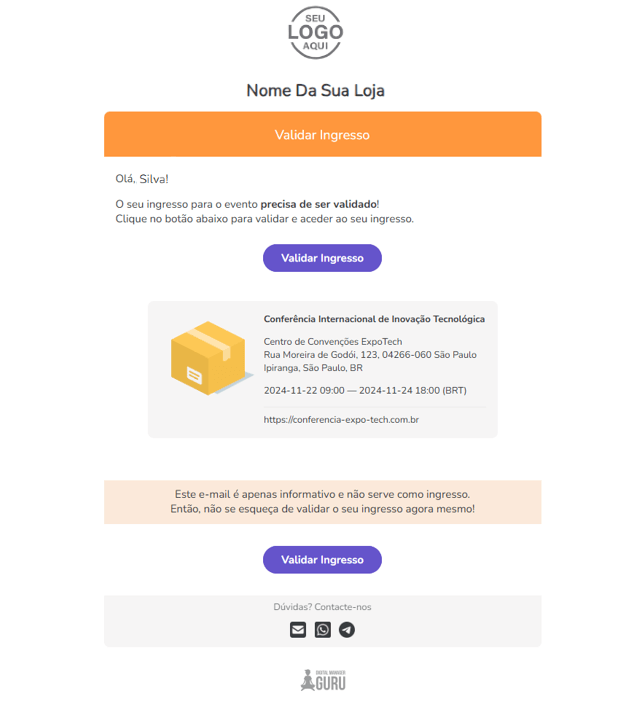
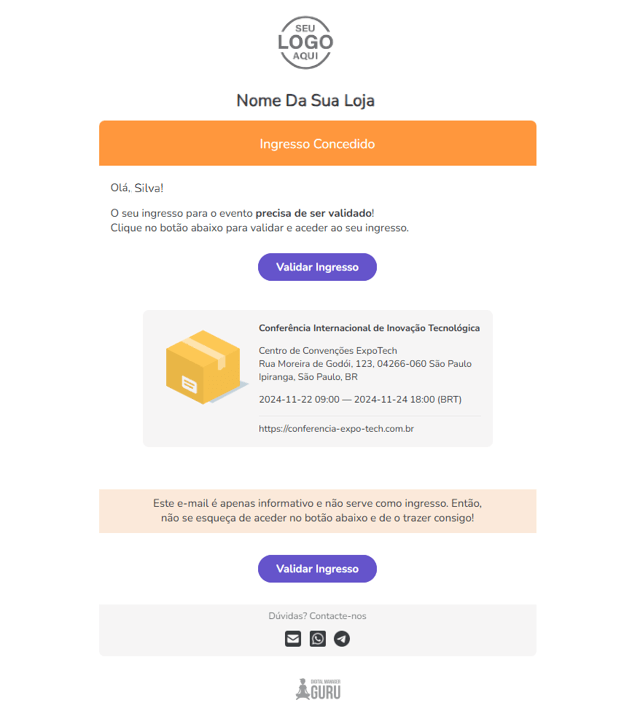
Notices/Reminders (Guest - Tickets to validate)1 |
The ticket needs to be Email sent for ticket validation, containing the notice:
|
|
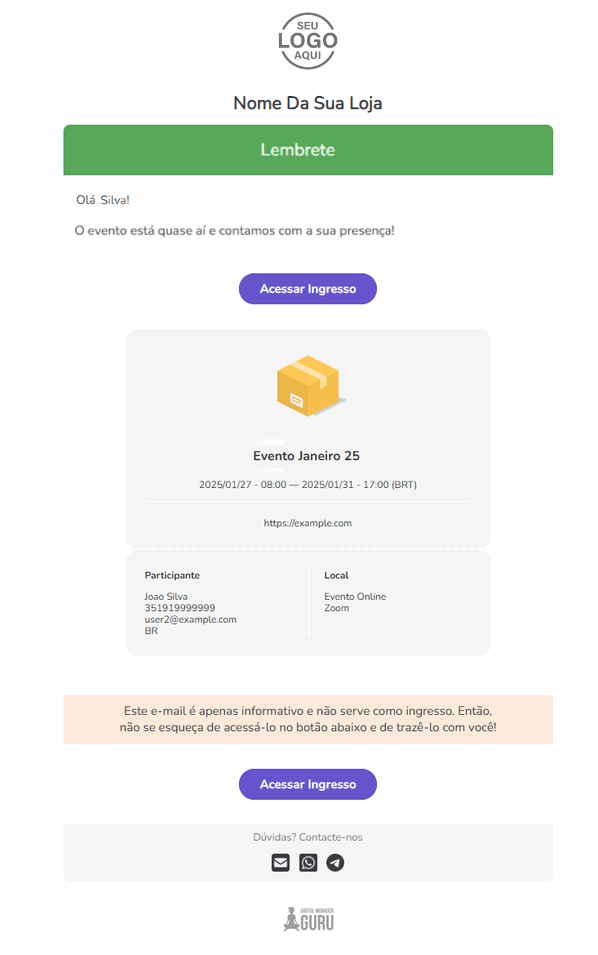
Notices/Reminders (Event start reminder)2 |
The ticket is sent as a reminder that the |
(1) 2 reminder emails are sent: 7 days before the event, an email is sent advising that there are still e-tickets to assign (i.e., the invitation needs to be sent). And when there is guest already associated, an email is sent to them 7 days before, advising that they need to validate the ticket (fill in the form data and generate the ticket).
(2) When the ticket is assigned to a participant, a reminder email will be sent 2 days before the event date.
(3) 2 reminder emails are sent: 7 days before the event, advising the guest that they need to generate the ticket (if they haven't already). And 2 days before the event, a reminder email that the event is about to start with a link to access the ticket.
Previews of standard Guru transactional emails for sales (e-tickets)
Click on the available sections to view the appearance of the standard emails:
Open (Ticket generated)
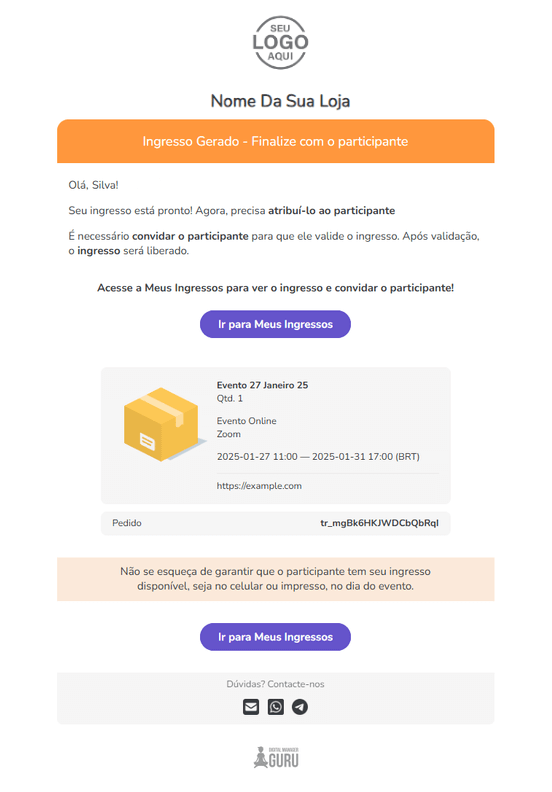
Assigned
Invited
Checked-in
Canceled
Notices/Reminders (Buyer - Tickets to assign)
Notices/Reminders (Guest - Tickets to validate)
Notices/Reminders (Event start reminder)
Emails about the My Orders area
To grant access to the customer or affiliate to the “My Orders” area, the access email (token notification) can be customized.
|
Email type |
Sent when… |
|---|---|
|
Token Notification |
When your customer or affiliate requests access to the My Orders area. |
Add transactional email
You can add a transactional email template for Sales, Subscriptions, and the My Orders area.
Steps:
1 - Access the Guru admin with your username and password.
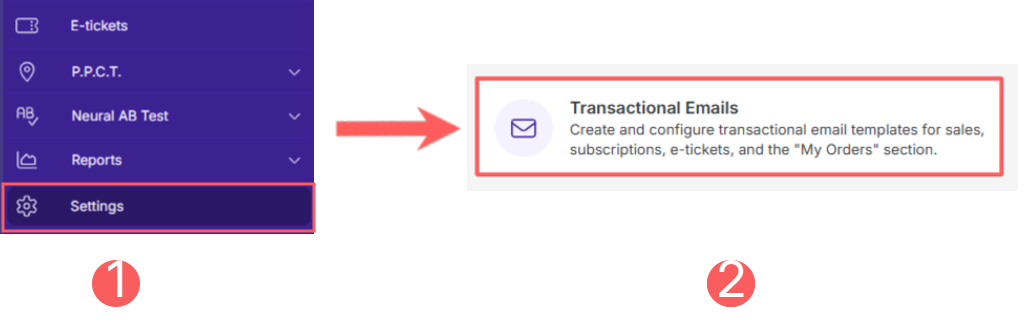
2 - In the side menu, click on Settings and then, Transactional Emails.
3 - According to the type of email you want to configure, select Subscriptions, My Orders or Sales. Example: if you sell a subscription product, select the Subscriptions option.
1.1 - about a Subscription: access the menu Settings » Transactional Emails and click on Subscriptions.
1.2 - about an E-ticket: access the menu Settings » Transactional Emails and click on E-tickets.
1.3 - in the My Orders area: access the menu Settings » Transactional Emails and click on My Orders.
1.4 - about a Sale: access the menu Settings » Transactional Emails and click on Sales.

4 - Click on Add Email.
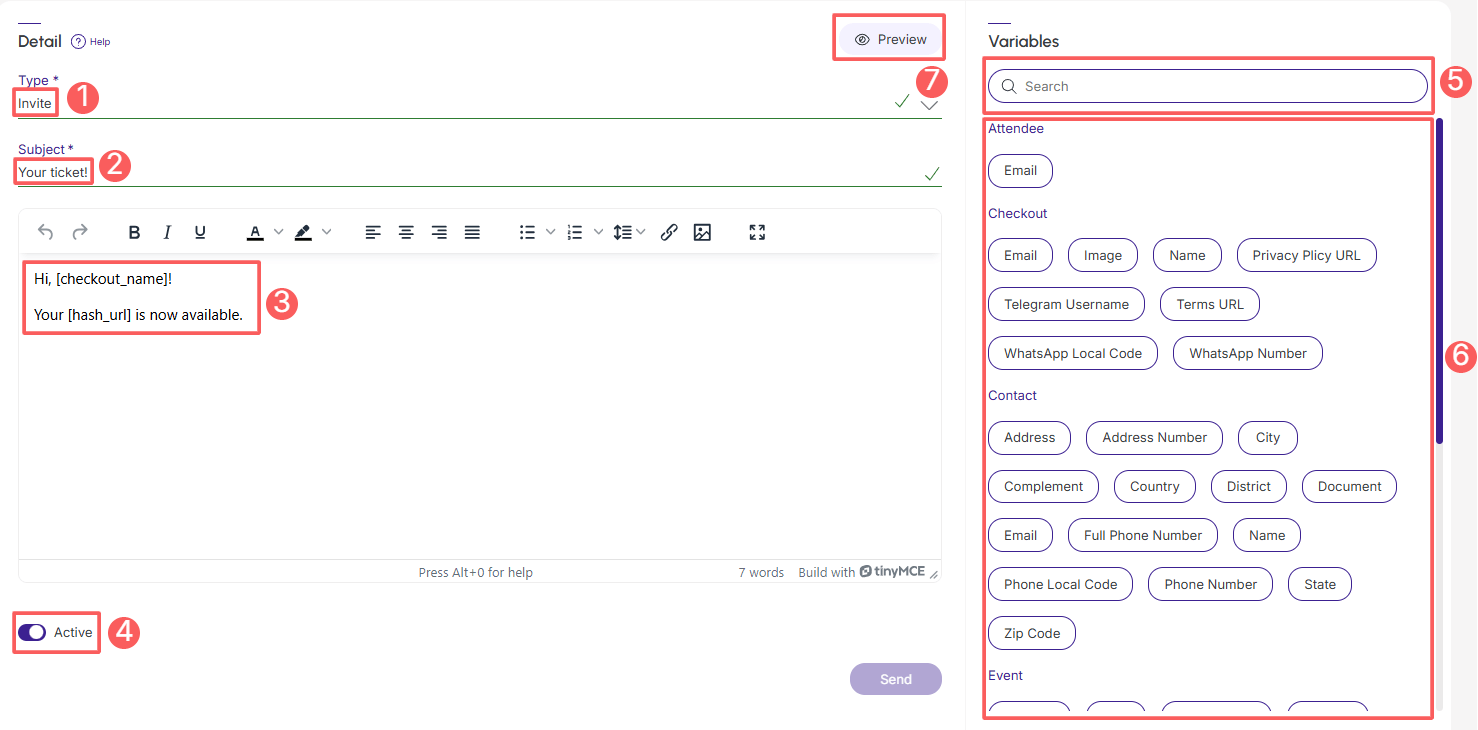
5 - In Detail, fill in the following information:
-
Type: status or situation in which the email is triggered;
-
Subject: enter the text that will be part of the email subject. You can add variables to display personalized or dynamic content;
-
Email: enter the text that will be part of the email body - you can add variables to display personalized or dynamic content;
-
Active: switch the button to the on position.
How to add variables to the transactional email
-
Position the cursor where you want to add the variable (subject or email body)
-
Fill in the field Search (item 5 in the image) to locate the desired variable (optional)
-
Click on the Variable1 (item 6 in the image) desired.
-
1 Most variable names are self-descriptive and their nomenclature describes the context and attribute name, but if needed you can consult the list of variables for signature, sales, product and contact.
6 - Click on Send.
After saving, you can preview the email by clicking the “eye” icon (item 7 in the image above).