
Guru allows complete management of transactional email templates, where you can update, deactivate, and remove emails. For your security and control, all changes are recorded and can be consulted in the “Audit” section.
On this page:
-
Update email template
-
Deactivate email template
-
Remove email template
Before you start, you need…
-
Be an administrator or have permission to perform the following actions.
-
Have one or more transactional emails registered in Guru.
Update email template
You can update an email template by editing information such as type, subject, and the body text of the email. This feature is useful when you want to change the data of a transactional email already registered in Guru and do not want to create a new one.
Steps:
1 - According to the type of email you intend to change:
1.1 - about a Subscription: access the menu Settings » Transactional Emails and click on Subscriptions.
1.2 - about an E-tickets: access the menu Settings » Transactional Emails and click on E-tickets.
1.3 - in the My Orders area: access the menu Settings » Transactional Emails and click on My Orders.
1.4 - about a Sale: access the menu Settings » Transactional Emails and click on Sales.
2 - Select the email you want to change.

3 - Then, change the desired fields:
-
Type: status or situation in which the email is triggered;
-
Subject: enter the text that will be part of the email subject. You can add variables to display personalized or dynamic content;
-
Email: enter the text that will be part of the email body - you can add variables to display personalized or dynamic content;
-
Active1: switch the button to the on or off position.
How to add variables to the transactional email
-
Position the cursor where you want to add the variable (subject or email body)
-
Fill in the field Search (item 5 in the image) to locate the desired variable (optional)
-
Click on the Variable1 (item 6 in the image) desired.
-
1 Most variable names are self-descriptive and their nomenclature describes the context and attribute name, but if needed you can consult the list of variables for signature, sales, product and contact.
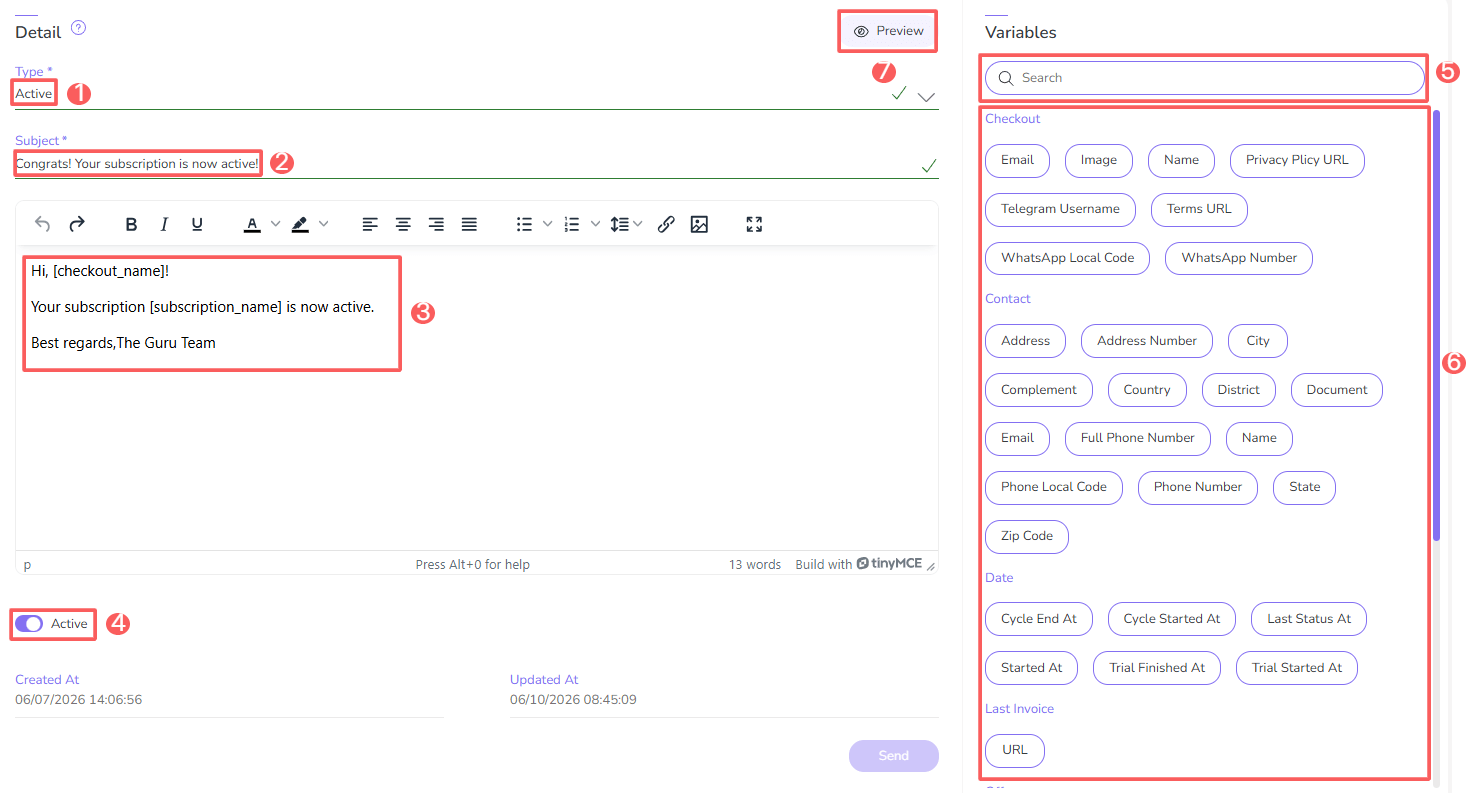
You can preview the email by clicking on the “eye” icon (item 7 in the image above).
When transactional email sending is activated, but there is no corresponding active email template, Guru uses the platform's default template.
Deactivate email template
You can deactivate a transactional email template at any time. This feature is useful when you want to deactivate a registered transactional email if you no longer wish to use it, without removing it.
Steps:
1 - According to the type of email you intend to deactivate:
1.1 - about a Subscription: access the menu Settings » Transactional Emails and click on Subscriptions.
1.2 - about an E-ticket: access the menu Settings » Transactional Emails and click on E-tickets.
1.3 - in the My Orders area: access the menu Settings » Transactional Emails and click on My Orders.
1.4 - about a Sale: access the menu Settings » Transactional Emails and click on Sales.
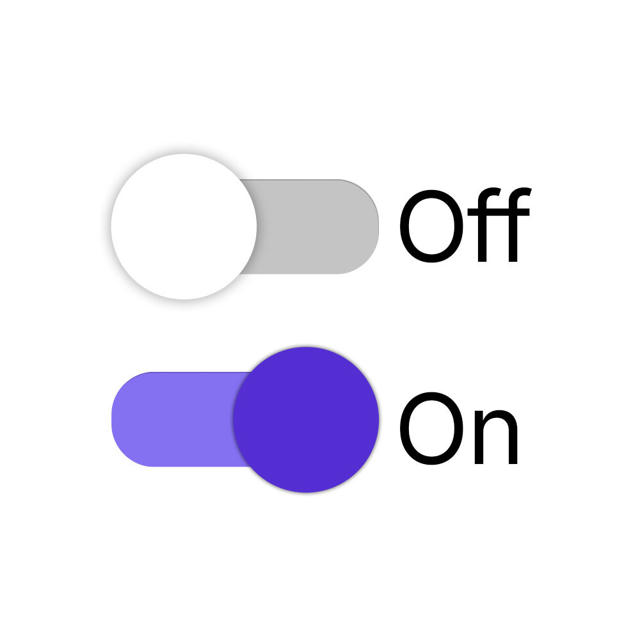
2 - Locate the desired email and change the selector to the desired position (activated or deactivated):

When transactional email sending is activated, but there is no corresponding active email template, Guru uses the platform's default template.
Remove email template
it is possible to remove a transactional email template. When removed, the record is permanently deleted and cannot be restored.
Steps:
1 - According to the type of email you want to remove:
1.1 - about a Subscription: access the menu Settings » Transactional Emails and click on Subscriptions.
1.2 - about an E-ticket: access the menu Settings » Transactional Emails and click on E-tickets.
1.3 - in the My Orders area: access the menu Settings » Transactional Emails and click on My Orders.
1.4 - about a Sale: access the menu Settings » Transactional Emails and click on Sales.
2 - Locate the desired email and click on Remove.

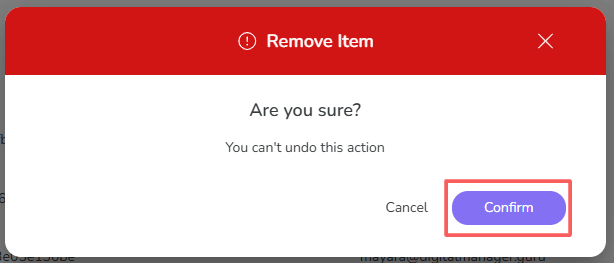
3 - A confirmation window is displayed. If you wish to proceed with the removal, click on Confirm.
When transactional email sending is enabled, but there is no corresponding active email template, Guru uses the platform's default template.