With Guru, you can create user roles, duplicate existing ones to streamline setup, and remove those that are no longer needed, ensuring efficient management and customization of permissions for each member of your team.
On this page:
-
Create Roles
-
Duplicate Roles
-
Delete Roles
Create roles
In this section, you can create roles to associate with users in Guru.
Steps:
1 - Access the guru admin with your username and password.
2 - In the side menu, click on Settings, then click on Roles.
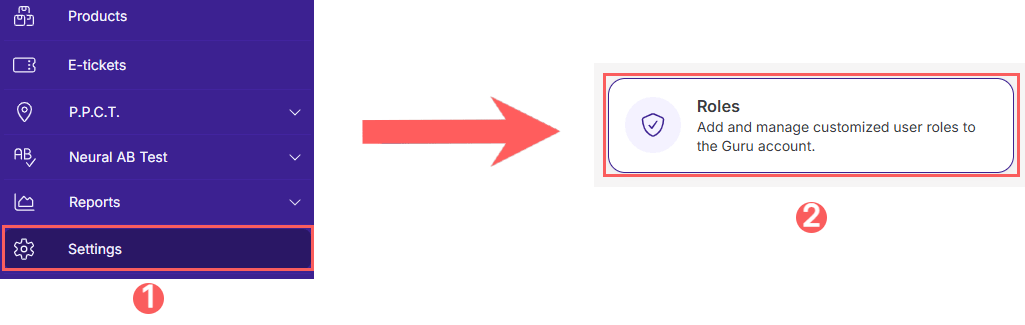
3 - In Roles, click on Add User.

4 - In Create Role, enter:
-
Name: enter the name of the role you want to include;
-
Users: select the user you want to associate with this role.
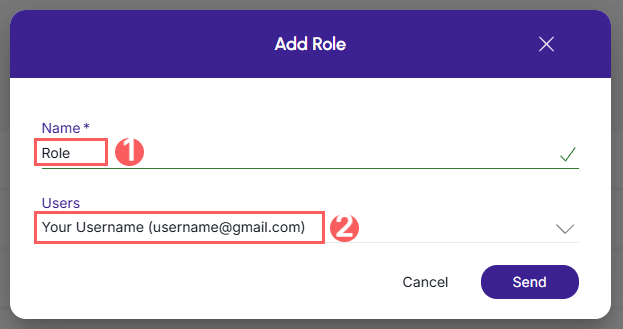
5 - Click on Send.
Access Activate Permissions, to learn more about the permissions you can grant.
Duplicate Roles
To save time, you can duplicate a similar role instead of adding a new one. When using the duplicate feature, Guru copies all information from the original role and creates another role with a different identification code.
To duplicate an existing role, follow the steps below:
Steps:
1 - Hover over the Desired Role and click on Duplicate.

2 - Fill in the information by editing the roles.
Delete Roles
Once created, it is possible to remove roles from your Guru account. This feature is useful when you no longer want the role in the Guru account.
Steps:
1 - Access the guru admin with your username and password.
2 - In the side menu, click on Settings, then click on Roles.
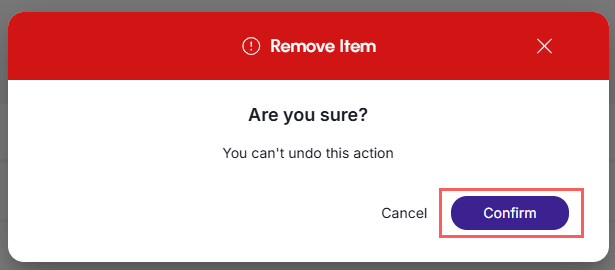
3 - In the listing, locate the desired account and click the Remove button corresponding to it.

4 - Confirm if you want to perform the deletion. To confirm that the role has been deleted, a message will be displayed for a few seconds at the top right of the page.