
In Guru, you can manage the permissions of each role to grant or restrict the level of access and actions that your users can perform on the platform.
On this page:
-
Enable role permissions
Enable role permissions
In this section, you can enable the permissions of the roles associated with users in Guru.
Steps:
1 - Access the guru admin with your username and password.
2 - In the side menu, click on Settings, then click on Roles.
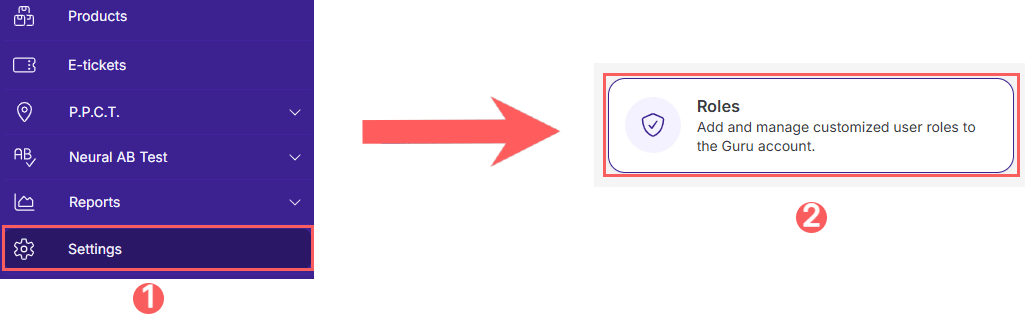
3 - In the list, locate the desired role and click on it.

4 - Consult the items below to define permissions within the role:
Access to Subscriptions
1 - Click on Subscriptions.
2 - In the permissions list, check or uncheck the options:
-
Subscriptions: when active, checks all options below, activating all Subscription permissions;
-
Add Coupon: when active, the user can add coupons to subscriptions;
-
Change Surcharge and Discount: when active, the user can add surcharges and discounts to subscriptions;
-
Change Cancellation at End of Cycle: when active, the user can change the cancellation date at the end of the subscription cycle;
-
Change Credit Card: when active, the user can change the credit card details of subscriptions;
-
Change Trial End Date: when active, the user can change the trial end date of subscriptions;
-
Change Cycle End Date: when active, the user can change the cycle end date of subscriptions;
-
Change Payment Method: when active, the user can change the payment method used for subscriptions;
-
Change Current Offer: when active, the user can change the current offer of subscriptions;
-
Change Renewal Offer: when active, the user can change the renewal offer of subscriptions;
-
Change Installment Plan: when active, the user can change the installment plan used for subscriptions;
-
Cancel Subscriptions: when active, the user can cancel subscriptions;
-
Cancel Downgrade: when active, the user can cancel the downgrade of subscriptions;
-
Export Subscriptions: when active, the user can export the list of subscriptions to XLS;
-
-
Perform Subscription Upgrade/Downgrade: when active, the user can upgrade or downgrade subscriptions;
-
Resend sale to Member Areas: when active, the user can resend sales to the Member Areas of subscriptions;
-
Resend sale to Autoresponders: when active, the user can resend sales to the Autoresponders of subscriptions;
-
Resend sale to Contracts: when active, the user can resend sales to the Contracts of subscriptions;
-
Resend sale to Transactional Emails: when active, the user can resend sales to the Transactional Emails of subscriptions;
-
Resend sale to SMS: when active, the user can resend sales to the SMS of subscriptions;
-
Resend sale to Webhooks: when active, the user can resend sales to the Webhooks of subscriptions;
-
Remove Coupon: when active, the user can remove coupons from subscriptions;
-
End Trial Period: when active, the user can anticipate the end of the trial period for subscriptions;
-
View Subscriptions: when active, the user can view the details of subscriptions;
-
Subscription Options: when active, checks the 3 options below, activating all permissions for Subscription Options;
-
Global Options: when active, the user can change the general settings of subscriptions;
-
Offer Options: when active, the user can change the settings of offers for "Subscription" type products;
-
Product Options: when active, the user can change the settings of "Subscription" type products.
3 - Click on Send.
Access to Registrations
1 - Click on Registrations.
2 - In the permissions list, check or uncheck the options:
-
Registrations: when active, checks all options below, activating all Registration permissions;
-
Affiliates: when active, checks the 4 options below, activating all permissions for Affiliate registration;
-
Update Affiliates: when active, the user can update Affiliate details;
-
View Affiliate: when active, the user can view affiliate details;
-
Contacts: when active, checks the 6 options below, activating all permissions for Contact registration;
-
Anonymize Contact: when active, the user can anonymize contacts;
-
Update Contact: when active, the user can change contact details;
-
Create Contact: when active, the user can add new contacts;
-
Export Contact: when active, the user can export the contact list to XLS;
-
Remove Contact: when active, the user can delete contacts;
-
View Contact: when active, the user can view contact details.
-
View Subscriptions: when active, the user can view subscription details;
-
Change Surcharge and Discount: when active, the user can add surcharges and discounts to contact subscriptions;
-
Change Cancellation at End of Cycle: when active, the user can change the cancellation date at the end of the contact subscription cycle;
-
Change Credit Card: when active, the user can change the credit card details of contact subscriptions;
-
Change Trial End Date: when active, the user can change the trial end date of contact subscriptions;
-
Change Cycle End Date: when active, the user can change the cycle end date of contact subscriptions;
-
Change Payment Method: when active, the user can change the payment method used for contact subscriptions;
-
Change Current Offer: when active, the user can change the current offer of contact subscriptions;
-
Change Renewal Offer: when active, the user can change the renewal offer of contact subscriptions;
-
Change Installment Plan: when active, the user can change the installment plan used for contact subscriptions;
-
Cancel Subscriptions: when active, the user can cancel contact subscriptions;
-
Cancel Downgrade: when active, the user can cancel the downgrade of contact subscriptions;
-
Export Subscriptions: when active, the user can export the list of subscriptions to XLS;
-
Perform Subscription Upgrade/Downgrade: when active, the user can upgrade or downgrade contact subscriptions;
-
Resend sale to Member Areas: when active, the user can resend sales to the Member Areas of contact subscriptions;
-
Resend sale to Autoresponders: when active, the user can resend sales to the Autoresponders of contact subscriptions;
-
Resend sale to Contracts: when active, the user can resend sales to the Contracts of contact subscriptions;
-
Resend sale to Transactional Emails: when active, the user can resend sales to the Transactional Emails of contact subscriptions;
-
Resend sale to SMS: when active, the user can resend sales to the SMS of contact subscriptions;
-
Resend sale to Webhooks: when active, the user can resend sales to the Webhooks of contact subscriptions;
-
End Trial Period: when active, the user can anticipate the end of the trial period for contact subscriptions;
-
View E-ticket: when active, the user can view e-ticket details;
-
Create E-ticket: when active, the user can add new tickets;
-
View Sales: when active, the user can view sales details;
-
Cancel Shipping with Carrier: when active, the user can cancel shipping with the integrated carrier;
-
Create Shipping with Carrier: when active, the user can create a shipment with the integrated carrier;
-
Export Sales: when active, the user can export the sales list to XLS;
-
Generate New Charge: when active, the user can generate a new charge for contacts;
-
Mark as chargeback: when active, the user can mark the sale as a chargeback;
-
Fill in Invoice Data: when active, the user can update invoice data;
-
Refund Sales: when active, the user can create a sales refund request;
-
Resend sales status:
-
Resend sale to Billing: when active, the user can resend sales to the Billing of contact subscriptions;
-
Resend sale to Member Area: when active, the user can resend sales to the Member Area of contacts;
-
Resend sale to Autoresponders: when active, the user can resend sales to the Autoresponders of contacts;
-
Resend sale to Contracts: when active, the user can resend sales to the Contracts of contact subscriptions;
-
Resend sale to Ecommerces: when active, the user can resend sales to the Ecommerces of contact subscriptions;
-
Resend sale to Transactional Emails: when active, the user can resend sales to the Transactional Emails of contact subscriptions;
-
Resend sale to SMS: when active, the user can resend sales to the SMS of contact subscriptions;
-
Resend sale to Webhooks: when active, the user can resend sales to the Webhooks of contact subscriptions;
-
E-ticket: when active, checks all options below, activating all E-ticket permissions;
-
Cancel Check-in: when active, the user can cancel the contact's check-in;
-
Cancel Invitation: when active, the user can cancel the contact's ticket invitation;
-
Cancel E-ticket: when active, the user can cancel the contact's ticket;
-
Invite Participant: when active, the user can invite the participant;
-
Export E-tickets: when active, the user can export the list of e-tickets to XLS;
-
Perform Accreditation: when active, the user can perform contact accreditation;
-
Resend e-ticket to webhooks: when active, the user can resend e-tickets to the Webhooks of contact subscriptions;
-
View Invitation: when active, the user can view invitation details;
-
View E-ticket: when active, the user can view e-ticket details;
-
Contact Groups: when active, the user can have Contact groups;
-
Update Contact Groups: when active, the user can change contact group details;
-
Create Contact Group: when active, the user can create a group for contacts;
-
Remove Contact Group: when active, the user can delete the contact group;
-
View Contact Group: when active, the user can view contact group details;
-
Leads: when active, checks the 2 options below, activating all permissions for Lead registration;
-
Export Leads: when active, the user can export the list of leads to XLS;
-
View Lead: when active, the user can view Lead details;
-
Producers: when active, checks the 4 options below, activating all permissions for Producer registration;
-
Affiliations: when active, checks the 7 options below, activating all permissions for Affiliation registration;
-
Update Affiliations: when active, the user can change affiliation details;
-
Update Commission: when active, the user can change commission details;
-
Create Affiliations: when active, the user can create affiliations;
-
Manage Resources: when active, the user can manage affiliate resources;
-
List Affiliations: activate or deactivate the affiliations you want1;
-
Remove Affiliation: when active, the user can delete the affiliation;
-
View Commission: when active, the user can view commission details.
-
Update Product: when active, the user can change product details;
-
Create Product: when active, the user can add new products;
-
Export Affiliations: when active, the user can export the list of affiliations to XLS;
-
Export Products: when active, the user can export the list of products to XLS;
-
Product Groups: when active, the user can have Product groups;
-
Update Group: when active, the user can change product group details;
-
Create Group: when active, the user can create a group for products;
-
Remove Group: when active, the user can delete the product group;
-
View Group: when active, the user can view product group details;
-
Remove Product: when active, the user can delete products;
-
View Product: when active, the user can view product details;
-
Users: when active, checks all options below, activating all permissions for users;
-
Manage API Tokens: when active, the user can create an API token in the account..
1This list of platforms may appear with more or fewer items.
3 - Click on Send.
Access to Settings
1 - Click on Settings.
2 - In the permissions list, check or uncheck the options:
-
Settings: when active, checks all options below, activating all Settings permissions;
-
Create Recruitment Links: when active, the user can create recruitment links;
-
Remove Recruitment Links: when active, the user can delete recruitment links;
-
View Recruitment Links: when active, the user can view the details of recruitment links;
-
Update Recruitment Links: when active, the user can update the settings of recruitment links;
-
Advertisers: when active, checks permissions for all Advertiser platforms;
-
Advertiser list: activate or deactivate the advertisers you want1;
-
member Area: when active, checks permissions for all Member Area platforms;
-
Member area list: activate or deactivate the member areas you want1;
-
Autoresponders: when active, checks permissions for all Autoresponder platforms;
-
Autoresponder list: activate or deactivate the autoresponders you want1;
-
Credits: when active, checks permissions for all Credit platforms;
-
Contracts: when active, checks permissions for all Contract platforms;
-
Coupons: when active, checks permissions to configure Coupons;
-
Custom Domains: when active, checks permissions to configure Custom Domains;
-
Credit list: activate or deactivate the credit platforms you want1;
-
E-commerce: when active, checks permissions for all E-commerce platforms;
-
E-commerce list: activate or deactivate the e-commerce platforms you want1;
-
Transactional Emails: when active, checks permissions to configure Transactional Emails;
-
Billing: when active, checks permissions for all Billing platforms;
-
Billing list: activate or deactivate the billing platforms you want1;
-
Marketplaces: when active, checks permissions for all Marketplaces (External Checkout and Guru Checkout);
-
Marketplace list: activate or deactivate the marketplaces you want1;
-
Checkout Options: when active, checks the 3 options below, activating all permissions for Checkout settings;
-
Global Options: when active, the user can change the general Checkout options (Settings > Checkout);
-
Offer Options: when active, the user can change the Checkout options for each offer;
-
Product Options: when active, the user can change the Checkout options for each product;
-
Manage Payees: when active, checks permissions to manage Payees;
-
View Payee Balances: when active, the user can view the Payee's balances;
-
Create Payee Transfer: when active, the user can create Payee transfers;
-
View Payee Transfer: when active, the user can view the transfers made by the Payee;
-
SMS: when active, checks permissions for all SMS platforms;
-
Sms list: activate or deactivate the SMS platforms you want1;
-
Carriers: when active, checks permissions for all Carriers;
-
Carrier list: activate or deactivate the carriers you want1;
-
Webhooks: when active, the user can change webhook settings;
1This list of platforms may appear with more or fewer items.
3 - Click on Submit.
Access to Dashboards
1 - Click on Dashboards.
2 - In the permissions list, check or uncheck the options:
-
Dashboards: when active, checks all options below, activating all Dashboard permissions;
-
Customers: when active, the user can view the customer dashboard;
-
Sales: when active, the user can view the sales dashboard;
-
Subscriptions: when active, the user can view the subscriptions dashboard;
-
Checkout Tracking: when active, the user can view the checkout tracking dashboard;
-
Tracking Summary: when active, the user can view the tracking summary dashboard;
-
Lead Tracking: when active, the user can view the lead tracking dashboard;
-
Sales Tracking: when active, the user can view the sales tracking dashboard;
-
Tracking Summary for all users: when active, the user can view the dashboard with the tracking summary for all users.
3 - Click on Submit.
Access to Reports
1 - Click on Reports.
2 - In the permissions list, check or uncheck the options:
-
Reports: when active, checks all options below, activating all Report permissions;
-
Affiliates: when active, the user can view reports on affiliates;
-
Export Affiliates: when active, the user can export the affiliate list to XLS;
-
Daily summary: when active, the user can view the daily sales summary report.
-
Invoices: when active, checks the option below and the user can view invoice reports;
-
Export Invoices: when active, the user can export the invoice list to XLS.
3 - Click on Submit.
Access to R.P.P.C
1 - Click on R.P.P.C.
2 - In the permissions list, check or uncheck the options:
-
R.P.P.C.: when active, checks all options below, activating all R.P.P.C. permissions;
-
R.P.P.C. Groups: when active, checks the 5 options below, activating all permissions for R.P.P.C. groups;
-
Update: when active, the user can change the settings of R.P.P.C. groups;
-
Create: when active, the user can add new R.P.P.C. groups;
-
Remove: when active, the user can delete R.P.P.C. groups;
-
View Items From All Owners: when active, the user can view R.P.P.C. groups created by all other users or admins;
-
View: when active, the user can view the details of the R.P.P.C. group;
-
Report Traffic Cost: when active, the user can enter the value of traffic costs in the R.P.P.C.;
-
CAPTURE R.P.P.C.: when active, checks the 8 options below, activating all permissions for Capture R.P.P.C.s;
-
Activate: when active, the user can activate any Capture R.P.P.C.;
-
Update: when active, the user can change the settings of Capture R.P.P.C.s;
-
Create: when active, the user can add new Capture R.P.P.C. groups;
-
Deactivate: when active, the user can deactivate any Capture R.P.P.C.;
-
Remove: when active, the user can delete Capture R.P.P.C.s;
-
View Items From All Owners: when active, the user can view Capture R.P.P.C.s created by all other users or admins;
-
View: when active, the user can view the details of Capture R.P.P.C.s;
-
View Lead Activity: when active, the user can view the activity of leads associated with Capture R.P.P.C.s;
-
CHECKOUT R.P.P.C.: when active, checks the 10 options below, activating all permissions for Checkout R.P.P.C.s;
-
Activate: when active, the user can activate any Checkout R.P.P.C.;
-
Update: when active, the user can change the settings of Checkout R.P.P.C.s;
-
Create: when active, the user can add new Checkout R.P.P.C. groups;
-
Deactivate: when active, the user can deactivate any Checkout R.P.P.C.;
-
Remove: when active, the user can delete Checkout R.P.P.C.s;
-
View Items From All Owners: when active, the user can view Checkout R.P.P.C.s created by all other users or admins;
-
View: when active, the user can view the details of Checkout R.P.P.C.s;
-
View Lead Activity: when active, the user can view the activity of leads associated with Checkout R.P.P.C.s;
-
View Statistics: when active, the user can view the metrics and statistics of Checkout R.P.P.C.s;
-
View Sales: when active, the user can view the sales associated with Checkout R.P.P.C.s;
-
LEAD R.P.P.C.: when active, checks the 11 options below, activating all permissions for Lead R.P.P.C.s;
-
Activate: when active, the user can activate any Lead R.P.P.C.;
-
Update: when active, the user can change the settings of Lead R.P.P.C.s;
-
Create: when active, the user can add new Lead R.P.P.C. groups;
-
Deactivate: when active, the user can deactivate any Lead R.P.P.C.;
-
Remove: when active, the user can delete Lead R.P.P.C.s;
-
View Items From All Owners: when active, the user can view Lead R.P.P.C.s created by all other users or admins;
-
View: when active, the user can view the details of Lead R.P.P.C.s;
-
View Lead Activity: when active, the user can view the activity of leads associated with Lead R.P.P.C.s;
-
View Statistics: when active, the user can view the metrics and statistics of Lead R.P.P.C.s;
-
View Funnel: when active, the user can view the funnel associated with each Lead R.P.P.C.;
-
View Sales: when active, the user can view the sales associated with Lead R.P.P.C.s;
-
SALES R.P.P.C.: when active, checks the 11 options below, activating all permissions for Sales R.P.P.C.s;
-
Activate: when active, the user can activate any Sales R.P.P.C.;
-
Update: when active, the user can change the settings of Sales R.P.P.C.s;
-
Create: when active, the user can add new Sales R.P.P.C. groups;
-
Deactivate: when active, the user can deactivate any Sales R.P.P.C.;
-
Remove: when active, the user can delete Sales R.P.P.C.s;
-
View Items From All Owners: when active, the user can view Sales R.P.P.C.s created by all other users or admins;
-
View: when active, the user can view the details of Sales R.P.P.C.s;
-
View Lead Activity: when active, the user can view the activity of leads associated with Sales R.P.P.C.s;
-
View Statistics: when active, the user can view the metrics and statistics of Sales R.P.P.C.s;
-
View Funnel: when active, the user can view the funnel associated with each Sales R.P.P.C.;
-
View Sales: when active, the user can view the sales associated with Sales R.P.P.C.s.
3 - Click on Submit.
Access to Subaccounts
1 - Click on Subaccounts.
2 - In the permissions list, check or uncheck the options:
-
Subaccounts: when active, checks all options below, activating all Subaccount permissions;
-
Associate Subaccount: when active, the user can associate a subaccount;
-
Update Subaccount: when active, the user can change the subaccount data;
-
Invite Subaccount: when active, the user can view the daily sales summary report.
-
Create Subaccount: when active, the user can create a subaccount;
-
Unlink Subaccount: when active, the user can unlink a subaccount;
-
Impersonate Subaccount: when active, the user can impersonate a subaccount;
-
View Subaccount: when active, the user can view the subaccount details.
3 - Click on Submit.
Access to Neural A/B Test
1 - Click on A/B Test.
2 - In the permissions list, check or uncheck the options:
-
Neural AB Test: when active, checks all options below, activating all permissions for Neural AB Tests;
-
Neural AB Test for Checkouts: when active, checks the 7 options below, activating all permissions for neural AB checkout tests;
-
Activate: when active, the user can activate any AB checkout test:
-
Update: when active, the user can change the settings of the AB checkout tests;
-
Create: when active, the user can add new AB checkout tests;
-
Deactivate: when active, the user can deactivate any AB checkout test;
-
Remove: when active, the user can delete AB checkout tests;
-
View items From All Owners: when active, the user can view AB checkout tests created by all other users or admins;
-
View: when active, the user can view the details of the AB checkout tests;
-
View Sales: when active, the user can view the sales details of the AB Checkout tests.
-
Neural AB Test for Leads: when active, checks the 7 options below, activating all permissions for neural AB lead tests;
-
Activate: when active, the user can activate any AB lead test:
-
Update: when active, the user can change the settings of the AB lead tests;
-
Create: when active, the user can add new AB lead tests;
-
Deactivate: when active, the user can deactivate any AB lead test;
-
Remove: when active, the user can delete AB lead tests;
-
View items From All Owners: when active, the user can view AB lead tests created by all other users or admins;
-
View: when active, the user can view the details of the AB lead tests;
-
View Sales: when active, the user can view the sales details of the AB Lead tests.
-
Neural AB Test for Sales: when active, checks the 7 options below, activating all permissions for neural AB sales tests;
-
Activate: when active, the user can activate any AB sales test:
-
Update: when active, the user can change the settings of the AB sales tests;
-
Create: when active, the user can add new sales AB tests;
-
Deactivate: when active, the user can make any sales AB test inactive;
-
Remove: when active, the user can delete sales AB tests;
-
View Items From All Owners: when active, the user can view sales AB tests created by all other users or admins;
-
View: when active, the user can view the details of sales AB tests;
-
View Sales: when active, the user can view the details of Sales AB tests.
3 - Click on Send.
Sales Access
1 - Click on Sales.
2 - In the permissions list, check or uncheck the options:
-
Sales: when active, checks all options below, activating all permissions for Sales;
-
Resend sale in Billing: when active, the user can resend the sale to the integrated billing platform;
-
Resend sale in Autoresponders: when active, the user can resend the sale to the integrated autoresponder;
-
Update Buyer: when active, the user can change the buyer's data;
-
Mark as chargeback: when active, the user can mark the sale's chargeback;
-
Resend sale in Contracts: when active, the user can resend the sale to the integrated contracts;
-
Resend sale in e-commerce: when active, the user can resend the sale to the integrated e-commerce platform;
-
Cancel Shipping with Carrier: when active, the user can cancel the shipment with the integrated carrier;
-
Create Shipping with Carrier: when active, the user can create a shipment with the integrated carrier;
-
Export Sales: when active, the user can export the sales list to XLS;
-
Fill in Invoice Data: when active, the user can update the invoice data;
-
Refund Sales: when active, the user can create the sales refund request;
-
Reissue Sales: when active, the user can reissue the sale;
-
Synchronize sale status: when active, the user can update the sale status;
-
Resend sale in member areas: when active, the user can resend the sale to the integrated member area;
-
Resend sale in Transactional Emails: when active, the user can resend the sale to the integrated transactional emails;
-
Resend sale in SMS: when active, the user can resend the sale to the integrated SMS platform;
-
Resend sale in Webhooks: when active, the user can resend the webhooks associated with the sale;
-
Resend Sale status: when active, the user can synchronize the sale status;
-
View Sales: when active, the user can consult the sale details.
3 - Click on Send.