
At Guru, you can manage your account, through the accesses granted and received, switch between accounts, if you wish to access another profile's account, enable two-factor authentication, to bring more security to your account, and in addition, you can consult the profile activities and audits.
On this Page:
-
Grant account access
-
Switch between Guru accounts
-
Enable Two-Factor Authentication
-
Consult Profile activities
-
Audit
Grant account access
In the Grant account accessarea, you manage granted accesses and received accesses. In granted accesses, you can consult and delete accesses to your Guru account, as well as view the profiles and accounts of users who have access to your profile.
In received accesses, you can consult and delete the accesses you received to other Guru accounts, as well as view the profiles and accounts of users who granted you access.
See:
Switch between Guru accounts
You can switch between accounts, through the received access. This way, you will have access to other profiles, without having to disconnect from your account.
See:
Enable Two-Factor Authentication
In the Enable Two-Factor Authentication area, you will enable 2-factor authentication in Guru.
See:
Enable Two-Factor Authentication
Consult Profile activities
In the Profile Activities area, you can consult the data of all users and everyone who has access to your Guru account profile, such as updated user, user login, updated integration configuration, created product, among others. To do this, follow the steps below:
Steps:
1 - Access the guru admin with your username and password.
2 - In the top right menu, click on My profile.
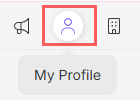
3 - In My Profile, click on Activities.

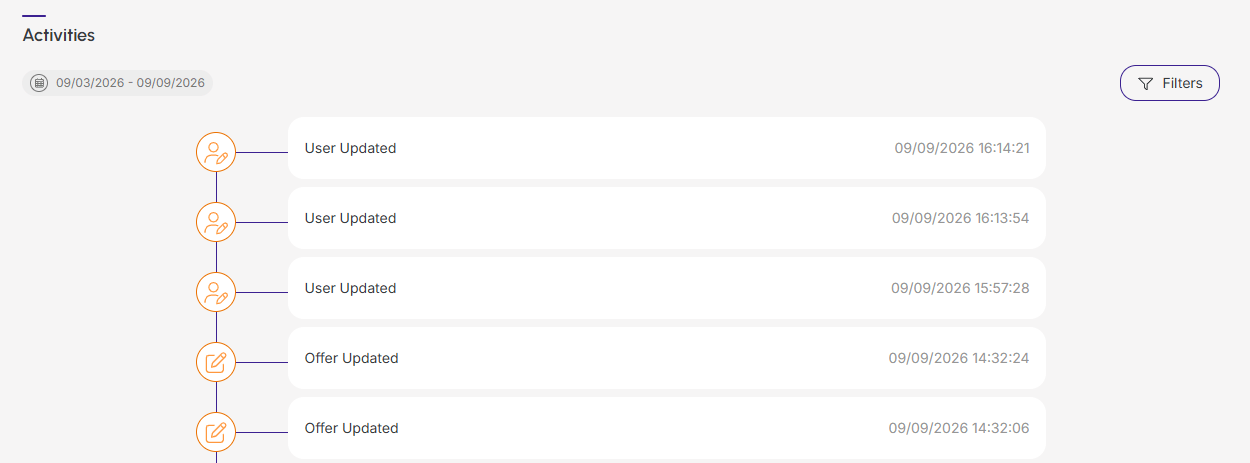
4 - Activities are displayed in a timeline (from most recent to oldest).
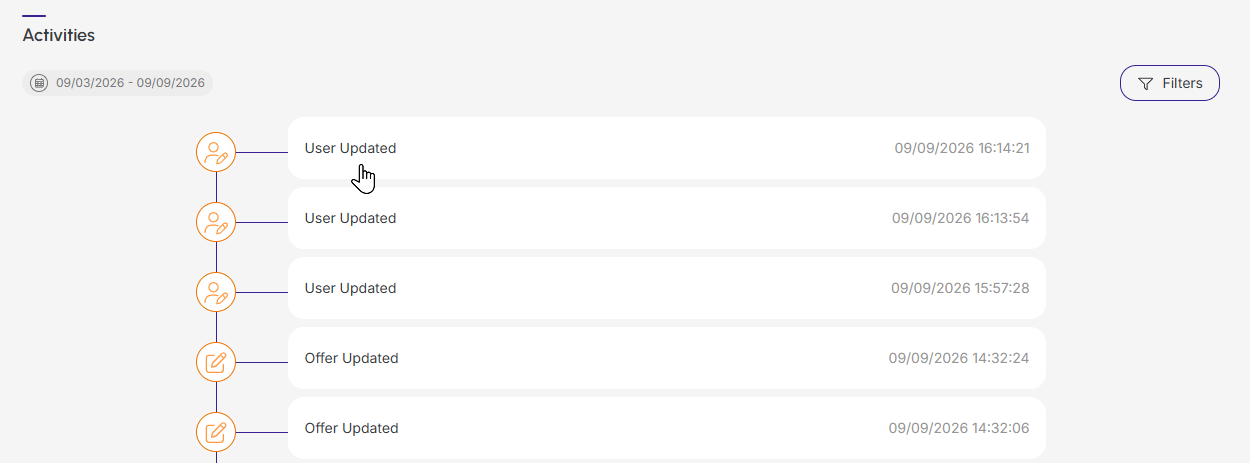
5 - If desired, you can view the activity detail by clicking on its title.
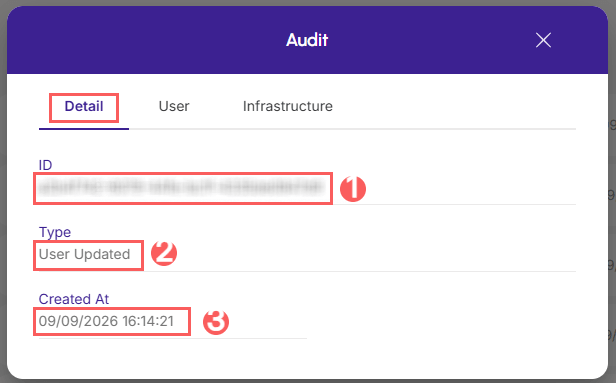
6 - Click on one of the available sections to view the data:
Detail
Displays detailed information about the activity in question.
-
ID: identification number (ID) of the update;
-
Type of change performed;
-
Created at: activity registration date.
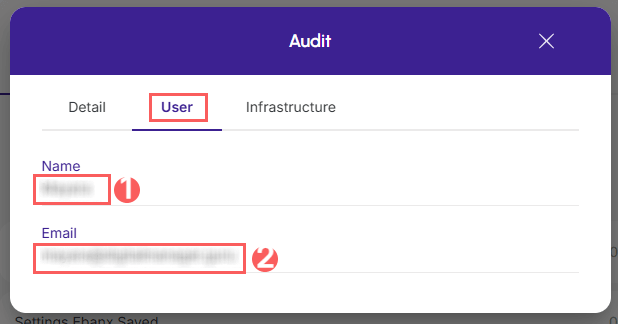
User
Displays information about the user who performed the action.
-
Name: name of the user who performed the operation;
-
Email: email of the user who performed the operation.
Infrastructure
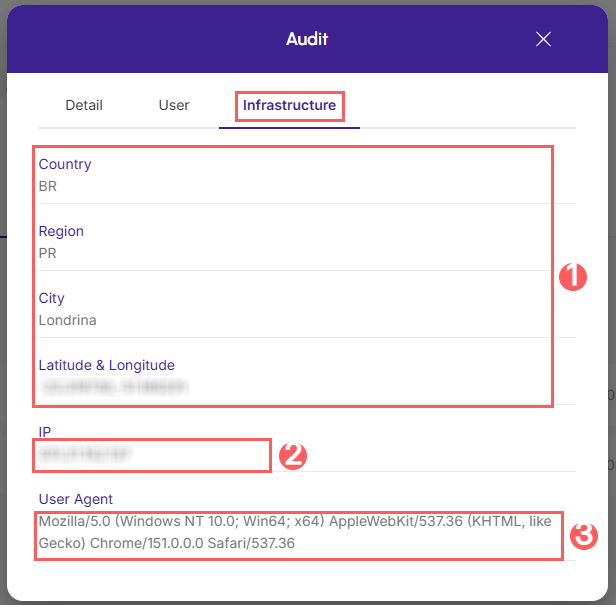
Displays infrastructure information (country, IP, user agent…) of the related activity.
-
Country, Region, City, Latitude & Longitude: location of the device that performed the activity.
-
IP: device IP address.
-
User Agent: identification of the user agent that performed the operation.
Protect your data. Increase your business security.
Create and manage users determining what each collaborator can see and do within the organization.
Audit
As a security measure, Guru stores the history only for the account owner (user) for operations performed on the account, identifying user, date/time of the operation, and other details.
Steps:
1 - Access the guru admin with your username and password.
2 - In the top right menu, click on My profile.
3 - In My Profile, click on Audit.

4 - Activities are displayed in a timeline (from most recent to oldest).
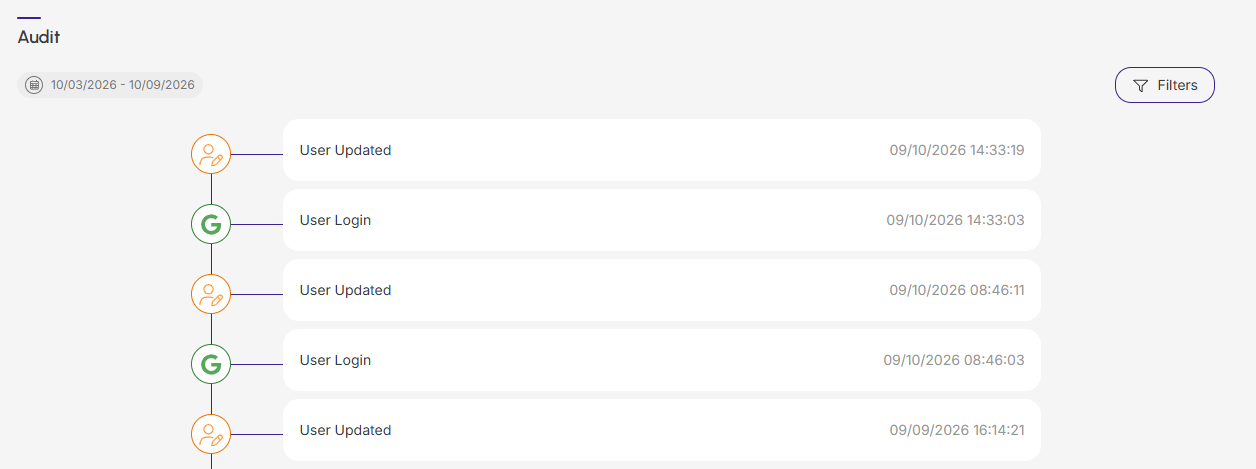
5 - If desired, you can view the activity detail by clicking on its title.
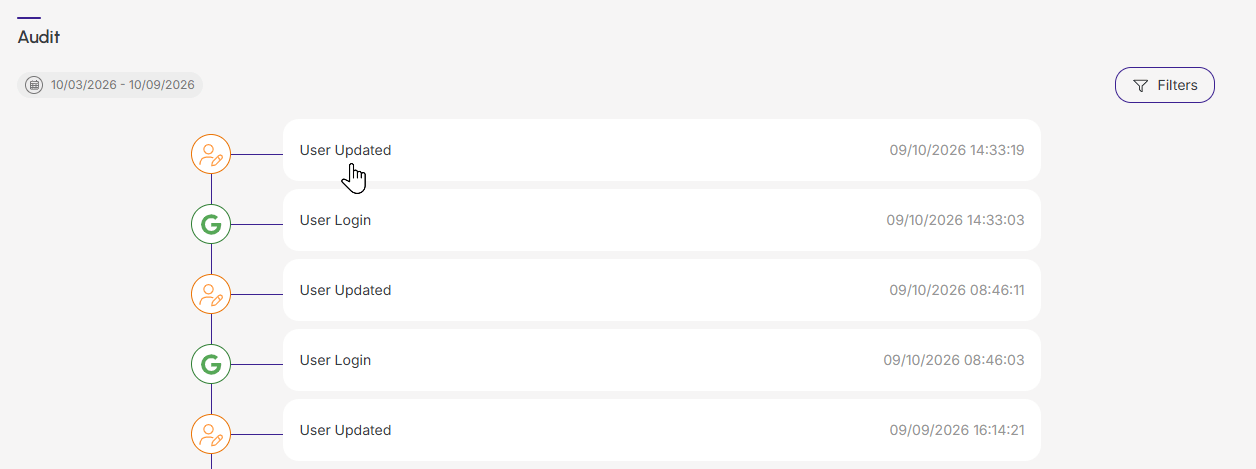
6 - Click on one of the available sections to view the data:
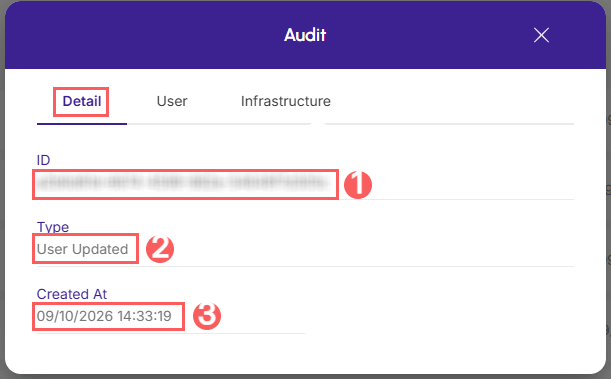
Detail
Displays detailed information about the activity in question.
-
ID: identification number (ID) of the update;
-
Type of change performed;
-
Created at: activity registration date.
User
Displays information about the user who performed the action.
-
Name: name of the user who performed the operation;
-
Email: email of the user who performed the operation.
Infrastructure
Displays infrastructure information (country, IP, user agent…) of the related activity.
-
Country, Region, City, Latitude & Longitude: location of the device that performed the activity.
-
IP: device IP address.
-
User Agent: identification of the user agent that performed the operation.
Protect your data. Increase your business security.
Create and manage users determining what each collaborator can see and do within the organization.
More Resources