
In the Leads A/B Test Detail section, you have a complete view of the settings and status of each test, accessing information such as your test's friendly URL and the product associated with it.
The Audit section records the entire history of changes made to the offer registration, providing transparency and control over each step of the process.
On this page:
-
Detail
-
Audit
-
How to filter the Audit list
-
Detail
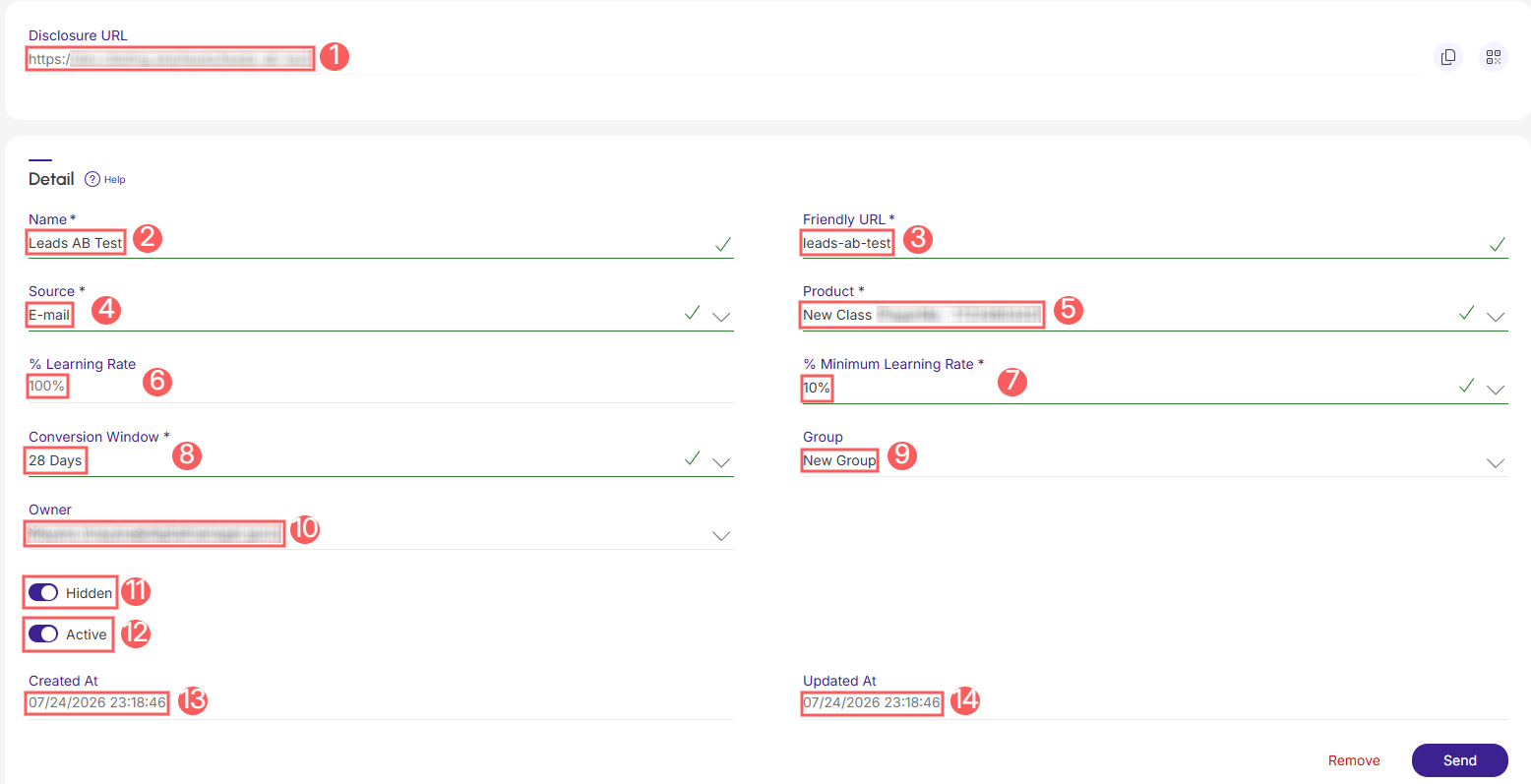
In the Detail section, you can view all information about the Neural Leads A/B Test, such as disclosure URL, name, friendly URL, product, destination URL, origin, group, and user.
Steps:
1 - Select the Neural Leads A/B Test list - a screen with the data will be displayed.
2 - In Detail, the list displays the following information:
-
Disclosure URL: disclosure URL of your Neural Leads A/B Test;
-
Name: name of your Neural Leads A/B Test;
-
Friendly URL: automatically generated from the traffic split name, it is a simple text to remember or type that will appear at the end of the tracked URL - if desired, you can change it;
-
Source: source location of your traffic;
-
Product: product you intend to use in your Neural Leads A/B Test;
-
% Learning Rate: current learning percentage of your Neural Leads A/B Test(1);
-
% Minimum Learning Rate: minimum learning percentage;
-
Conversion Window: duration of your Neural Leads A/B Test;
-
Group: group it belongs to(2);
-
Owner: owner of the Neural Leads A/B Test;
-
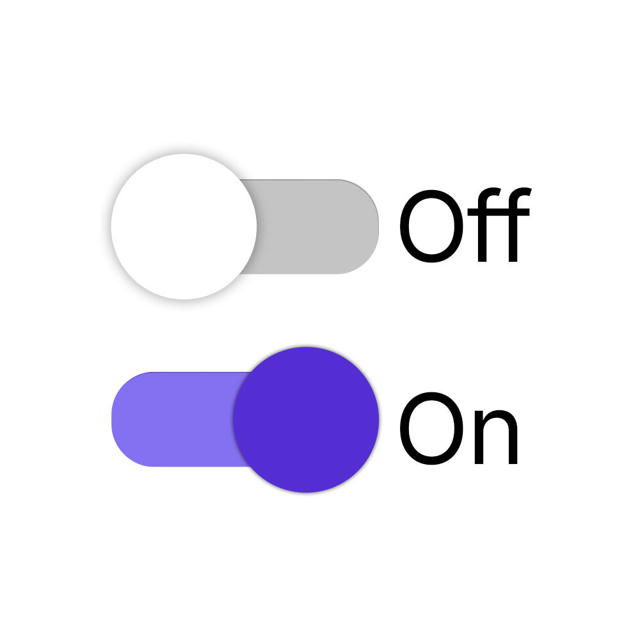
Hidden: when activated, hides the Neural Leads A/B Test from the list - the disclosure URL will remain active;
-
Active: to activate the Neural Leads A/B Test, switch the button to the active position;
-
Created At:
-
Updated At:
(1) As conversions occur, the learning % gradually decreases from 100% to a maximum of the minimum learning percentage defined by the user when creating the A/B Test - Ex.: if the current percentage is 80%, it means that Guru is sending 20% of the traffic to the winning page and 80% of the traffic is being proportionally divided among all pages and so on.
(2) This field is optional and will only appear filled if you have already created a group.
Audit
As a security measure, Guru stores a history of all operations performed in the offer registration, identifying user, date/time of the operation, and other details.
Steps:
1 - Select the Neural Leads A/B Test list - a screen with the data will be displayed.
2 - Click on the Audit tab.
3 - Activities are displayed in a timeline (from most recent to oldest).

4 - If desired, you can view the activity detail by clicking on its title.

5 - Click on one of the available sections to view the data:
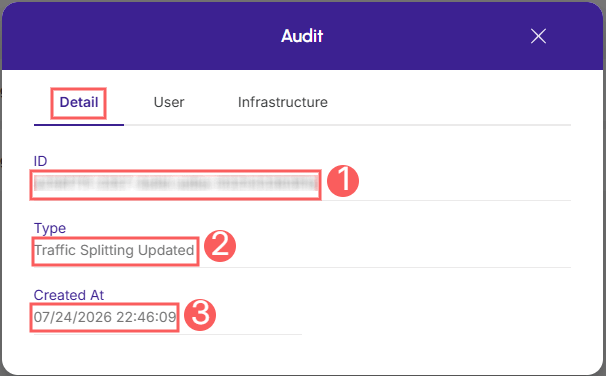
Detail
Displays detailed information about the activity in question.
-
ID: activity identification code.
-
Type: of change made;
-
Created on: item creation date.
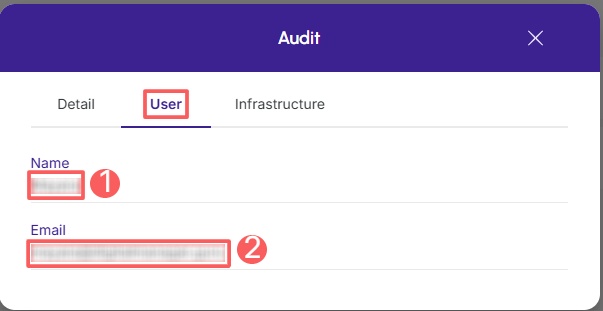
User
Displays information about the user who performed the action.
-
Name: name of the related user.
-
Email: email of the related user.
Infrastructure
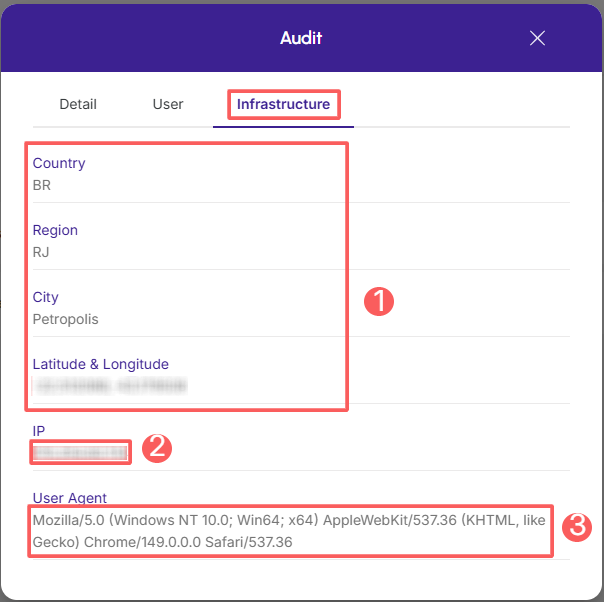
Displays infrastructure information (country, IP, user agent…) of the related activity.
-
Country, Region, City, Latitude & Longitude: location of the device that performed the activity.
-
IP: device IP address.
-
User Agent: identification of the user agent that performed the operation.
How to filter the Audit list
You can use the filters to view a smaller subset of existing audits. This feature is useful for finding specific audits you want to view.
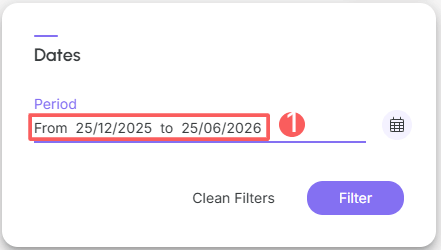
By default, only records from the last 28 days will be shown, but the period can be changed in the filters, in the Period.field.
Steps:
1 - Select the Neural Leads A/B Test list - a screen with the data will be displayed.
2 - Click on the Audit tab.
3 - In Audit, click on Filters.
4 - Fill in one or more filter options:
-
Period: searches for audits registered in the selected period - you can use the predefined time interval buttons or select the date you want to view.
5 - Click on Filter.
You can view the number of applied filters, and when using them, it will be possible to clear them without accessing the Filters icon again, facilitating the removal of the selection.
Protect your data. Increase your business security.
Create and manage users determining what each employee can see and do within the organization.