
In the Forms Funnel section of the Neural Lead A/B Test, you can view important indicators of the desired leads, as well as filter the funnel for more specific results.
On this page:
-
Forms Funnel
-
Filter Neural Lead A/B Test Forms Funnel
-
Manage Neural Lead A/B Test Forms Funnel filters
-
Forms Funnel
In the Forms Funnel section, you can view the main indicators of the Neural Lead A/B Test, such as new leads, costs, CPL, and CPC.
Steps:
1 - Select the Neural Lead A/B Test list - a screen with the data will be displayed.
2 - In Forms Funnel, the list displays the following information:
-
Clicks: displays the number of tracked clicks for the period;
-
Leads: displays the number of tracked leads for the period;
-
New Leads: displays the total number of new leads tracked in the period;
-
Cost: displays the total campaign costs for the period;
-
CPL1: displays the costs generated per lead in the period;
-
New CPL: displays the new costs generated per lead in the period;
-
CPC2: displays the cost per lead click in the period.

(1) To calculate the total cost per lead (CPL), you need to sum all direct and indirect costs and divide by the total number of leads captured in a given period.
(2) CPC is calculated by dividing the total campaign cost by the number of clicks it generated.
Filter Neural Lead A/B Test Forms Funnel
You can filter the data using the forms funnel.
By default, the results presented consider customers from the last 28 days. If the filter is changed, only customers who meet the filtering criteria are considered.
Steps:
1 - Select the Neural Lead A/B Test list - a screen with the data will be displayed.
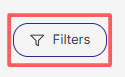
2 - In Forms Funnel, click on Filters.
3 - Fill in one or more filter options:
-
Period: searches for sales with start and end dates - if desired, use the predefined time range buttons;
-
UTM Campaign: value of the UTM Campaign parameter passed in the Neural Lead A/B tests link;
-
UTM Medium: value of the UTM Medium parameter passed in the Neural Lead A/B tests link;
-
UTM Term: value of the UTM Term parameter passed in the Neural Lead A/B tests link;
-
UTM Content: value of the UTM Content parameter passed in the Neural Lead A/B tests link.
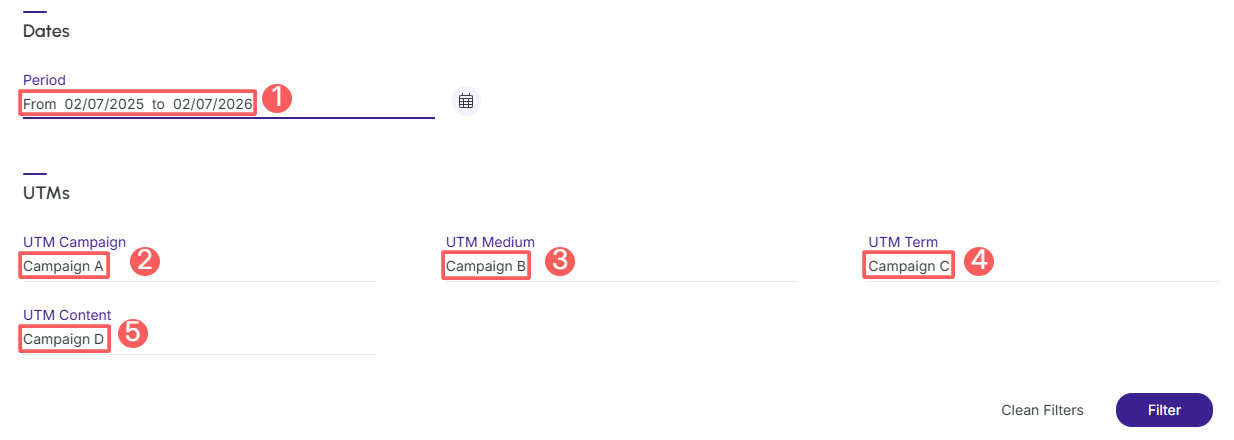
4 - Click on Filter.
To remove the applied filters, just click on Clean Filters.
Manage the Forms Funnel filters of the Lead A/B Test
You can check the number of applied filters when using filters to view desired information. This feature is useful if you want to check how many filters have been applied.
Additionally, it is possible to clear the filters without accessing the Filters icon again, facilitating the removal of applied filters.
Consult applied filters
You can check the number of applied filters.
Steps:
1 - Select the Neural Lead A/B Test list - a screen with the data will be displayed.
2 - In Forms Funnel, click on Filters.
3 - Fill in one or more filter options - apply the filters you want to consult.
4 - Then, the number of applied filters will appear on the screen.
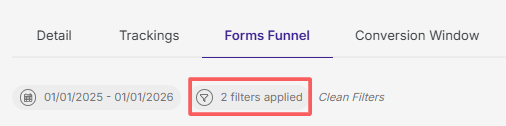
If you want to apply other filters, click Filter Lead A/B Test Forms Funnel.
Clear applied filters
You can remove the applied filters without needing to click on the filters icon.
Steps:
1 - Select the Neural Lead A/B Test list - a screen with the data will be displayed.
2 - In Forms Funnel, click on Filters.
3 - Fill in one or more filter options - apply the filters you want to consult.
4 – Then, click on Clean Filters.
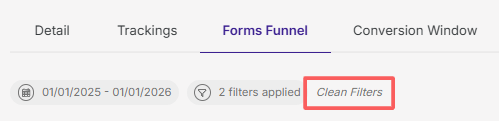
If you want to apply other filters, click Filter Lead A/B Test Forms Funnel.