
Through the Guru admin, you can send a refund request to the payment processor and, in this way, automatically refund the customer.
Attention: this function is only available for some sales depending on the payment method and the processor used. When available, the refund is automatically processed to the buyer’s credit card.
If automatic refunds are not available for the sale, the refund must be processed manually. Contact your payment processor for more information on how to proceed.
|
Payment Method |
Automatic Refund Available? |
Note |
|---|---|---|
|
Credit Card |
Yes - for all payment processors of Checkout Guru. |
The chargeback is automatically processed on the buyer's credit card. |
Attention: If you try this operation on a sale where automatic refund is not available through the Guru admin, nothing will be done on the payment processor's side.
Pagar.me
If a refund is requested and there is no available balance in Pagar.me, the refund will not happen. Since the refund request not is queued, it must be requested again when there is available balance in the account.
On this page:
-
Refund Payment
Before you start, you need…
-
Be a administrator user or have permission to perform the following actions;
-
Have one or more registered sales.
Refund Payment
Steps:
1 - Access the desired sale - a screen with the data will be displayed.
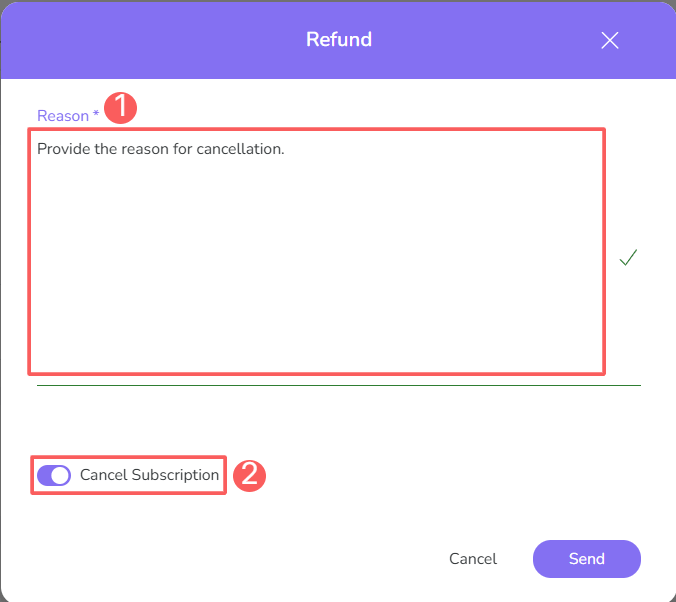
2 - On the Detail tab, click on Refund - a new window will be displayed.

3 - Inform:
-
Reason: reason for the refund;
-
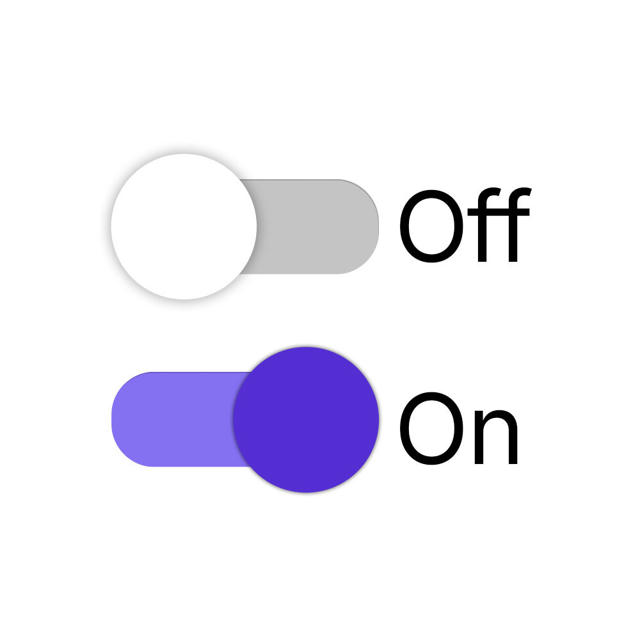
Cancel Subscription1: when enabled, immediately cancels the associated subscription.
1 This option is only visible for sales linked to a subscription.
4 - Click on Send.
5 - Wait a few minutes and refresh the page (CTRL+F5) to check if the sale status has changed to refunded.
More Resources