
It is possible to update the sale according to your needs or customer requests. This feature is useful for your customer support team to resolve payment issues, refund requests, and send sales information to integrated tools.
You can perform all the following operations in the sale details.
On this page:
-
Edit Buyer Data
-
Add Comment
-
Update Sale Status
-
Mark sale as Claimed
Before you start, you need to…
-
Be an administrator user or have permission to perform the following actions.
-
Have one or more sales registered.
Edit buyer data
You can change buyer data such as personal data, phone, email, delivery address. This option is useful for correcting incorrect buyer data.
Steps:
1 - Access the desired sale - a screen with the data will be displayed.
2 - Click on the Buyer tab.

3 - Click on the Edit Buyer button.
4 - Change or fill in the fields in the desired sections:
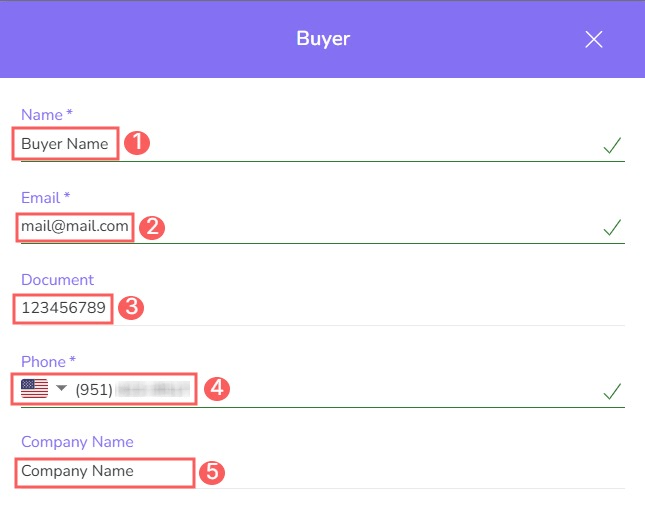
Buyer
-
Name: buyer's name;
-
Email: buyer's email;
-
Document: buyer's document;
-
Mobile: buyer's contact number;
-
Company Name: buyer’s company name.
Address
-
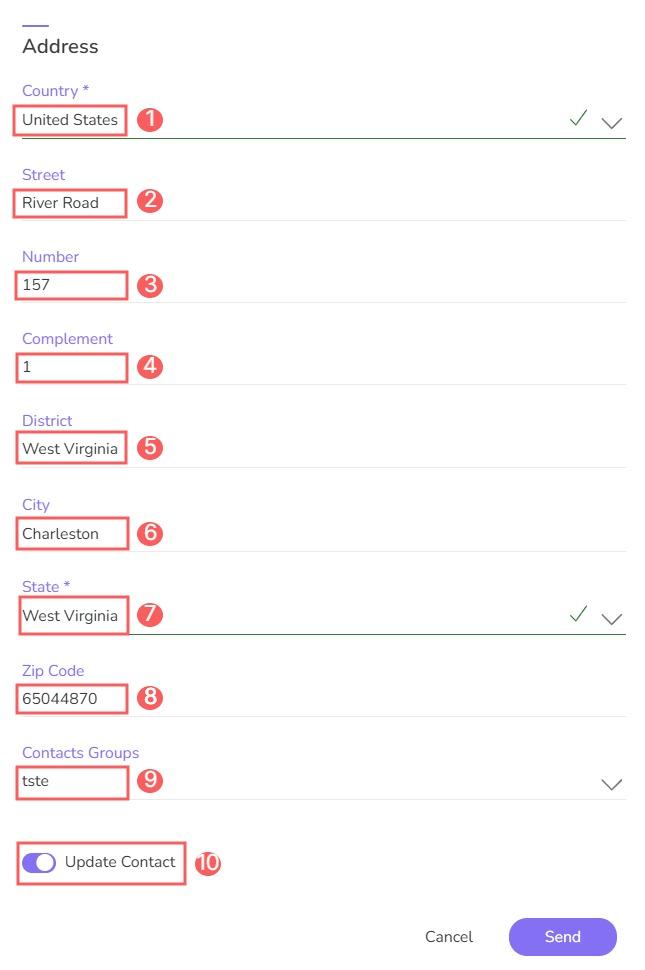
Country: buyer's country;
-
Street: buyer's street;
-
Number: buyer's residence number;
-
Complement: complement to the buyer's residence address;
-
District: district of the buyer's residence address;
-
City: city of the buyer’s residence address;
-
State: state of the buyer's residence address;
-
ZIP Code: postal code of the buyer's residence address;
-
Contact Groups: the contact group associated with the buyer;
-
Update contact: by enabling this option, the update will also be applied to the contact registration (buyer)1.
Attention: the email for accessing the customer portal (My Orders) is the email registered in the Contact. If the customer requested an email change, activate the “Update Contact” option so that the customer portal access email is updated.
5 - Click on Send.
Add Comment
If desired, you can add comments or observations to the sale. This option is useful for recording important notes and making them available to other team members.
Steps:
1 - Access the desired sale - a screen with the data will be displayed.
2 - Click on the Comments tab.

3 - In Comments, click on Add Comment.

4 - Type the desired comment.
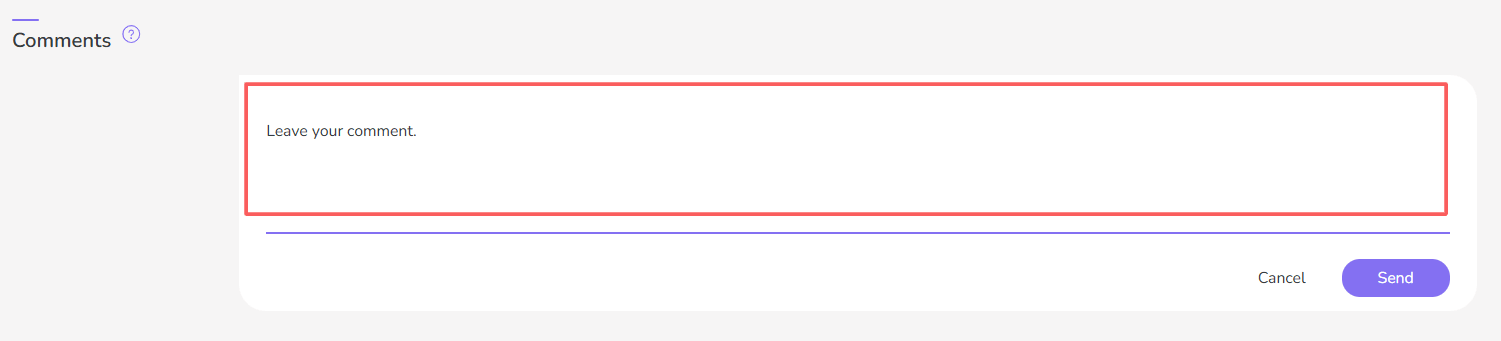
5 - Click on Send.
Access to manage your comments on the sale.
Update Sale Status
If necessary, you can force the update of the sale status. This feature is useful when the sale status has already been changed in the payment processor, but has not yet been updated in Guru.
By default, the payment status of the sale is updated automatically.
(*) The payment processor is responsible for notifying Guru about changes in the payment status of sales.
Steps:
1 - Access the desired sale - a screen with the data will be displayed.
2 - On the Detail tab, click on Update Status.

3 - Wait a few moments. If an update has occurred, a notification(*) will appear in the upper right corner informing that it has been performed.

(*) It may be necessary to refresh the screen to view the notification. To do this, press Ctrl + F5.
Mark sale as Claimed
You can mark a sale as claimed, using the "Mark as chargeback" option, which appears in the actions menu of the sale detail.
This option is only available to update the status on Guru's side.
Steps:
1 - Access the desired sale - a screen with the data will be displayed.
2 - On the Detail tab, click on Chargeback - a new window will be displayed.

3 - In Chargeback, inform:
-
Reason: reason for the claimed sale.
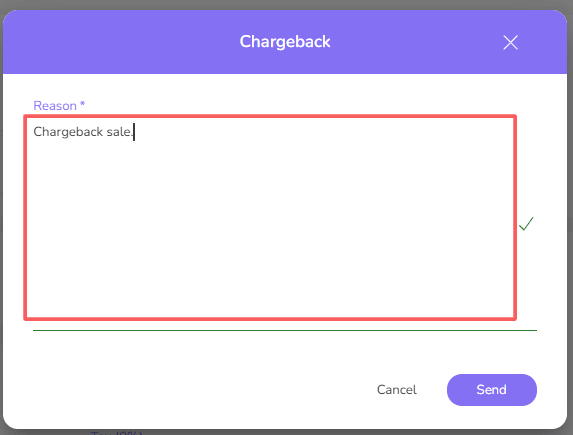
4 - Click on Send.
More Resources