
You can manage product shipments, using the functionality to create, cancel, and track your product shipments.
On this page:
-
Create shipment
-
Cancel shipment
-
Track shipment
Before you start, you need…
-
Be a user administrator or have permission to perform the following actions.
-
Have an active integration with a Carrier.
Create shipment
You can manually create a shipping label for a product.
Steps:
1 - Access the Guru admin with your username and password.
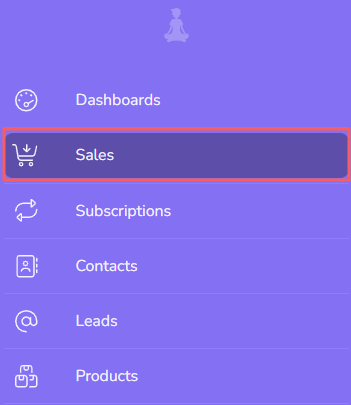
2 - In the side menu, click on Sales.
3 - Access the sale of the product for which you want to create the shipment.

4 - In Detail, click on Create Shipment.

5 - Repeat steps 3 and 4 for the sales you want.
Cancel shipment
You can cancel the shipping label for your products.
The cancel shipment option may not be available for some carriers. This option must be allowed in the carrier's environment to be able to cancel from Guru's side.
Steps:
1 - Access the Guru admin with your username and password.
2 - In the side menu, click on Sales.
3 - Access the sale of the product for which you want to cancel the shipment.
4 - Click on the Shipment tab.

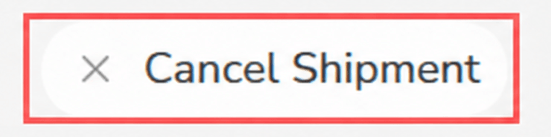
5 - Then, click on Cancel Shipment.
6 - Enter the Reason for cancellation.
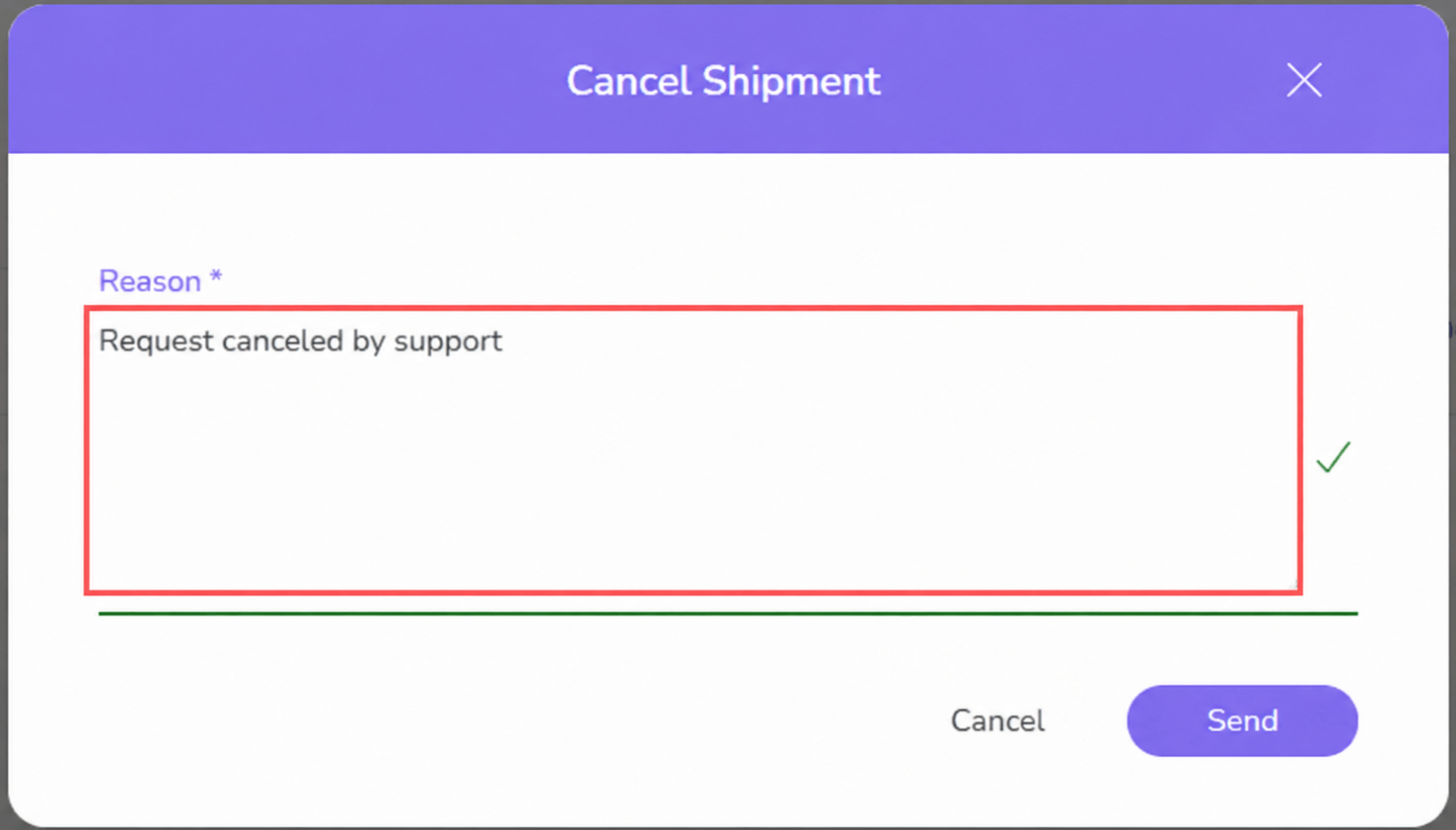
7 - Click on Send.
8 - Repeat steps 3 to 6 for the sales you want.
Track shipment
You can track the status of your product shipments.
The Track Shipment option may not appear, depending on your carrier or shipment type.
Steps:
1 - Access the Guru admin with your username and password.
2 - In the side menu, click on Sales.
3 - Access the sale of the product for which you want to track the shipment.
4 - Click on the Shipment tab.
5 - Then, consult the Tracking area (when applicable).

6 - Repeat steps 3 and 4 for the sales you want.