
Find answers to frequently asked questions and problems related to sales management.
On this page:
-
Payment
-
Refund
-
Sending the sale to other tools
-
Abandoned sale
Payment
In this section, you will find answers to questions related to the payment status of the sale.
- Why was my customer's payment refused?
A purchase made with credit card may be refused by the entity responsible for analyzing the transaction.
There are numerous reasons for the transaction to be refused, for example: incorrect card data, insufficient available balance, communication failure with the bank, among others. Some payment processors integrated with Guru return the reason why the transaction was refused. When this information is available, you can view it in the sale detail (field Reason). Otherwise, you should contact your payment processor's support for more information.
- The sale appears as paid in the payment processor, but it has not updated in Guru. What should I do?
The sale status update is a notification sent by the payment processor.
Generally, the update in Guru occurs minutes after the sale is updated in the payment processor. In some cases, the sending may take a little longer due to system overload at the origin or even a sending failure.
In this case, follow the procedures below:
1 - Validate if it is an isolated case
Consult the most recent sales in Guru made with the respective payment processor and analyze if other sales are in the same situation (approved in the payment processor, but still with pending payment in Guru).
-
1.1 - There are more sales in the same situation
-
In this case, the payment processor may be experiencing some server instability and the shipments to Guru have been impacted. Wait between 30 and 60 minutes and consult the sales in Guru again to see if the situation has normalized.
-
If after 60 minutes the sales are not updated, contact your payment processor to find out if there is any instability or failure in sending sales to Guru.
-
-
1.2 - It is an isolated case
-
In this case, there may have been some failure in sending this sale or slowness in the payment processor's system.
-
If you wish, you can force the sale update using the Update Status option, available in the sale detail. If the sale status is not updated, wait between 30 and 60 minutes and try again.
-
If the problem persists, contact your payment processor to find out if there was any instability or failure in sending this sale to Guru. As a last resort, contact our support via chat.
Refund
In this section, you will find answers to questions related to refund operations through the Guru panel.
- How does the sale refund work through the Guru panel?
The refund operation via the Guru panel depends on the payment method used by the customer and the payment processor used.
Credit card sales
When it comes to a sale in credit card, guru sends a refund request to the payment processor, which in turn processes the chargeback on the credit card used in the purchase.
- What should I do if I cannot refund a sale due to insufficient balance in the payment processor?
Guru sends the refund request to the payment processor only when you click the Refund. Option. If any error occurs during this procedure, such as insufficient balance* in your payment processor account, you should try to make the refund later.
(*) Wait until you have sufficient balance in the account to make the refund. As a good practice, we always recommend leaving some balance available in the payment processor account for eventual refund requests.
- Why does the sale appear as refunded in Guru, but the refund was not made to the customer?
The automatic refund option is not available for your payment processor - check here.
When the refund is unavailable, the sale in Guru changes to Refunded. Even so, you must contact the payment processor to find out how to perform the refund manually.
- Why is the “Refund” button not available for a specific sale?
The Refund option is only available in some scenarios. If this option is not available in the sale detail, it means that:
-
The sale never went through the Approved: status: if the sale appears as paid in the payment processor, try to force the Status Update before making the refund;
-
The sale was made through an external checkout: perform the refund directly through the checkout platform;
-
The refund operation is not available for this payment method: contact the payment processor's support to find out how to perform the refund manually;
-
Your user does not have permission to make refunds: request this permission from your Guru account administrator and try again after a few minutes.
Sending the sale to other tools
In this section, you will find answers to questions related to sending the sale to other tools integrated into your Guru account.
- The student's access was not released in the member area, what to do?
The member area tool is responsible for deciding and releasing student access upon receiving a sale notification from Guru.
Guru sends the sale notification to the member area minutes after the sale is updated in the system. In some cases, student access may take a little longer due to system overload at the origin or destination.
If student access is not released in the member area, follow the procedures below:
1 - Check if the sale has the status Approved
Access the sale detail and confirm if it has the status Approved. As a rule, the member area usually only releases access to customers whose sale has confirmed payment.
2 - Check if there was a send to the Member Area
Still in the sale detail, access the audit option and look for a recent item1 that indicates a send to your member area2. According to the result of the sending processing, the displayed icon can be blue (success) or red (error).
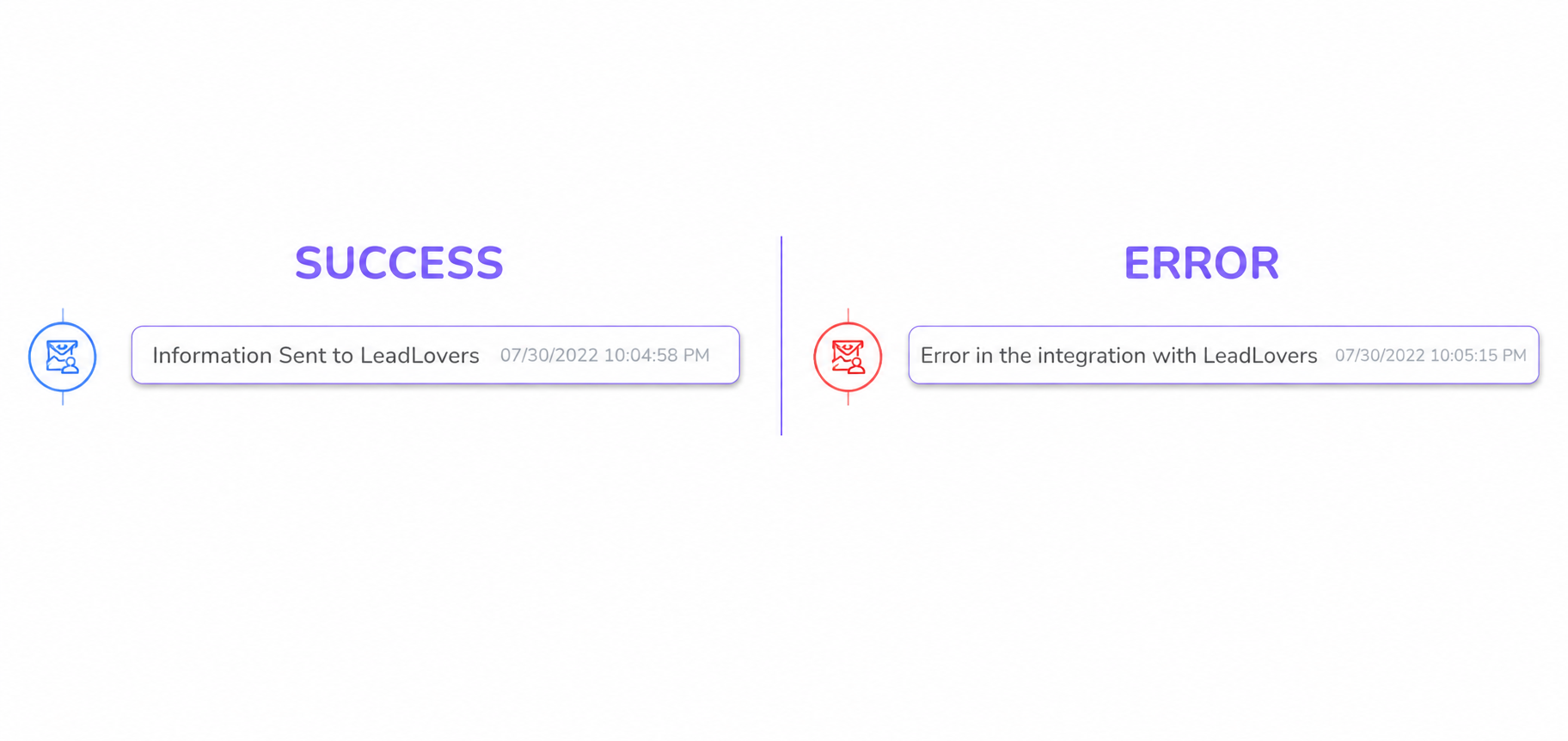
1 Audit events are listed from most recent to oldest.
2 Depending on the type of integration with your member area, the icon can be a graduation cap (native integration) or a plug (webhook integration).
2.1 - Send performed successfully
In this case, the member area may be experiencing some server instability and the processing of Guru sales has been impacted. Wait at least 30 minutes and consult the member area again to see if the situation has normalized.
If after 30 minutes the student's access is not released, contact the member area support to check why the sale sent by Guru has not yet been processed by them.
2.2 - There was an error in sending
In this case, you should click on the audit and check what error1 is described. Most of the time, the error is returned by the member area. If you have any questions, contact our support via chat.
1 The description of the error returned by the destination platform is displayed in the JSON field. In some cases, this message may be in English. Copy the content and use a translator, if necessary.
2.3 - No send exists
In this case, the integration with the member area may be deactivated or incorrect.
To check if there is any problem in the configuration, follow one of the procedures below according to the type of integration1 of your member area:
(1) In the native integration, you will see a Guru configuration screen when clicking on the member area logo in the section Settings » Integrations » Member Area.
- The SMS was not sent to the customer, what to do?
The SMS platform is responsible for scheduling and sending the SMS to the customer after receiving a notification from Guru.
Guru sends the message template1 and the recipient2 to the SMS tool minutes after the sale is updated in the system. In some cases, sending the SMS may take a little longer than expected due to system overload at the origin or destination.
1 Configured message template for the respective sale status.
2 Mobile phone number provided by the buyer at checkout.
If the expected SMS is not sent to the customer, follow the procedures below:
1 - Check if there was a send to the SMS platform
In the sale detail, access the audit option and look for a recent item1 that indicates a send to your SMS platform. According to the result of the sending processing, the displayed icon can be blue (success) or red (error).
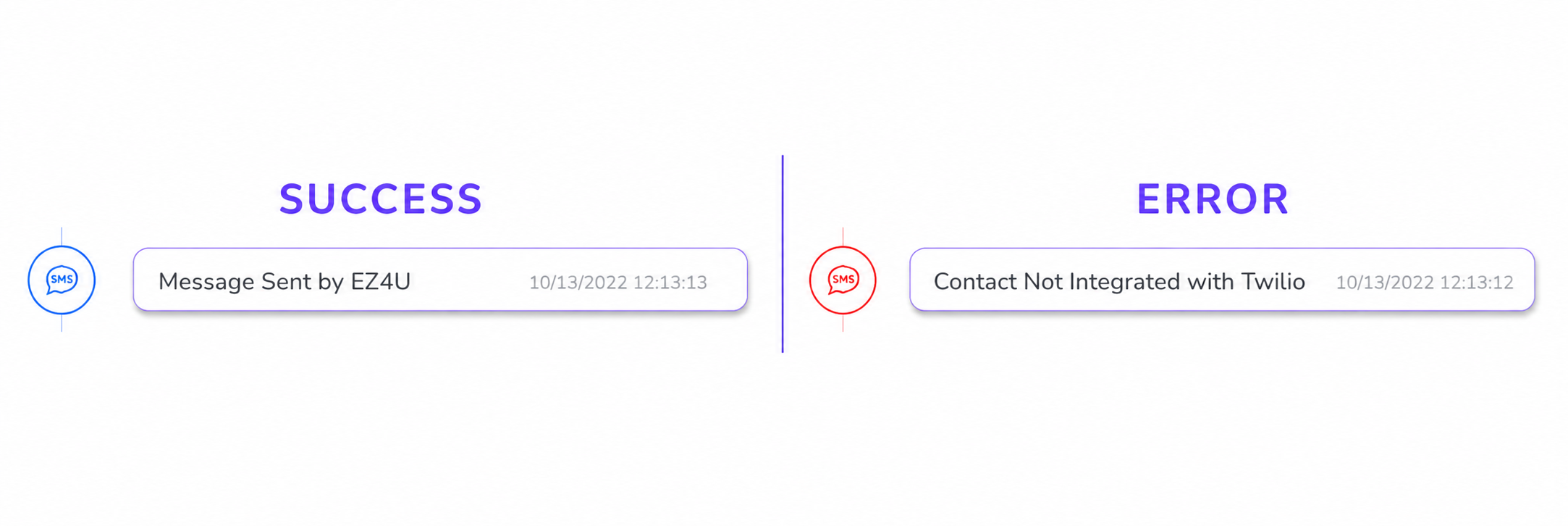
1 Audit events are listed from most recent to oldest.
1.1 - Send performed successfully
In this case, the SMS platform may be experiencing some server instability and the processing of notifications received from Guru has been impacted. Wait at least 30 minutes and consult the SMS platform again to see if the situation has normalized.
If after 30 minutes the SMS is not sent, contact the SMS platform support to check why the message requested by Guru has not yet been sent to the recipient.
1.2 - There was an error in sending
In this case, you should click on the audit and check what error1 is described. Most of the time, the displayed error is returned by the SMS platform. Common errors returned:
-
Insufficient balance: in this case, you must add credits to the SMS platform to send new SMS messages.
-
Non-existent or incorrect phone: the phone number provided by the customer is incorrect or does not exist.
1 The error description returned by the destination platform is displayed in the JSON field. In some cases, this message may be in English. Copy the content and use a translator if necessary.
1.3 - No sending exists
In this case, the integration with the SMS platform may be deactivated or incorrect. To check if there is any problem with the configuration, access Settings » Integrations » SMS and make sure that:
-
The integration is active - the logo appears colored;
-
There is a status mapping (of the “sale” type) for the sale status in question.
If some of the above items were not met, redo the integration with the SMS platform.
Then, access the sale and resend to the SMS platform. Wait a few minutes, reload the page and consult the sale audit to validate if the sending was performed.
If the problem persists, contact our support via chat.
- The sale does not appear in my billing system, what to do?
The billing platform is responsible for processing and locally registering the sale sent by Guru.
Guru sends the sale notification to the billing platform minutes after the sale is updated locally. In some cases, the sale may take a little longer to appear in the destination system due to overload in the source or destination system.
If the sale does not appear in the billing system within 30 minutes, perform the following procedures:
1 - Check if there was a sending to the billing platform
In the sale detail, access the option audit and look for a recent item1 that indicates a sending to your billing platform. According to the result of the sending processing, the displayed icon can be blue (success) or red (error).
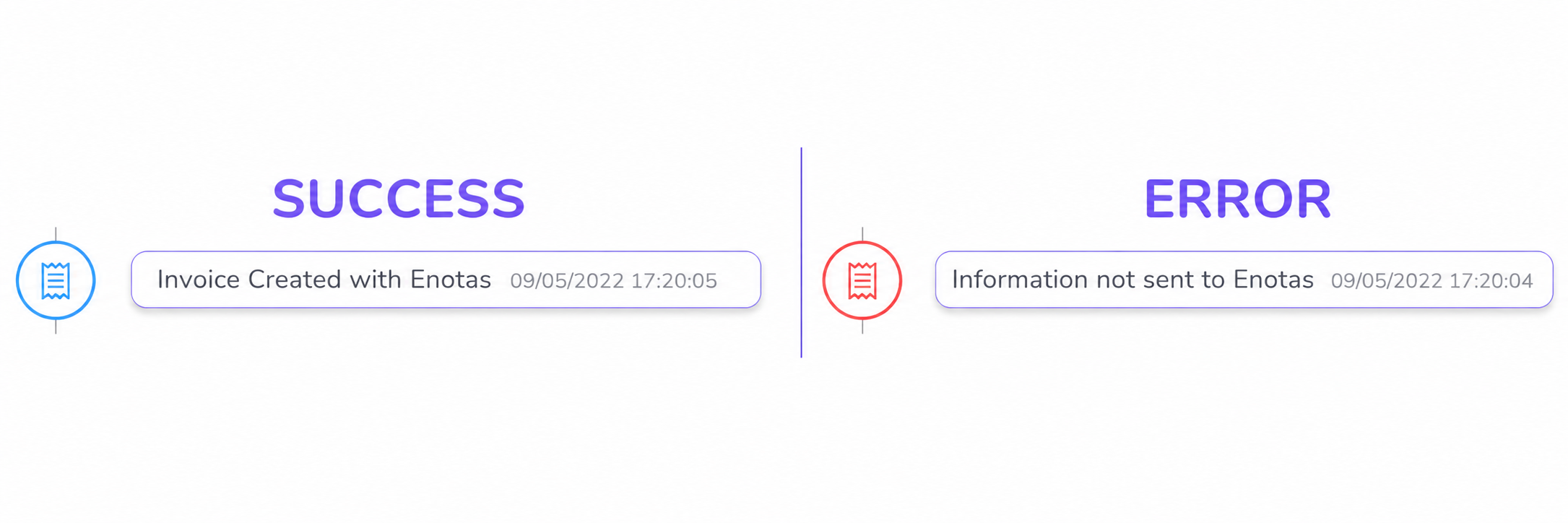
1 The audit events are listed from most recent to oldest.
1.1 - Sending performed successfully
In this case, the billing platform may be experiencing some server instability and the processing of notifications received from Guru has been impacted. Wait at least 30 minutes and consult the billing platform again to see if the situation has normalized.
If after 30 minutes the sale does not appear in the billing system, contact the support of this tool to check why the sale sent by Guru is not yet being displayed.
1.2 - There was an error in sending
In this case, you should click on the audit and check what error1 is described. Most of the time, the displayed error is returned by the billing platform. Try to analyze the returned error to identify which support (Guru or billing system) you should contact.
1 The error description returned by the destination platform is displayed in the JSON field. In some cases, this message may be in English. Copy the content and use a translator if necessary.
1.3 - NO sending exists
In this case, the integration with the billing platform may be deactivated or incorrect, or the product of the sale in question is not configured for this billing system. To check if there is any problem with the configuration, perform the following validations:
-
Check if the integration is active
-
Access Settings » Integrations » Billing
-
Check if the billing tool appears with the colored logo. Otherwise, configure the integration.
-
-
Check if the product is configured for this billing tool
-
Access Product » (desired product) » Billing Tab
-
Check if the billing tool configuration is active and properly configured.
-
If some of the above items were not met, redo the configurations as indicated.
Then, access the sale and resend to the billing platform. Wait a few minutes, reload the page and consult the sale audit to validate if the sending was performed.
If the problem persists, contact our support via chat.
- The sale appears on the billing platform but the invoice was not issued, why?
The billing system is responsible for issuing the invoice based on the instructions sent by Guru along with the sale.
In the billing configuration, there are options that, when activated, will prevent the automatic and/or immediate issuance of the invoice in the destination tool, these are:
-
Issuance delay: if you configured a value greater than zero, it means that the invoice issuance will be delayed by X days, where X is the value you entered;
-
“Issue after warranty” option selected: in this case, the billing tool will be instructed to issue the invoice only when the warranty period expires1 of the product;
-
“Do not issue” option selected: in this case, the billing tool will only be instructed to register the sale in the system. This means that you will have to access the billing tool and issue the invoices manually.
If you want to activate the automatic and immediate issuance of the invoice for future sales, update the billing tool configuration2 and the product settings in question.
If the options indicated above are non-existent or were already deactivated, there may be an error or incorrect configuration in the billing platform, such as an expired or missing digital certificate. In this case, contact the billing platform support to help you with these issues.
1 Configuration performed in the billing tool itself.
2 Configuration that will be automatically applied to new products that are created.
Abandoned sale
In this section you will find answers to questions about abandoned sales.
- What is an abandoned sale?
Abandoned sale, or abandoned cart, are orders (sales) that were not completed by the buyer. That is, the visitor started the checkout, filled in some data such as name, email, cell phone and CPF but abandoned the process before completing the payment.
In Guru, abandoned sales apply to:
-
Sessions started in Guru Checkout1, with name and email filled in, that were not completed2 within 15 minutes; and
-
Sales received from External Checkouts3 with status corresponding to cart abandonment.
1 Abandoned sales in Guru Checkout may take up to 30 minutes to be displayed in the sales list.
2 Checkout completion is understood as clicking the final button (“Buy Now”, “Subscribe Now” or “Start Trial”)
3 Only some external checkouts send abandoned sales to Guru - confirm if the one you use performs this sending.
- Why can't I locate an abandoned sale?
To view abandoned sales, you must filter the sales list by status Abandoned.
Abandoned sales from Guru Checkout may take time to be listed due to cache and abandonment processing issues. Wait at least 30 minutes before performing a new search for the desired sale.
More Resources