
Sales managed by Guru are automatically listed in the Dashboards area, R.P.P.C. Sales section.
To find R.P.P.C. Sales dashboards in a list with many records, you can search and filter by date range, refresh your dashboard, and also export to PDF.
On this page:
-
How to filter R.P.P.C. Sales Dashboards
-
Manage R.P.P.C. Sales Dashboards filters
-
-
Refresh R.P.P.C. Sales Dashboards
-
Export R.P.P.C. Sales Dashboards to PDF
How to filter R.P.P.C. Sales Dashboards
You can use filters to view a smaller subset of existing R.P.P.C. This feature is useful for finding specific customers you want to view.
Attention: list searches have a maximum selection limit of up to 100 items per filter.
By default, only records from the last 28 days will be shown, but the period can be changed in the filters, in the Period. field.
Steps:
1 - Access the Guru admin with your username and password.
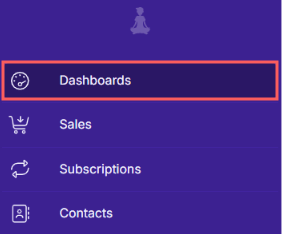
2 - In the side menu, go to Dashboards.
3 - Under R.P.P.C. Sales Dashboards, click on Filters.
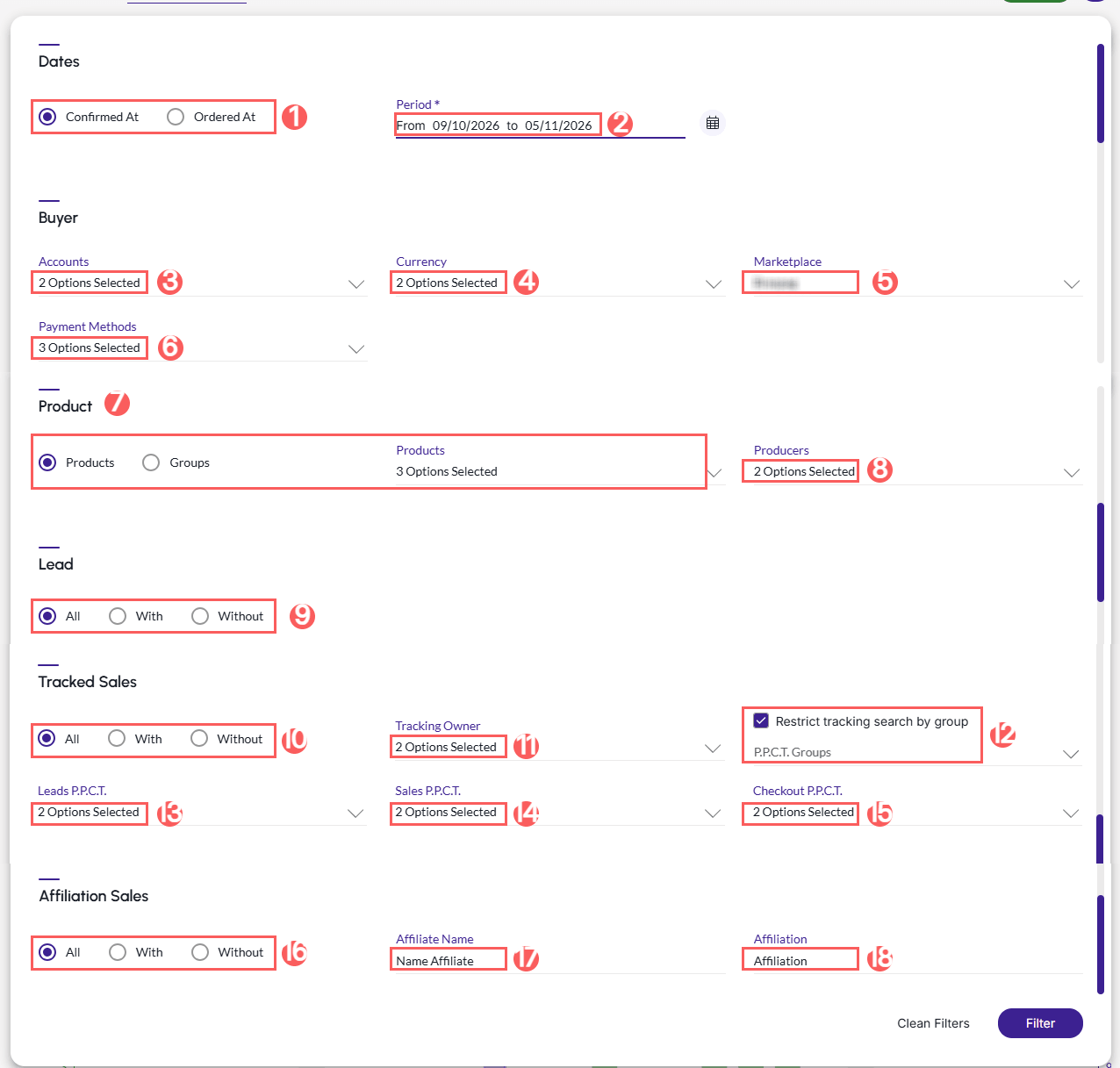
4 - Fill in one or more filter options:
-
Filter by Date1: determines which sale date type will be used in the search: Comfirmed At or Ordered At;
-
Period1: searches for sales in the selected period - you can use the predefined time range buttons or select the date you want to view;
-
Accounts: searches for sales linked to the selected account(s);
-
Currency: searches for sales made in the selected currency(ies);
-
Marketplace: searches for sales linked to the selected payment processor(s) - only marketplaces with at least one recorded sale will be displayed;
-
Payment Methods: searches for sales with the selected payment method(s);
-
Product: searches for sales linked to the selected product(s) or product group(s) - products and product groups with at least one recorded sale will be displayed;
-
Producers: select the desired producer;
-
Lead: determines whether to search for sales associated (or not) with a lead;
-
Tracked sales: searches for sales associated (or not) with a tracking;
-
Tracking Owner: when checked, displays the filter by tracking users;
-
Restrict R.P.P.C search by group: when checked, displays by tracking groups - when restricting the search by group, you must select at least one R.P.P.C from one of the Leads, Sales or Checkout lists;
-
Lead R.P.P.C: searches for sales linked to the selected lead tracking(s);
-
Sales R.P.P.C: searches for sales linked to the selected sales tracking(s);
-
Checkout R.P.P.C: searches for sales linked to the selected checkout tracking(s);
-
Sales with Affiliation: searches for sales associated (or not) with an affiliate;
-
Affiliate Name: searches for sales matching the entered affiliate name;
-
Affiliation: searches for sales matching the entered affiliation code.
(1) To filter sales by a specific period, you must fill in the Filter by date fields (approved on, created on) or the period with predefined ranges.
5 - Click on Filter.
To remove the applied filters, simply click on Clear Filters.
Manage R.P.P.C. Sales Dashboards filters
You can check the number of applied filters when using filters to view desired information. This feature is useful if you want to check how many filters have been applied.
In addition, it is possible to clear filters without accessing the Filters icon again, making it easier to remove applied filters.
Check applied filters
You can check the number of applied filters.
Steps:
1 - In the side menu, go to Dashboards, click on R.P.P.C. and then Sales. After the page loads, the dashboard will be displayed.
2 - Under R.P.P.C. Sales Dashboards, click on Filters.
3 - Fill in one or more filter options - apply the filters you want to check.
4 - Then, the number of applied filters will appear on the screen.

If you want to apply other filters, click How to filter R.P.P.C. Sales Dashboards.
Clear applied filters
You can remove applied filters without having to click on the filter icon.
Steps:
1 - In the side menu, go to Dashboards, click on R.P.P.C. and then Sales. After the page loads, the dashboard will be displayed.
2 - Under R.P.P.C. Sales Dashboards, click on Filters.
3 - Fill in one or more filter options - apply the filters you want to check.

If you want to apply other filters, click How to filter R.P.P.C. Sales Dashboards.
Refresh R.P.P.C. Sales Dashboards
In this step, you can refresh the R.P.P.C. Sales dashboard.
Steps:
1 - Access the Guru admin with your username and password.
2 - In the side menu, go to Dashboards.
3 - Under R.P.P.C. Sales Dashboards, click on Refresh.
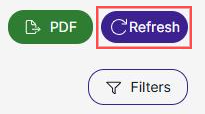
After clicking refresh, the page will load and then appear updated.
Export R.P.P.C. Sales Dashboards to PDF
PDF export is available in Guru's dashboards section. When you click export, a PDF file of the dashboards will be generated.
Steps:
1 - Access the Guru admin with your username and password.
2 - In the side menu, go to Dashboards.
3 - Under R.P.P.C. Sales Dashboards, click on PDF.
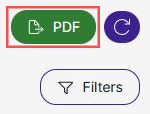
4 - After a few minutes, the PDF Download will appear to save.
To confirm the download, you should see a notification in the top right corner.
More Resources