
The Subscriptions Dashboard - Churn, presents information about the subscription cancellation rate, and provides clear data so you can understand, analyze, and, most importantly, reduce customer loss.
On this page:
-
Churn Rate
-
Churn Type
-
Most Churned Plans
Churn Rate
The section Churn Rate measures the percentage of customers who canceled their subscriptions in a given period, directly impacting recurring revenue. At Guru, you can analyze the graph to extract important information for your business.
Graph
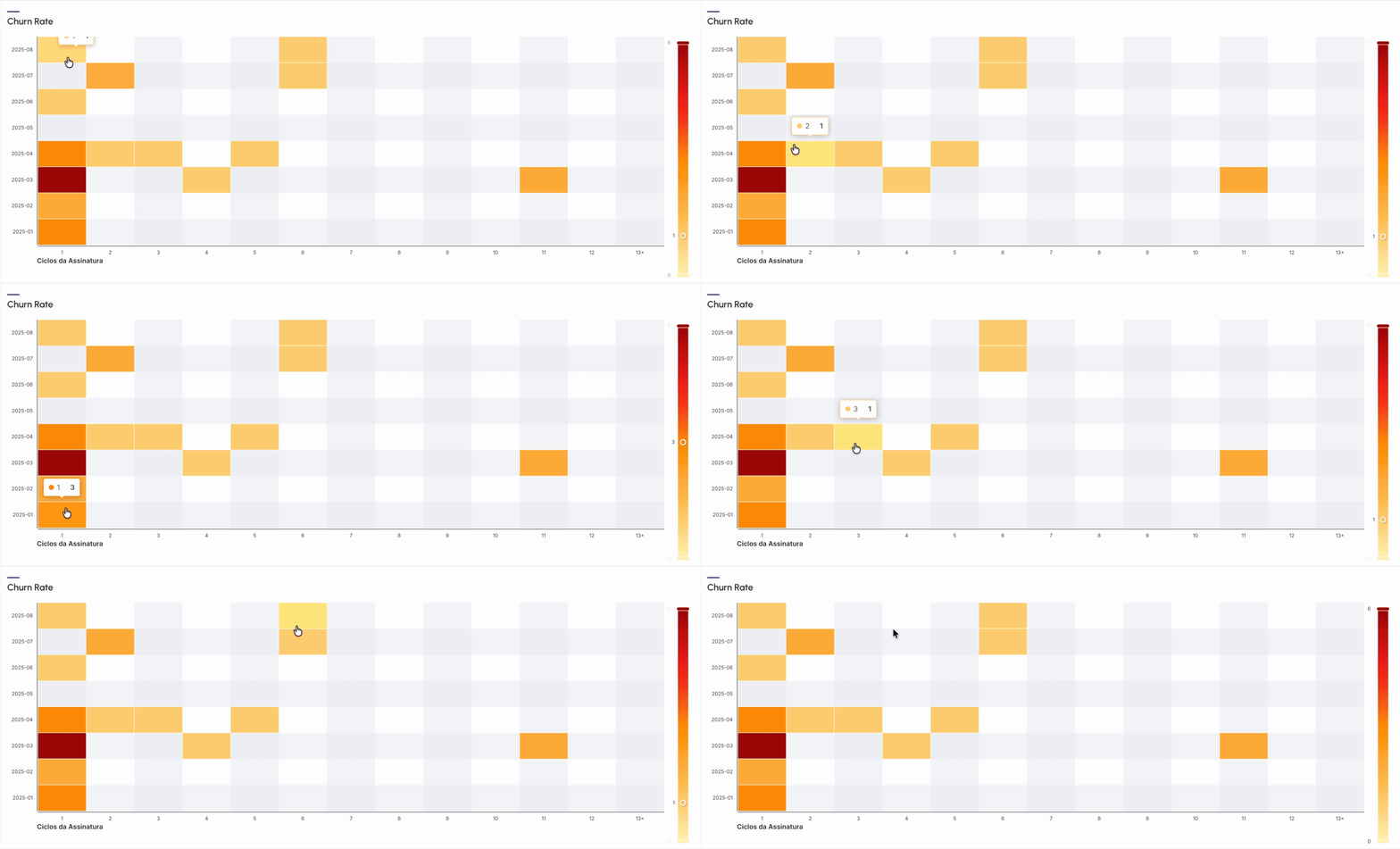
The graph displays the months and years indicating the period in which subscriptions started and presents the Subscription Cycles, that is, how long the customer has been active in the service.
In addition, the graph shows color variation, indicating that darker colors (red and orange) indicate a churn churn higher rate (higher subscription cancellation in the period) and lighter colors (yellow and white) indicate a churn churn lower rate (lower subscription cancellation rate in the indicated period).
Analysis of Graph Information
-
Based on the information for the period, it is evident that the churn rate is significantly higher in the first cycles of the subscription (especially in cycles 0 and 1, which represent the initial phase of the subscription). In contrast, from the third or fourth cycle, the churn rate decreases considerably and remains low. This reflects that subscribers who overcome the first months of subscriptions (first cycles) tend to remain longer, representing a lower probability of cancellation.
Guru Tip:
To know the churn rate for this period, hover your mouse over the square. The darker it is, the higher the churn rate.
Churn Type
In the section, Churn Type presents information about the nature of subscription cancellations, such as Voluntary Churn or Involuntary Churn.
Graph
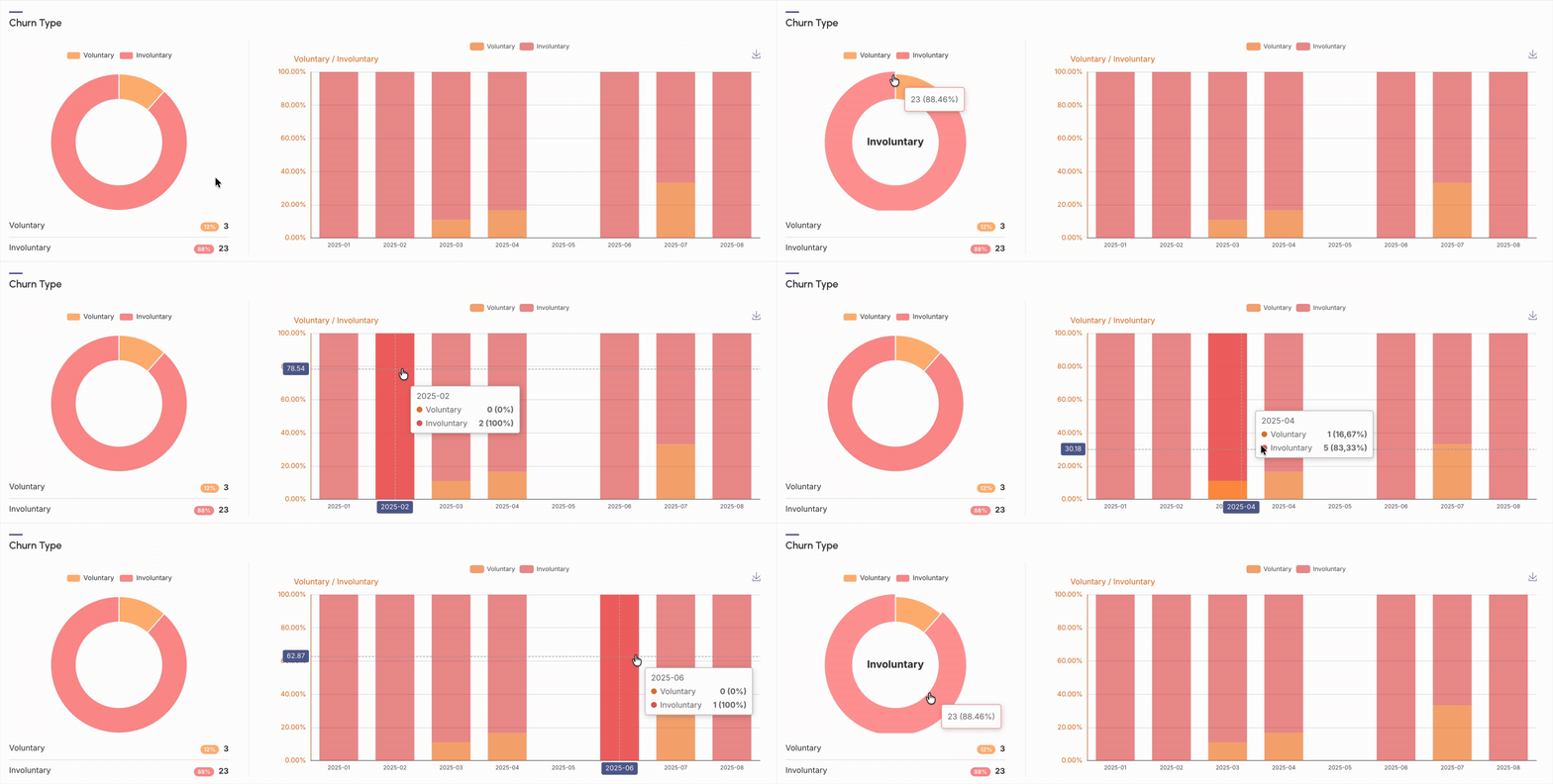
The graph separates customer loss, i.e., Churn, into two main categories:
-
Voluntary Churn: the subscriber makes the decision to cancel the subscription (e.g., no longer needs the service, dissatisfaction, etc.); and
-
Involuntary Churn: the cancellation occurs for reasons that are not an active decision by the subscriber, with the main cause being payment failure (e.g., expired credit card, insufficient balance, bank issue, etc.).
Churn analysis is extremely valuable data, allowing you to create strategic actions to retain subscribers, both those who expressed the intention to cancel (voluntary churn) and those whose subscription was interrupted (involuntary churn).
Actions that can be taken based on the data
-
Payment Recovery: implement a dunning system;
-
Proactive Communication: send automatic and personalized notifications when a payment fails, offering an easy way to update the data.
By default, the presented results consider subscriptions from the last 28 days.
Guru Tip:
If desired, you can save the graph image: 
Most Churned Plans
In the Churned Products section, it offers a detailed view of which products or subscription plans are being canceled and, more importantly, why. By understanding this metric, it is possible to reduce customer loss and increase retention.
-
Products: displays the products or subscription plans that were canceled - allows identifying which products have the highest churn rate;
-
Churned: displays the total sum of all canceled subscriptions for a given product - shows the total number of cancellations, allowing you to track overall performance;
-
Voluntary: indicates if the churn was voluntary, meaning there was a decision to cancel the subscription - the reasons can be various, and this type of churn is a direct signal of what needs to be improved;
-
Involuntary: indicates if the churn was involuntary, meaning the subscription cancellation may have been caused by a payment issue, such as an expired credit card, insufficient balance, or transaction failure - in some cases, the billing system failed to process the payment, and with subscription recovery strategies, it is possible to reverse this type of churn.

By default, the presented results consider subscriptions from the last 28 days.
Guru Tip:
You can export the spreadsheet by clicking on the CSV.