
It is possible to update the information of a product group such as editing product groups, managing products in a group, as well as removing the product from the group, editing a product, and removing product groups.
On this page:
-
Edit Product Group
-
Manage products in a group
-
Remove Product Group
Before you begin, you need to…
-
Be an administrator user or have permission to perform the following actions.
Edit Product Group
In this section, you can edit product groups.
Steps:
1 - In the side menu, go to Settings and then to Product Groups.
.png?cb=02547c1159342bdcaed98aafa937f385)
2 - In the Product Group list, select the created group.

3 - In Detail, you can view:
-
Name: the name of the created group;
-
Custom Domain: the associated custom domain;
-
Group for managing an event (E-tickets)1: when enabled, activates the group for event management (e-tickets).
.png?cb=0183998c47e5ddcaae5753c529a107cc)
(1) When activated, it is possible to manage the e-ticket group.
4 - In Name, change the product group name.
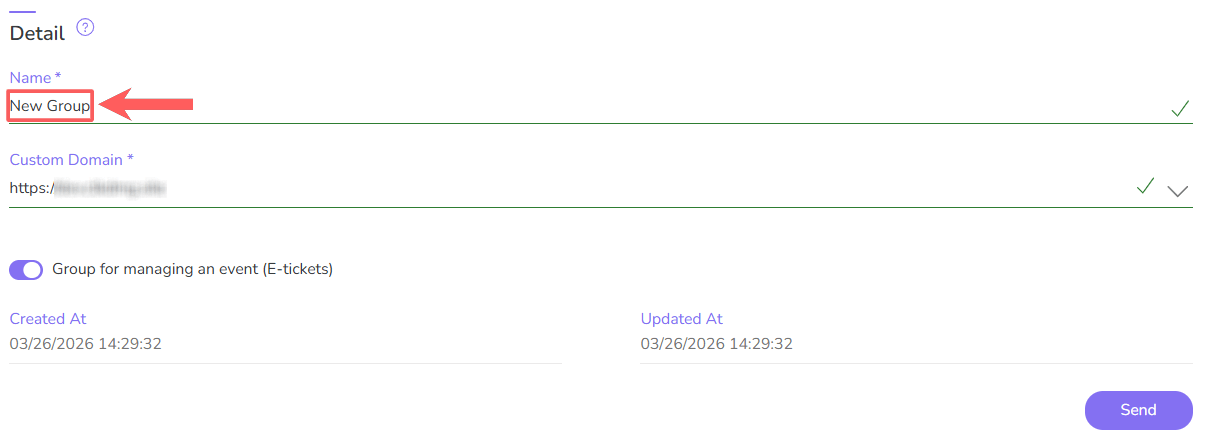
5 - Click Send.
Manage products in a group
You can manage products in a group by removing a specific product and editing the product information.
Remove product from group
It is possible to remove a product within the created product group.
Steps:
1 - In the side menu, go to Settings and then to Product Groups.
2 - Click on the tab Products.
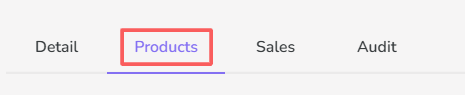
3 - Select the product you want to remove from the product group and click Remove.

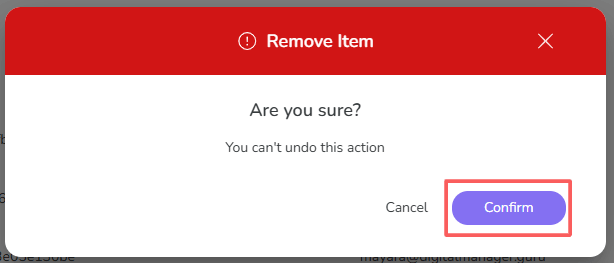
4 - Confirm if you want to proceed with the deletion. To confirm that the product has been deleted, a message will be displayed for a few seconds in the top right corner of the page.
Edit the associated product
After creating product groups, you can edit them to change name, image, offers, and other information.
It is not allowed to edit the Marketplace and Product Type fields. If you want these fields to be different for an existing product, you must add a new product and replace the old one with it.
Steps:
1 - In the side menu, go to Settings and then to Product Groups.
2 - In the Product Group list, select the created group.
3 - Click on the tab Products.
4 - Select the product you want to edit.
.png?cb=44d5432f8da2e50c33fb49416f13d93e)
5 - Then fill in the product information.
Remove Product Group
it is possible to remove a product group. When a product group is removed, all associated products and sales will not be removed.
To remove a product group:
Steps:
1 - In the side menu, go to Settings and then Product Groups.
2 - In the Product Group list, select the group you want to remove.

3 - Confirm if you want to proceed with the deletion. To confirm that the product has been deleted, a message will be displayed for a few seconds in the top right corner of the page.
More Resources