
It is possible to create Product Groups and associate these products with a group.
On this page:
-
Create a Product Group
-
Associate products with a Group
Before you begin, you need to…
-
Be an administrator user or have permission to perform the following actions.
Create a Product Group
In this section, you can create product groups.
Steps:
1 - In the side menu, go to Settings and then Product Groups.
.png?cb=02547c1159342bdcaed98aafa937f385)
2 - Click on Add Group.
3 - In Add Group, enter:
-
Name: enter the product group name;
-
Custom Domain: select the custom domain you want to associate;
-
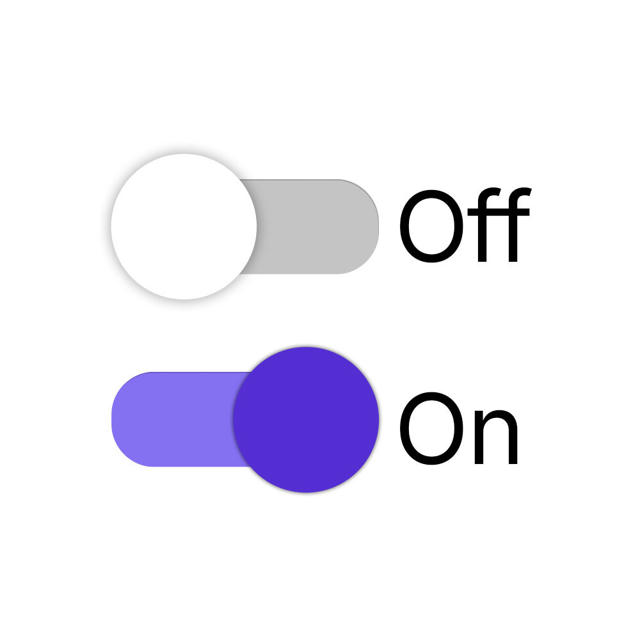
Group for managing an event (E-tickets): when enabled, allows the group to be used for event management (e-tickets).
.png?cb=d4bd81ce198837fdb2bf926358a17431)
4 - Click on Send.
Associate products with a Group
You can associate a product in two ways: by creating a new one or by associating an already created product.
Create new product
it is possible to create new products through the Product Group. This feature is useful for quickly creating products in Guru.
Steps:
1 - In the side menu, go to Settings and then Product Groups.
2 - In the Product Group list, select the created group.

3 - Then, click on Products and then on Add Product.
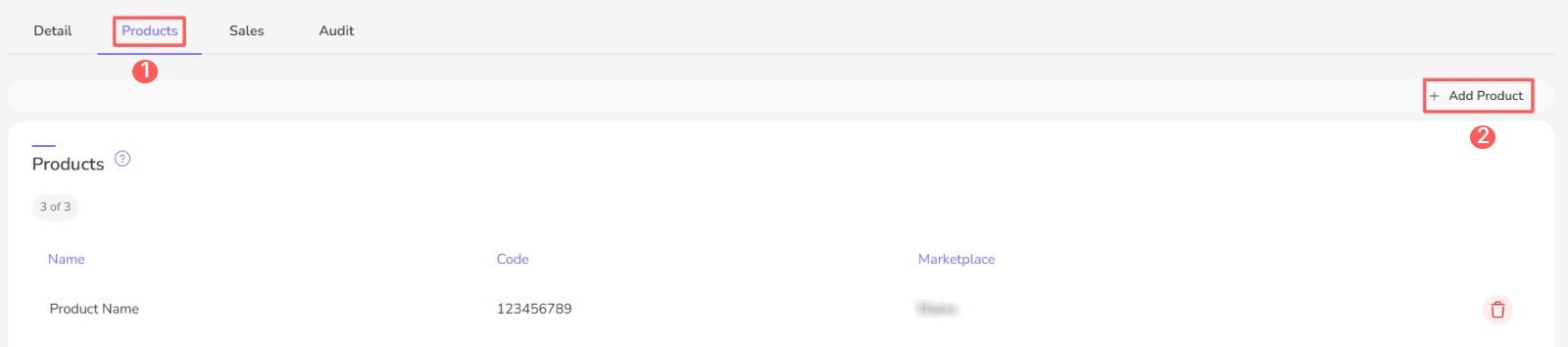
4 - In Add Product, select “New” and then fill in the product information.
Associate already created products
It is possible to associate existing products with a created Product Group. This feature is useful for associating already created products with Product Groups in Guru.
Steps:
1 - In the side menu, go to Settings and then Product Groups.
2 - In the Product Group list, select the created group.
3 - Then, click on Products and then on Add Product.
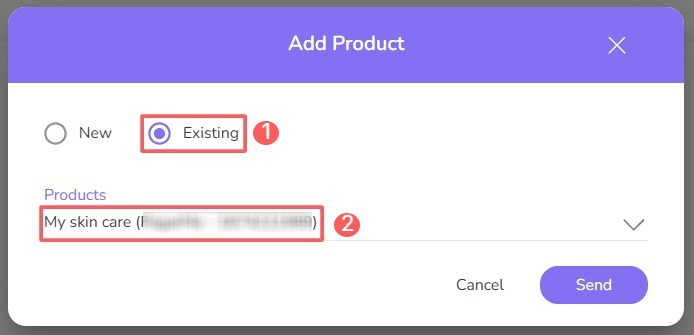
4 - In Add Product, select the following data:
-
Existing: select the existing option;
-
Products: select the already created product.
5 - Click on Send.
More Resources