
The E-tickets - Operation Dashboard shows the total number of tickets sold, tickets with open status, total tickets sent as guests, total assigned tickets, and total check-ins performed.
On this page:
-
Overview
-
Operation by Product
Before you start, you need to…
-
Have created a product group.
-
Have activated the Group for Event Management (e-tickets) option when creating the Product Group.
Overview
In the Overview section, you can view the status of your tickets, such as open, checked-in, invited, and assigned.
To view the information on the Dashboard, you need to create a product group and activate the “Group for E-tickets event management” option in the group settings.
-
E-tickets total: displays the total number of tickets associated with the product group;
-
Open: displays tickets with open status - represents tickets that have been generated/issued - either by purchase or courtesy - but have not yet had the final participant/guest associated;
-
Invited: displays the number of tickets that have been marked or assigned and already have a final participant/guest associated - the e-ticket already has a participant associated, but they still need to generate the ticket with the QR Code to enter the event;
-
Assigned: displays tickets with assigned status - the number of tickets associated with a participant (guest/participant) and the participant has generated the ticket, meaning they already have the ticket with a QRCODE;
-
Checked-in: displays tickets with checked-in status - the number of tickets that have already been validated for event access, meaning they have already entered the event.

The Dashboard only tracks one event at a time, as its view is always based on a Specific Product Group. IT is therefore not possible to view tickets from multiple events simultaneously.
Operation by Product
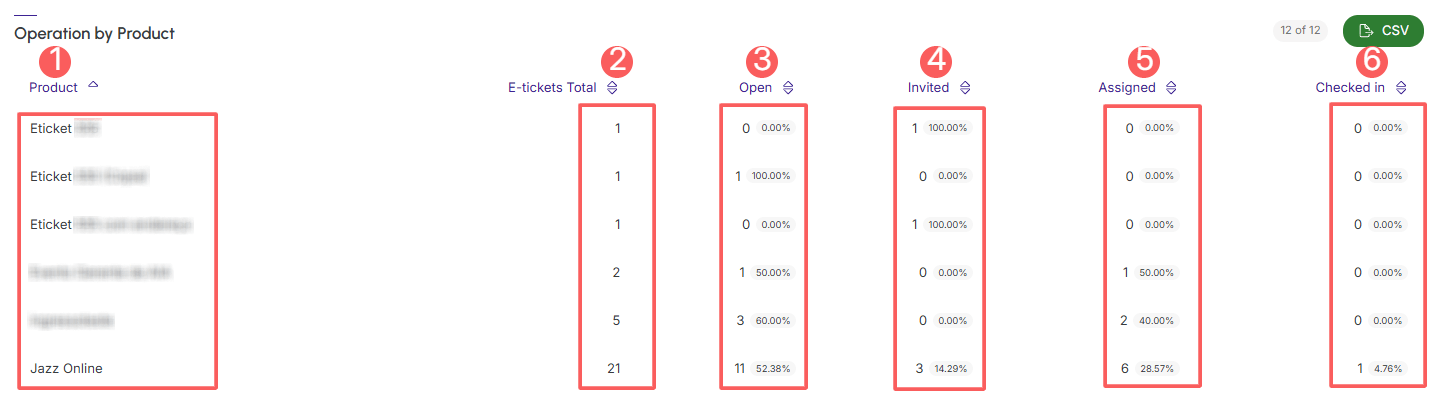
In Operation by Product, the graph presents the complete ticket lifecycle, from total tickets, open tickets, courtesy tickets, assigned tickets, and checked-in tickets.
-
Product: displays the name of the ticket/event;
-
E-tickets Total: displays the total number of tickets generated for that specific product;
-
Open: displays tickets generated but not yet associated with any participant;
-
Invited: displays the number of tickets for that product marked as courtesy/invited out of the total tickets;
-
Assigned: displays the number of tickets associated with a participant (guests/participants);
-
Checked-in: displays the number of validated tickets, meaning check-in was performed at the event.
What are the benefits for E-ticket management?
-
Flow Management: you can track the Checked-in rate per product in real-time - this allows you to verify if participants are confirming their attendance at the event;
-
Prevention of Check-in bottlenecks: a high number of tickets with Invited status can generate last-minute demand. The dashboard helps to:
-
Identify Service Demand: by monitoring the number of Invited guests, the organizer knows how many participants will need assistance or QR Code/ticket generation on-site, allowing for more support to be allocated or a specific accreditation point to be created for guests, and
-
Proactive Communication: to minimize this demand, the organization can send reminders to guests to generate their tickets or fill in their data before the event, relieving pressure on check-in.
-
You can configure the sending of transactional emails for each ticket status , so you can send reminder emails.
Guru Tip: You can export the spreadsheet by clicking on CSV.
The Dashboard only tracks one event at a time, as its view is always based on a Specific Product Group. It is therefore not possible to view tickets from multiple events simultaneously.