
E-tickets managed by Guru are automatically listed in the Dashboards area, section E-ticket Dashboard.
To find e-ticket dashboards in a list with many records, you can search and filter by product groups, update your dashboard, and also export to PDF.
On this page:
-
How to filter E-ticket Dashboards
-
Update E-ticket Dashboards
-
Export E-ticket Dashboards to PDF
How to filter E-ticket Dashboards
You can use the filters to view existing product groups. This feature is useful for finding information about e-tickets associated with the specific product groups you want to view.
Attention: list searches have a maximum selection limit of up to 100 items per filter.
By default, only product group records will be shown. It is necessary to create a product group and activate the “Group for E-ticket event management” option in the group settings.
Steps:
1 - Access the Guru admin with your username and password.
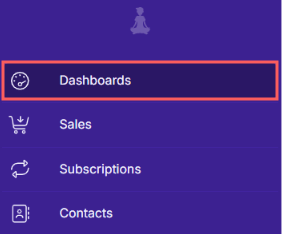
2 - In the side menu, access Dashboards.
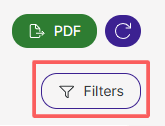
3 - In E-ticket Dashboards, click on Filters.
4 - Fill in the filter:
-
Groups: searches for product groups - you need to have a product group associated with e-tickets when adding a group.
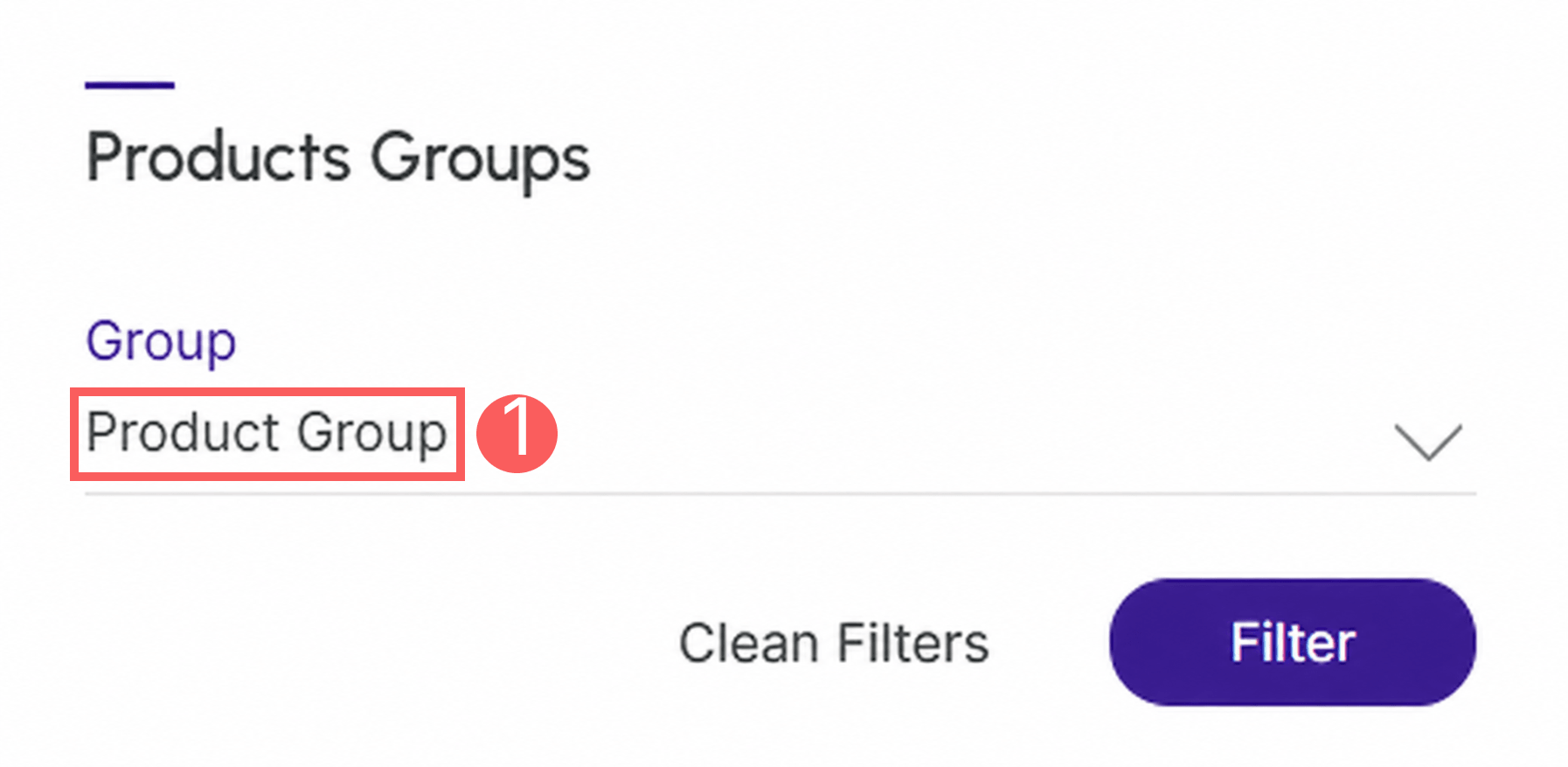
5 - Click on Filter.
To remove the applied filters, simply click on Clean Filters.
Update E-ticket Dashboards
In this step, you can update the e-ticket dashboard.
Steps:
1 - Access the Guru admin with your username and password.
2 - In the side menu, access Dashboards.
3 - In E-ticket Dashboards, click on Refresh.
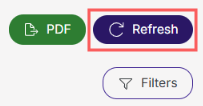
After clicking update, the page will load, and then it will appear updated.
Export E-ticket Dashboards to PDF
Pdf export is available in the Guru dashboards section. When you click export, a PDF file of the dashboards will be generated.
Steps:
1 - Access the Guru admin with your username and password.
2 - In the side menu, access Dashboards.
3 - In E-ticket Dashboards, click on PDF.
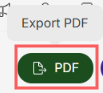
4 - After a few minutes, the PDF Download to save will appear.
To confirm the download, you should see a notification in the upper right corner.