
Sales managed by Guru are automatically listed in the Dashboards area, Leads Captures P.P.C.T. section.
To find the Leads Captures P.P.C.T. dashboards in a list with many records, you can search and filter by period, update your dashboard, and also export to PDF.
On this page:
-
How to filter P.P.C.T Leads Captures Dashboards
-
Manage P.P.C.T Leads Captures Dashboards filters
-
-
Update P.P.C.T Leads Captures Dashboards
-
Export P.P.C.T Leads Captures Dashboards to PDF
How to filter P.P.C.T Leads Captures Dashboards
You can use filters to view a smaller subset of existing P.P.C.T This feature is useful for finding specific customers you want to view.
Attention: list searches have a maximum selection limit of up to 100 items per filter.
By default, only records from the last 28 days will be shown, but the period can be changed in the filters, in the Period.field.
Steps:
1 - Access the guru admin with your username and password.
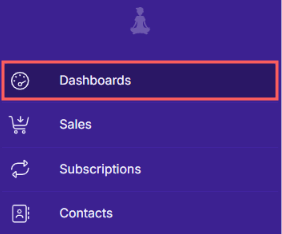
2 - In the side menu, go to Dashboards.
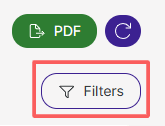
3 - In P.P.C.T Leads Captures Dashboards, click on Filters.
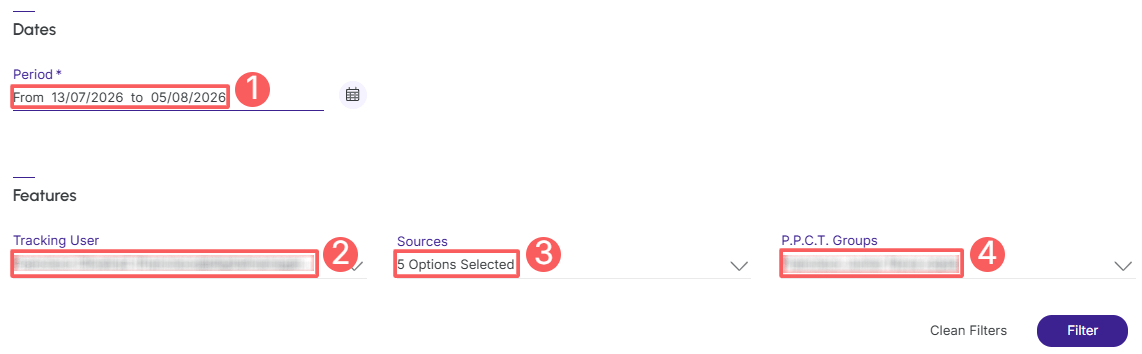
4 - Fill in one or more filter options:
-
Period: searches for tracking from the selected period - you can use the predefined time interval buttons or select the date you want to view;
-
Tracking User: searches by tracking user;
-
Sources: searches by tracking source;
-
P.P.C.T. Groups: searches by tracking groups.
5 - Click on Filter.
To remove the applied filters, just click on Clean Filters.
Manage P.P.C.T Leads Captures Dashboards filters
You can check the number of applied filters when using filters to view the information you want. This feature is useful if you want to check how many filters have been applied.
In addition, it is possible to clear the filters without accessing the Filters icon again, facilitating the removal of applied filters.
Consult applied filters
You can check the number of applied filters.
Steps:
1 - In the side menu, access Dashboards, click on P.P.C.T and then, Leads Captures. After the page loads, the dashboard will be displayed.
2 - In P.P.C.T Leads Captures Dashboards, click on Filters.
3 - Fill in one or more filter options - apply the filters you want to consult.
4 - Then, the number of applied filters will appear on the screen.

If you want to apply other filters, click How to filter P.P.C.T Leads Captures Dashboards.
Clean applied filters
You can remove the applied filters, without needing to click on the filters icon.
Steps:
1 - In the side menu, access Dashboards, click on P.P.C.T and then, Leads Captures. After the page loads, the dashboard will be displayed.
2 - In P.P.C.T Leads Captures Dashboards, click on Filters.
3 - Fill in one or more filter options - apply the filters you want to consult.

If you want to apply other filters, click How to filter P.P.C.T Leads Captures Dashboards.
Update P.P.C.T Leads Captures Dashboards
In this step, you can update the P.P.C.T Leads Captures dashboard.
Steps:
1 - Access the guru admin with your username and password.
2 - In the side menu, go to Dashboards.
3 - In Leads Captures P.P.C.T. Dashboards, click on Update.
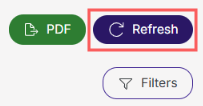
After clicking update, the page will load, and then it will appear updated.
Export P.P.C.T Leads Captures to PDF
Pdf export is available in the Guru dashboards section. When you click export, a PDF file of the dashboards will be generated.
Steps:
1 - Access the guru admin with your username and password.
2 - In the side menu, go to Dashboards.
3 - In Leads Captures P.P.C.T. Dashboards, click on PDF.
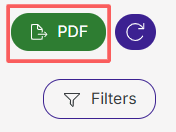
4 - After a few minutes, the PDF Download to save.
To confirm the download, you should see a notification in the upper right corner.