
Contact group configuration creates contact groups, in addition to removing the created contact's group.
When removing the contact group, you can transfer the contacts from the created groups, in order to transfer the contacts/recruitment links.
On this page:
-
Create a Contact Group
-
Remove a Contact Group
Before you start, you need…
-
Be an administrator user or have permission to perform the following actions.
Create a Contact Group
In this section, you can create contact groups to manage your contacts.
Steps:
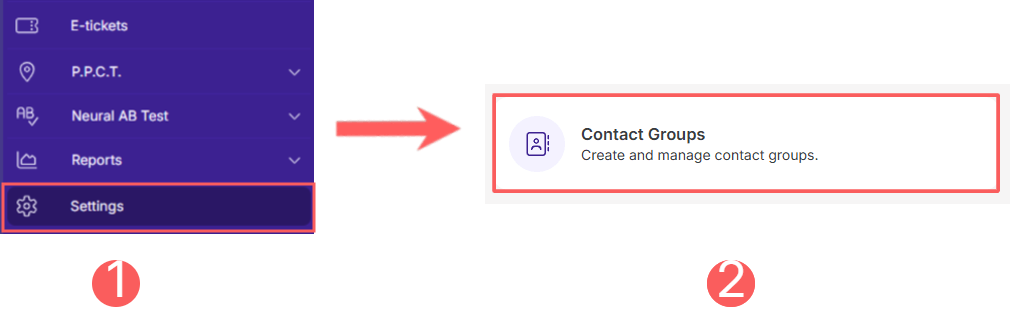
1 - In the side menu, go to Settings and then to Contact Groups.
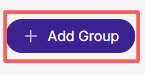
2 - Click on Add Group.
3 - In Add Group, enter:
-
Name: the name of the contact group.
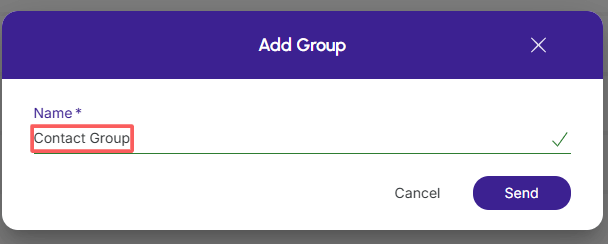
4 - Click on Send.
Remove a Contact Group
it is possible to remove a contact group. When a contact group is removed, the record is permanently deleted and cannot be restored.
If desired, you can transfer the contacts from the group to another created group. This feature is useful for transferring contacts without having to delete them.
Steps:
1 - In the side menu, go to Settings and then to Contact Groups.
2 - Hover over the desired contact and click on Remove - trash can icon.

3 - A confirmation window is displayed. If you wish to proceed with the removal, click on Confirm.
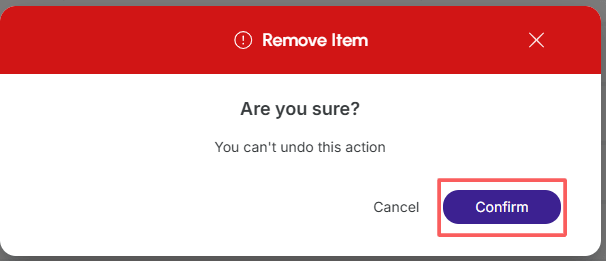
4 - Next, a confirmation window to remove the group will appear. If you wish to transfer the contacts, click on Yes.
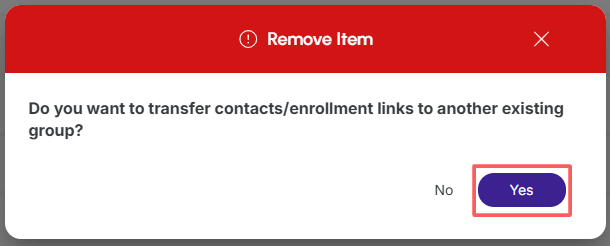
If you do not wish to transfer the contacts/recruitment links from the group, click on the NO option to delete the contact group.
5 - In Transfer affiliates to, select the contact group to which you want to transfer the contacts from the group.
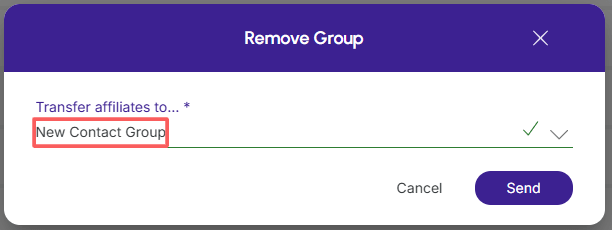
6 - Click on Send.
More Resources