
You can export your contact information to a spreadsheet (XLSX file). This feature can be useful for tasks such as:
-
Storing a backup of your contacts.
-
Quickly getting a list of contacts of a certain type.
Contact export is performed in the background and usually takes a few minutes. When the file is ready, you receive a notification in the Guru admin and an email containing the download link. It is not possible to export the same spreadsheet again within a 30-minute interval.
Attention: Export is limited to 10,000 contacts. If you have a larger number of records, apply a filter with a shorter period to export the list.
Contact export is done to an Excel spreadsheet (XLS format) and includes data about the:
-
Contact (customer);
-
Contact information (email, phone, address, neighborhood, city);
On this page:
-
How to Export contacts
Before you start, you need to…
-
Be an administrator user or have permission to perform the following actions;
Export contacts
Exporting contacts to a spreadsheet is available in the contacts section of the Guru admin.
Before exporting contacts, you can apply a filter to export only the desired contacts.
Steps:
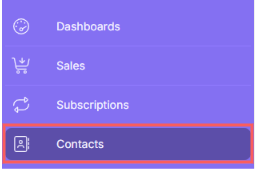
1 - In the side menu, go to Contacts.
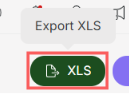
2 - In Contacts, click on XLS.
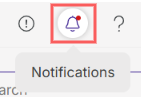
3 - After a few minutes, you receive a notification in the Guru admin with the Download link. Click on the notification icon1 in red to view the list of notifications.
1 It may be necessary to reload the page in your browser (press CTRL+F5) for the notification icon to change color.
4 – Locate the corresponding notification and click on Download.
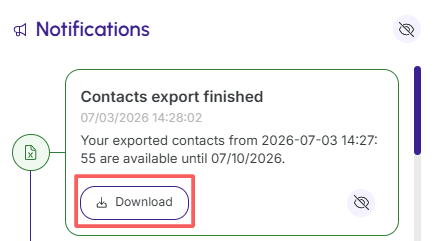
The Download link is also sent by email.
It is not possible to export the same spreadsheet again within a 30-minute interval.
More Resources