
In Guru, you can add, remove, and update multiple contacts that are part of a group.
These actions allow you to keep your contact groups always updated and aligned with segmentation and communication strategies.
On this page:
-
Add contact to group
-
Update a contact within the group
-
Remove contact from group
-
Manage bulk action in a group
Add contact to group
You can add contacts to a created group by entering the email of the contact you want to insert. This feature is useful for adding specific contacts you want to view, from the list that opens with the contact information for the email provided.
Steps:
1 - In the side menu, go to Settings, and then, Contact Groups.
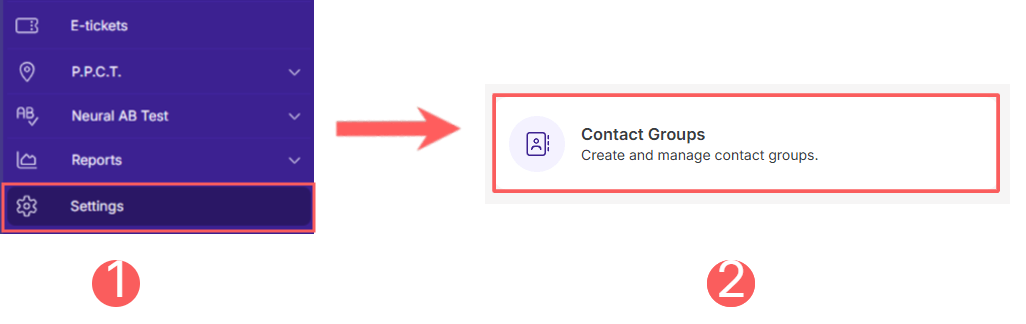
2 - Select the desired contact group.

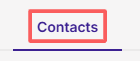
3 - Access the Contacts tab.
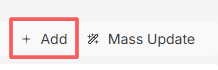
4 - In Contacts, click Add.
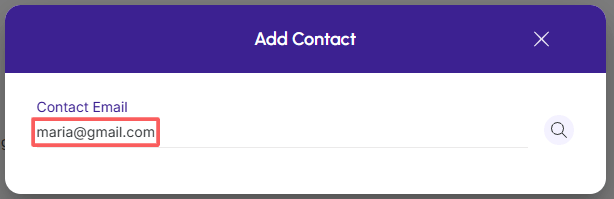
4 - In Add Contact, enter the contact's email and click the magnifying glass to search.
5 - In the listing, select the contact you want to add to the created contact group.
.png?cb=78afe9755a8abadb3d7bd4c5091e5ac7)
To confirm that the contact has been added to the contact group, a message will be displayed for a few seconds at the top right of the page.
Update a contact in the group
You can edit the data of a contact linked to the contact group to change name, address, email, and other information.
Steps:
1 - In the side menu, go to Settings, and then, Contact Groups.
2 - Select the desired contact group.
3 - Access the Contacts tab.
4 - In the list of your Contacts, select the Contact you want to update.

5 - Then, fill in the Contact Information and save the changes.
Remove contact from group
it is possible to remove a contact from the created contact group. When you remove a contact from the group, the contact will no longer be associated with the group.
To remove a contact from the contact group:
Steps:
1 - In the side menu, go to Settings, and then, Contact Groups.
2 - Select the desired contact group .
3 - Access the Contacts tab.
4 - Hover over the desired Contact and click Remove - trash can icon.

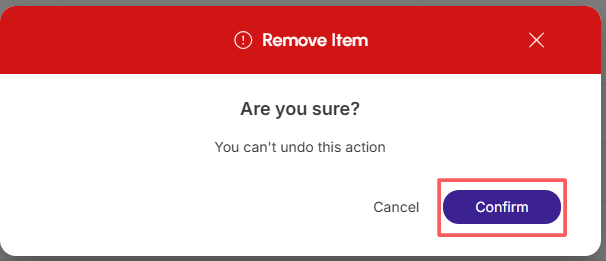
5 - Confirm if you want to perform the deletion. To confirm that the contact has been deleted from the group, a message will be displayed for a few seconds at the top right of the page.
Manage Group Bulk Action
it is possible to perform bulk actions on the contacts of a group, allowing you to apply changes quickly and standardized, ensuring greater consistency in the management of the group's contacts.
Steps:
1 - In the side menu, go to Settings, and then, Contact Groups.
2 - Select the desired contact group.
3 - Access the Contacts tab.
4 - In Contacts, click Mass Update.
5 - In Mass Update, select:
-
Affiliation type: the assigned affiliation type - all sales or By referral;
-
Commission: the commission if you want to indicate the commission percentage to be assigned;
-
Status: the status if you want to deactivate/activate affiliations - change the selector to the desired position (activated or deactivated) - the status activates/deactivates all affiliations within the marketplace/product that are by referral.
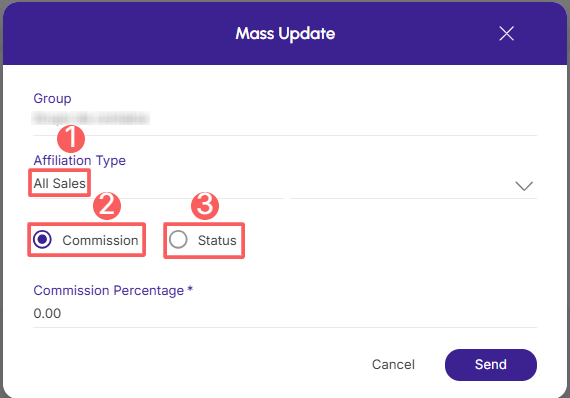
6 - Click Send.