
In the Tracking section of Neural A/B Checkout Tests, you have a detailed view of each test's performance and can configure new tracking for your strategies.
You can easily add new tracking by providing the Name, Landing Page URL, and Marketplace Field, ensuring the monitoring of each stage of your sales funnel.
On this page:
-
Tracking
-
Add Neural A/B Checkout Test tracking
-
Tracking
In the Tracking section, you can view all information about Neural A/B Checkout Tests. In addition, you can add new checkout tracking.
Steps:
1 - Access the Neural A/B Checkout Test list - a screen with the data will be displayed.
2 - In Tracking, the list displays the following information:
-
Name: displays the name of the tracking source for the period;
-
Field: select the field in the marketplace - if you are using Guru Checkout: recommended to select “src“ and/or External Checkout: select a compatible field;
-
Clicks: displays the number of tracked clicks for the period;
-
Sales: displays the number of sales made for the period;
-
Valid: displays the number of valid sales for the period;
-
Average Value: displays the average value of valid sales for the period;
-
Score: displays the tracking score for the period;
-
Promotion URL: displays the promotion URL of your Neural A/B Checkout Test;
-
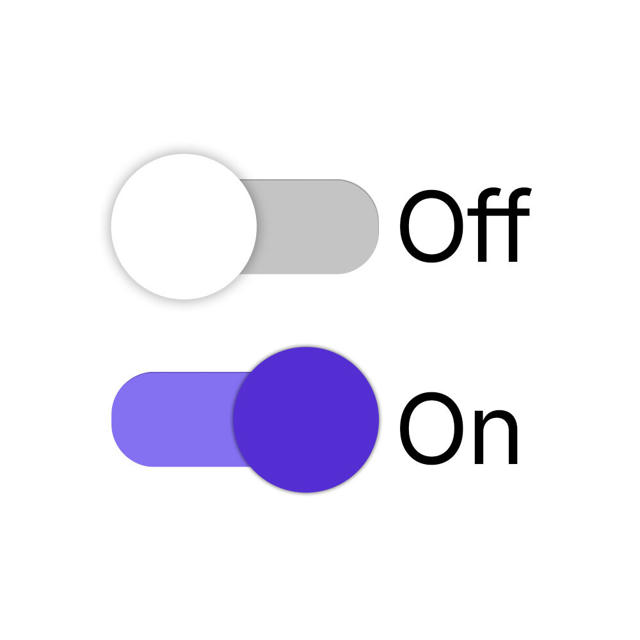
Deactivate: when active, the promotion URL will no longer be available - there will be no more redirection to the payment URL informed in the button.

If desired, click on the tracking and consult the P.P.C.T. Checkout information.
Add Neural A/B Checkout Test tracking
In this section, you will add Neural A/B Checkout Test tracking.
Steps:
1 - Access the Neural A/B Checkout Test list - a screen with the data will be displayed.
2 - In Tracking, click on Add Tracking.
3 - In Create New Tracking, enter the following data:
-
Name: name or title to identify the tracking;
-
Form URL: destination page URL that will be displayed;
-
Field in Marketplace: select the field in the marketplace - if you are using Guru Checkout: recommended to select “src“ and/or External Checkout: select a compatible field.
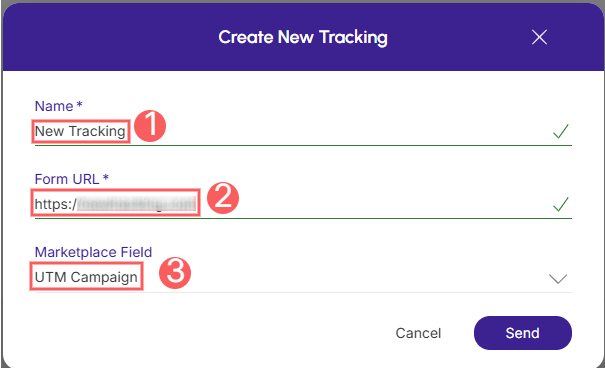
4 - Click on Send.