
By integrating your CoinPayments account with Guru, you will be able to process your customers' payments through the Guru Checkout and manage the entire business through our platform.
To activate the integration, you must access your Coin. Payments account, obtain the production credentials, and then enter them in Guru. After activating the integration, you must add products and offers to get checkout links.
Make sure to configure the accepted currencies, through your Coin. Payments account. The configured currency options will be available in Guru Checkout.
On this page:
-
Step 1: Obtain credentials
-
Step 2: Activate integration
-
What to Do Next
Before you start you need:
-
Have an active production account with CoinPayments.
-
Be an administrator user or have permission to perform the following actions.
Step 1: Obtain credentials
In this step, you must obtain the integration credentials for your CoinPayments account.
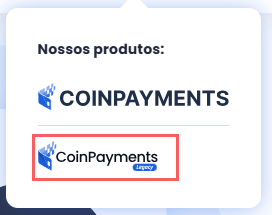
When clicking to log in, click on CoinPayments Legacy to access your account.
Steps:
1 - Access the coinpayments website and click on CoinPayments Legacy.
2 - Then, access your CoinPayments account with username and password.
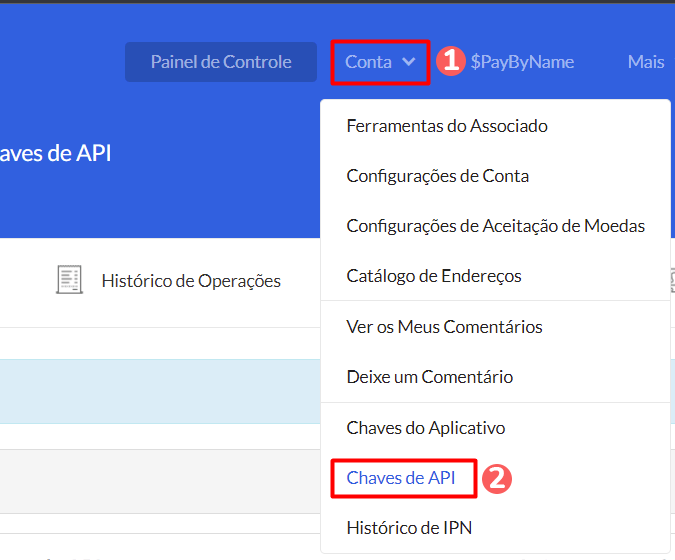
3 - In the top menu, click on Account, and then on Api Keys.
4 - Click on Generate Key and then on Edit permissions.
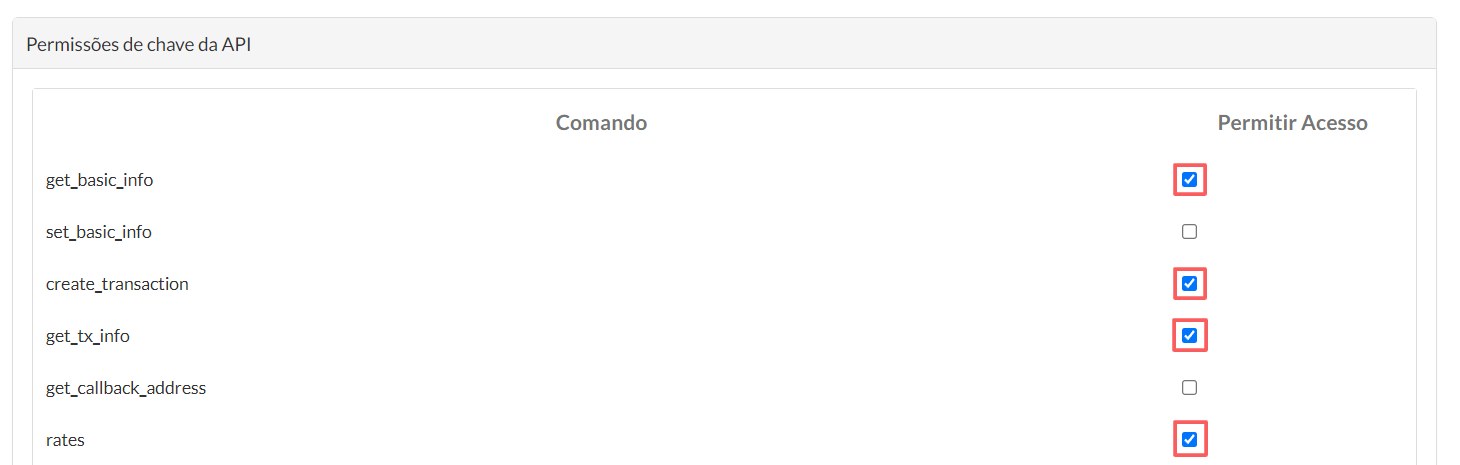
5 - In Api Key Permissions, ensure that the following options are selected:
-
get_basic_info
-
create_transaction
-
get_tx_info
-
rates
6 - Click on Update permissions.
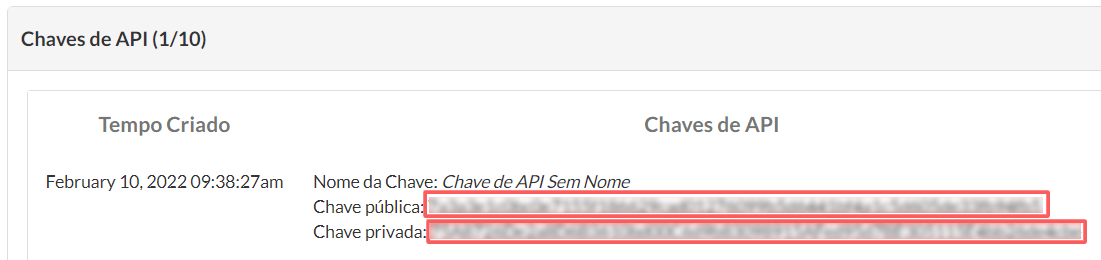
7 - Go back to Account > API Key and store the Public Key and Private Key.
Step 2: Activate integration
In this step, you must enter your CoinPayments integration credentials in the Guru admin.
The API key will not be available after saving the integration. If you change the API key, it will no longer be valid, and you will need to return to the Coin. Payments environment to obtain the key.
This change will bring greater security to your account, making it impossible to view integration data.
Steps:
1 - Access the guru admin with your username and password.
2 - In the side menu, go to Settings > Integrations > Guru’s Checkout > CoinPayments

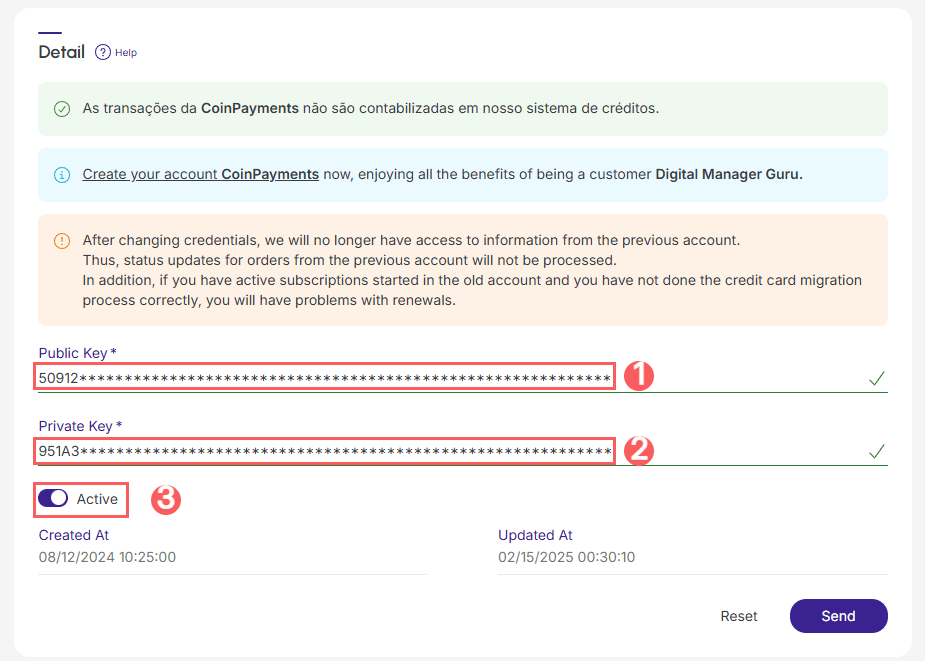
3 - In the Detail tab, enter:
-
Public Key: obtained in step 1 - item 7;
-
Private Key: obtained in step 1 - item 7;
-
Change the Active button to the on position.
.jpg?cb=8837a4ea6a4e7db37d2e094edac9e7bf)
4 - Click on Send.
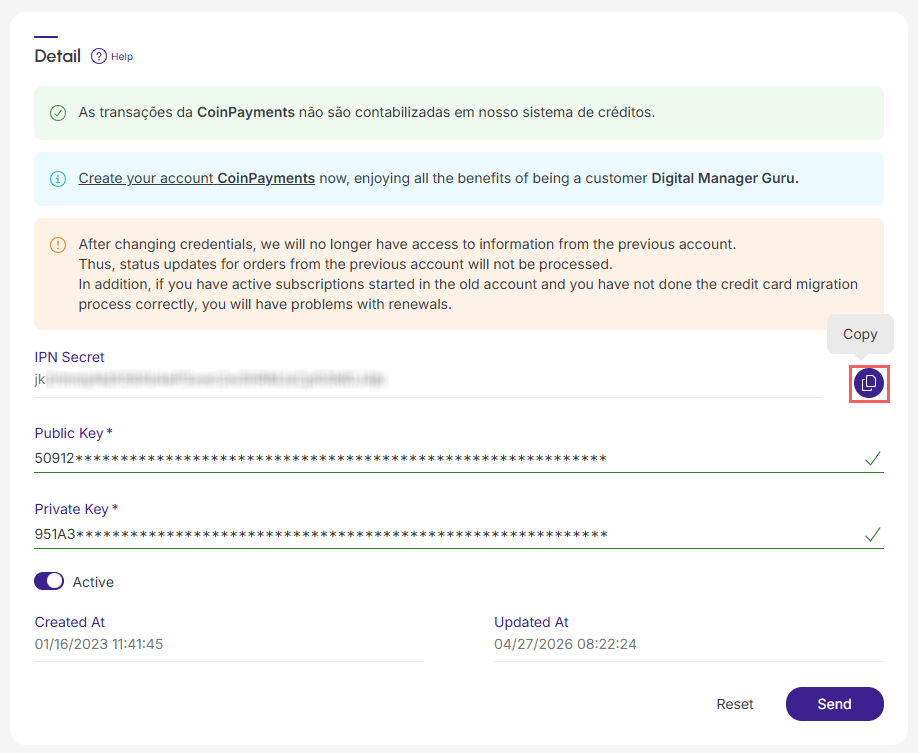
To confirm that the integration is active, you should view your CoinPayments account data on the right side of the Detail tab.
5 - Copy and store Ipn Secret.
6 - Go back to your CoinPayments account and access Account, and then Account Settings.
7 - In Operator Settings, paste the Ipn Secret.

8 - Click on Update account.
What to Do Next
Once the integration with CoinPayments is active, you must access the Products section to add the products and their respective offers.
Remember to link the product to CoinPayments (field marketplace) and inform the type corresponding to the desired sales modality: product (single sale). After adding an offer, the checkout link will be available for dissemination.
Consult the complete step-by-step guide:
Import products from your virtual store
If you use an e-commerce platform integrated with Guru, you can import products from your store. Then, update or add an offer to the product to generate the checkout link.