
By integrating your Adyen account with Guru, you will be able to process your customers' payments through Guru Checkout and manage the entire business through our platform.
To activate the integration, you must access the Guru admin and then authenticate with your Adyen account username and password to authorize Guru's access to the Adyen application. After activating the integration, you must add products and offers to get checkout links.
On this page:
-
Step 1: Activate integration
-
Step 2: Optional settings
-
What to Do Next
Step 1: Activate integration
In this step, you must access your Guru account to authorize the integration with Adyen.
Steps:
1 - Access the guru admin with your username and password.
2 - In the side menu, go to Settings > Integrations > Guru’s Checkout > Adyen

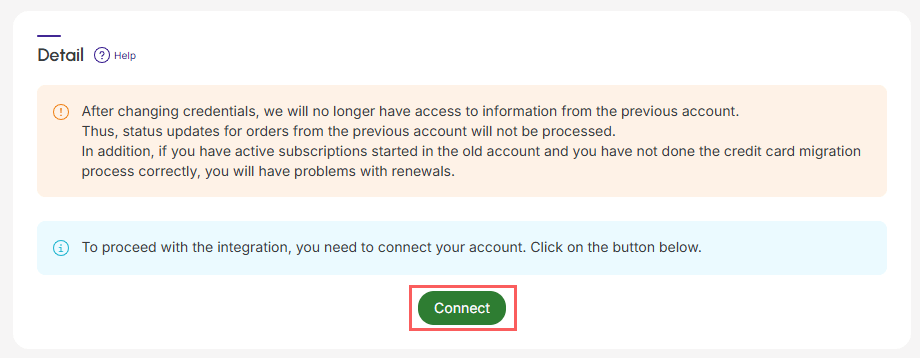
3 - In the Detail, click on Connect - you will be redirected to the Adyen login.
4 - Enter your username and password.
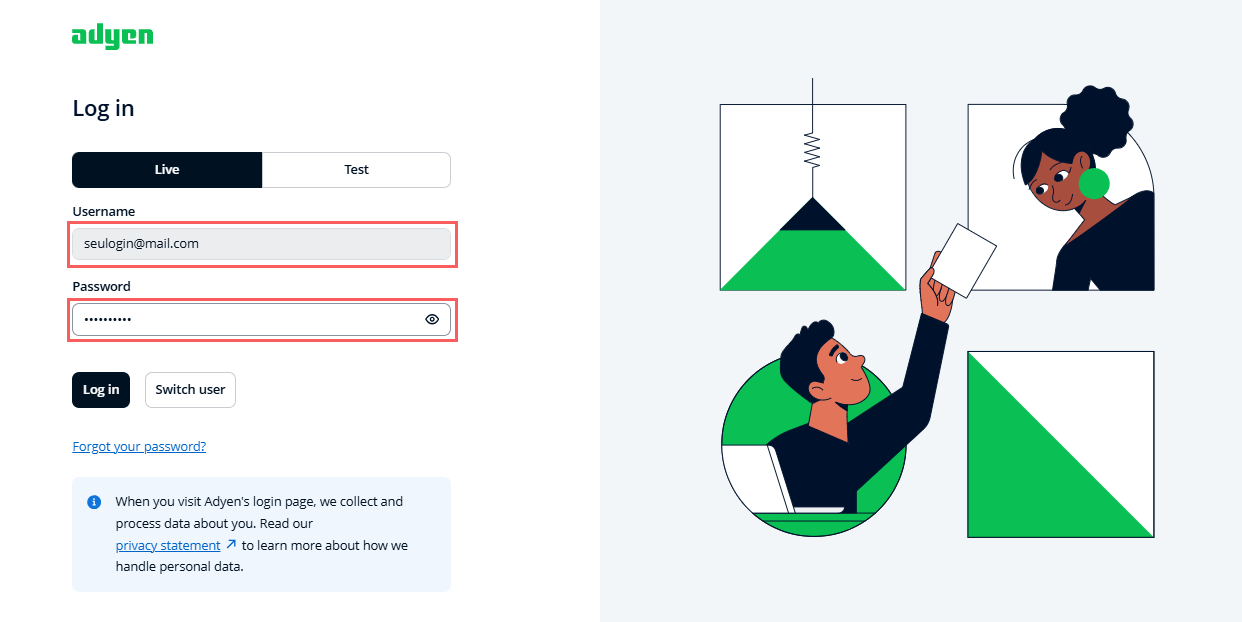
5 - Click on Connect.
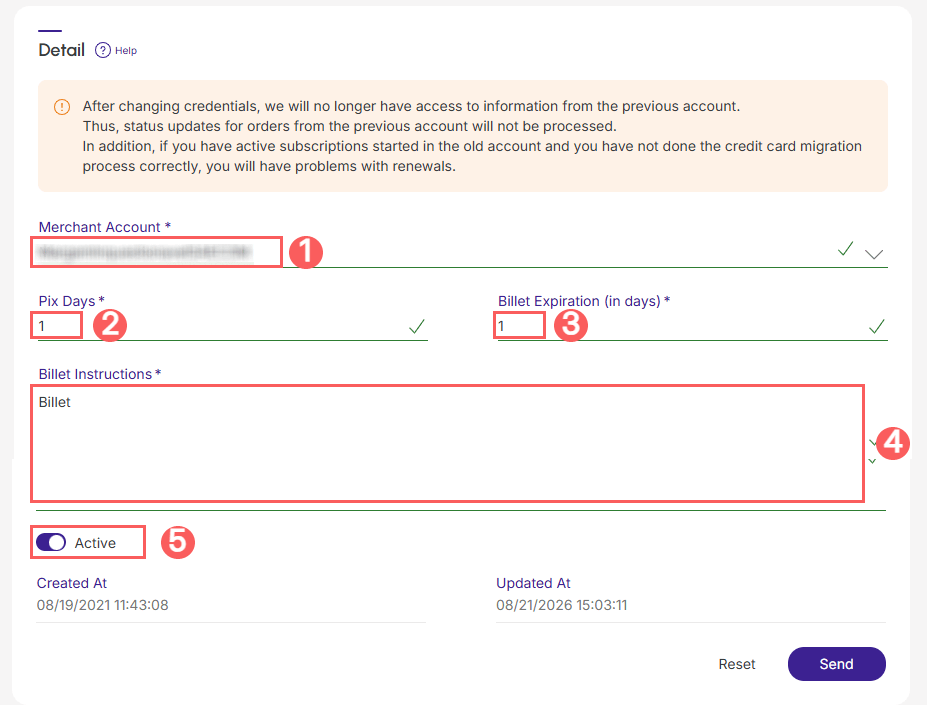
6 - Back in Guru, enter:
-
Merchant Account: your merchant account - your business account in Adyen;
-
Pix Term (in days)1: pix due date (in days);
-
Billet Expiration (in days)1: billet due date for the Billet (in days);
-
Billet Instructions: text to be displayed in the "instructions" section of the billet;
-
Active: switch the button to the on position.
(1) Pix and billet deadline (in days) maximum of 1 year (The billet and PIX options are only available on the checkout version for customers in Brazil).
.jpg?cb=8837a4ea6a4e7db37d2e094edac9e7bf)
7 - Click on Send.
To confirm that the integration is active, you should see a notification in the upper right corner.
Step 2: Optional Settings
If desired, you can activate and use the optional features of Guru's integration with Adyen.
See the complete step-by-step guide:
Once the integration is active, optional settings can be made at any time.
What to do next
Once the integration with Adyen is active, you must access the Products section to add products and their respective offers.
Remember to link the product to Adyen (field marketplace) and inform the type corresponding to the desired sales modality: product (one-time sale) or subscription (recurring billing). After adding an offer, the checkout link will be available for promotion.
See the complete step-by-step guide:
Import products from your virtual store
If you use an e-commerce platform integrated with Guru, you can import products from your store. Then, update or add an offer to the product to generate the checkout link.