
You can create a Neural Sales A/B Test to optimize conversions and automatically direct more traffic to the page(s) that statistically present the best results.
Attention! When using the Neural Sales A/B Test, you cannot use the Sales R.P.P.C., as the A/B Test replaces it.
On this page:
-
Add Neural Sales A/B Test
-
Duplicate Neural Sales A/B Test
-
Update Neural Sales A/B Test
-
Hide Neural Sales A/B Test
-
Deactivate Neural Sales A/B Test
-
Remove Neural Sales A/B Test
Add Neural Sales A/B Test
In this section, you will add a Neural Sales A/B Test.
Steps:
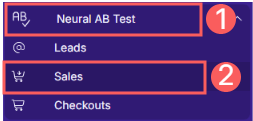
1 - In the side menu, go to Neural A/B Test and then click on Sales.
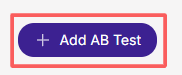
2 - In the upper right corner, click on Add A/B Test.
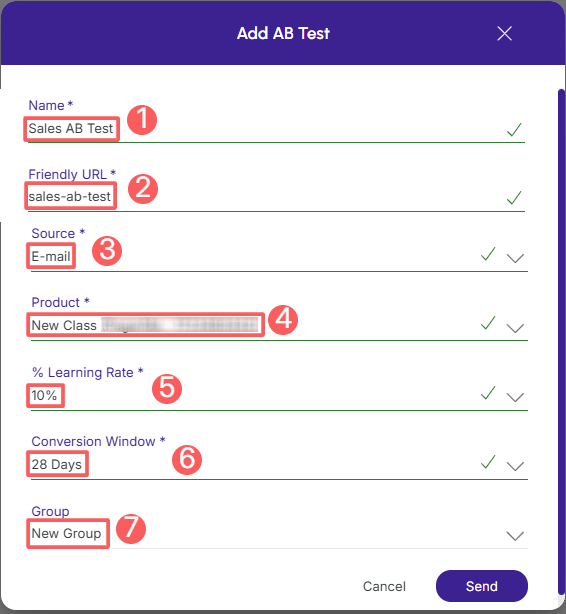
3 - In Add A/B Test, enter the following data:
-
Name: enter the name of the traffic division;
-
Friendly URL: automatically generated from the traffic division name, it is a simple text to remember or type that will appear at the end of the tracked URL - if desired, you can change it;
-
Source: select the traffic origin where you will use the tracking link;
-
Product: select the product related to the conversion - we recommend choosing the Global Tracking product(1);
-
% Learning Rate(2): enter the percentage of traffic you want to keep for learning (testing);
-
Conversion Window: enter the days (last X days) to consider for conversion score calculation(3) ;
-
Group(4): select the sales group it belongs to.
(1) By default, always select the Global (Tracking) product for all elements (RPPCs) involved in tracking. If this product does not exist, create it in Products.
(2) Example: entering 30% means that for every 100 clicks, Guru will direct 70 clicks to the "winning" checkout option and the other 30 clicks will be divided among all checkout options for learning and optimizing Guru's algorithm.
(3) Checkout tracking score assigned by Guru's mathematical algorithm based on traffic volume and conversions.
(4) This field is optional and can only be filled if you have already created a group.
4 - Click on Send.
From this moment on, whenever a visitor clicks on the Leads A/B Test link, Guru's mathematical algorithm will optimally direct the visitor to one of the active lead trackings, taking into account their learning stage and tracking score. You can follow the results in Neural A/B Test > Sales > View > Trackings.
Duplicate Neural Sales A/B Test
To save time, you can duplicate a similar Neural Sales A/B Test instead of adding a new one. This option is useful if you want to include options from an existing Neural Sales A/B Test such as URL, origin, learning, and group.
When using the Duplicate feature, Guru will create a copy of the selected Sales A/B Test with a new name and promotional URL.
To duplicate an existing Neural Sales A/B Test, follow the steps below:
Steps:
1 - In the side menu, go to Neural A/B Test and then click on Sales.
2 - Hover over the desired Neural Sales A/B Test and click on Duplicate.

3 - A confirmation window is displayed. To proceed with the action, click Duplicate.
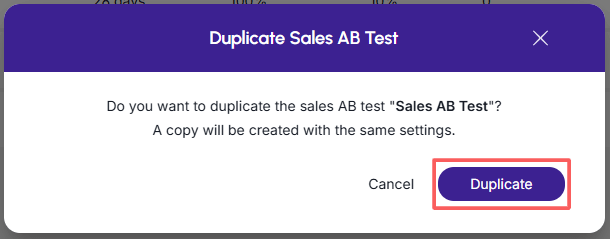
A message will be displayed for a few seconds in the upper right corner of the page, informing that the item has been successfully duplicated.
Update Neural Sales A/B Test
After creating a Neural Sales A/B Test, you can edit it to change the name, product, URL, origin, and other information.
To edit a Neural Sales A/B Test, follow the steps below:
Steps:
1 - In the side menu, go to Neural A/B Test, and then click on Sales.
2 - In the list of your Sales A/B Tests, select the one you want to update.

3 - Consult the neural Sales A/B Test information.
Hide Neural Sales A/B Test
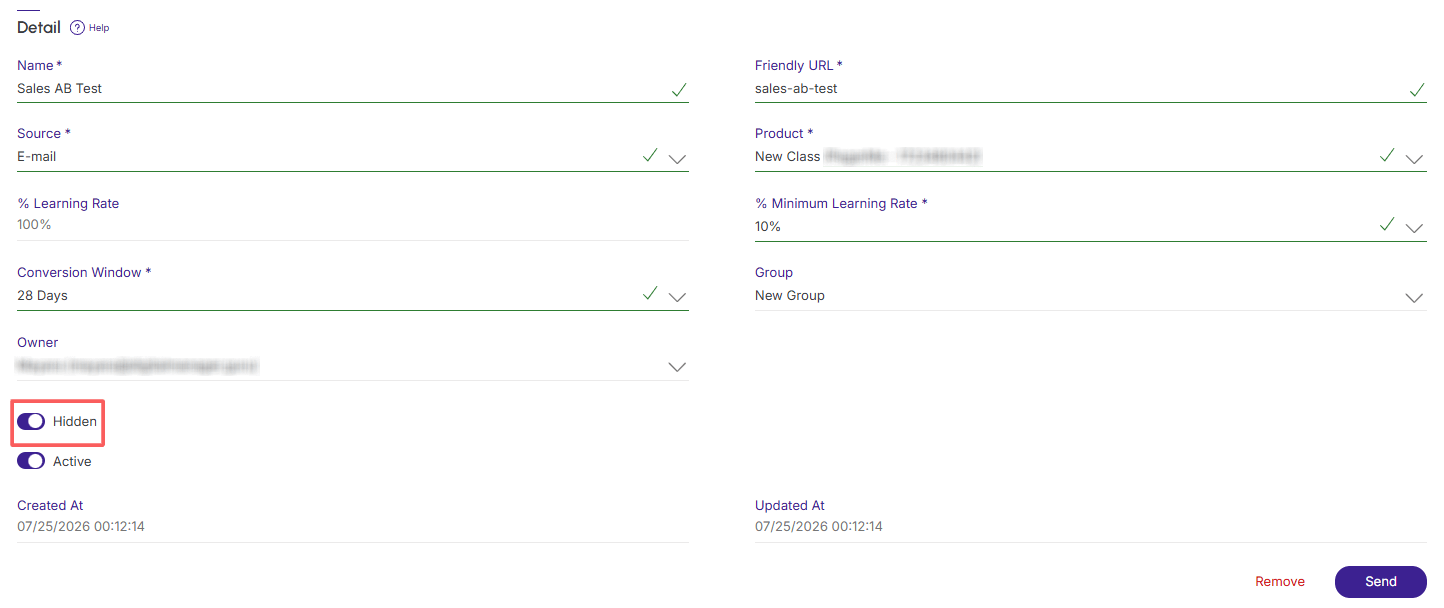
You can hide a Neural Sales A/B Test from the display list. This option is useful when you do not want to use tracking or cannot delete it because it has clicks. After hiding the Neural Sales A/B Test, it will only be visible when showing hidden Neural Sales A/B Tests, reversing the action.
To hide an A/B Test:
Steps:
1 - In the side menu, go to Neural A/B Test and then click on Sales.
2 - Click on the desired Neural Sales A/B Test.
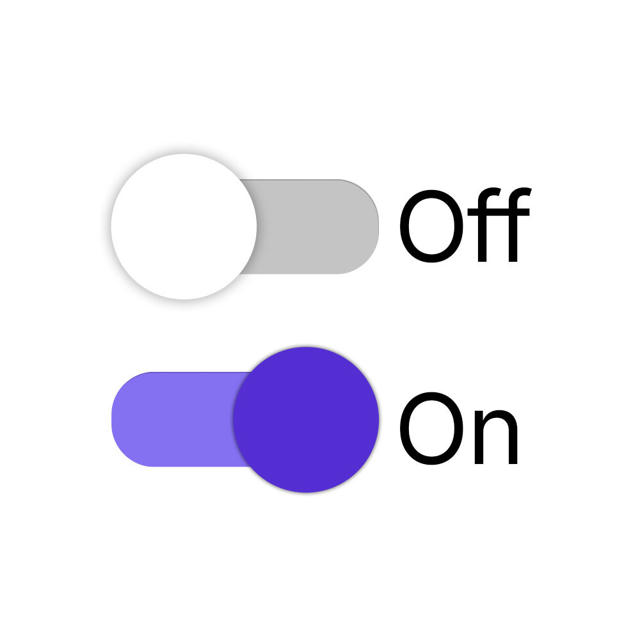
3 - In Detail, activate the Hidden option.
4 - Click on Send.
Deactivate Neural Sales A/B Test
You can deactivate a Neural Sales A/B Test at any time. When deactivating a Neural Sales A/B Test, the promotional URL will no longer be available, meaning there will be no more redirection to the payment URL informed in the button.
This feature is useful when it is not possible to delete1 the Neural Sales A/B Test and you want to prevent the customer from making a purchase through the tracking link in question.
(1) It is possible to remove a Neural Sales A/B Test, provided it has not received its first click.
To deactivate a Neural Sales A/B Test:
Steps:
1 - Access the Neural Sales A/B Test list in the desired Sales A/B Test registration.
2 - Locate the desired Neural Sales A/B Test and change the selector to the desired position (deactivate).

If you want to activate a deactivated A/B Test, use the filter to search for inactive Neural A/B Tests.
Remove Neural Sales A/B Test
It is possible to remove a Neural Sales A/B Test, provided it has not received its first click. When removing an A/B Test, the record is permanently removed and cannot be restored.
Alternatively, you can hide the Neural Sales A/B Test instead of removing it.
To remove a Neural Sales A/B Test:
Steps:
1 - In the side menu, go to Neural A/B Test and then click on Sales.
2 - Click on the desired Neural Sales A/B Test .
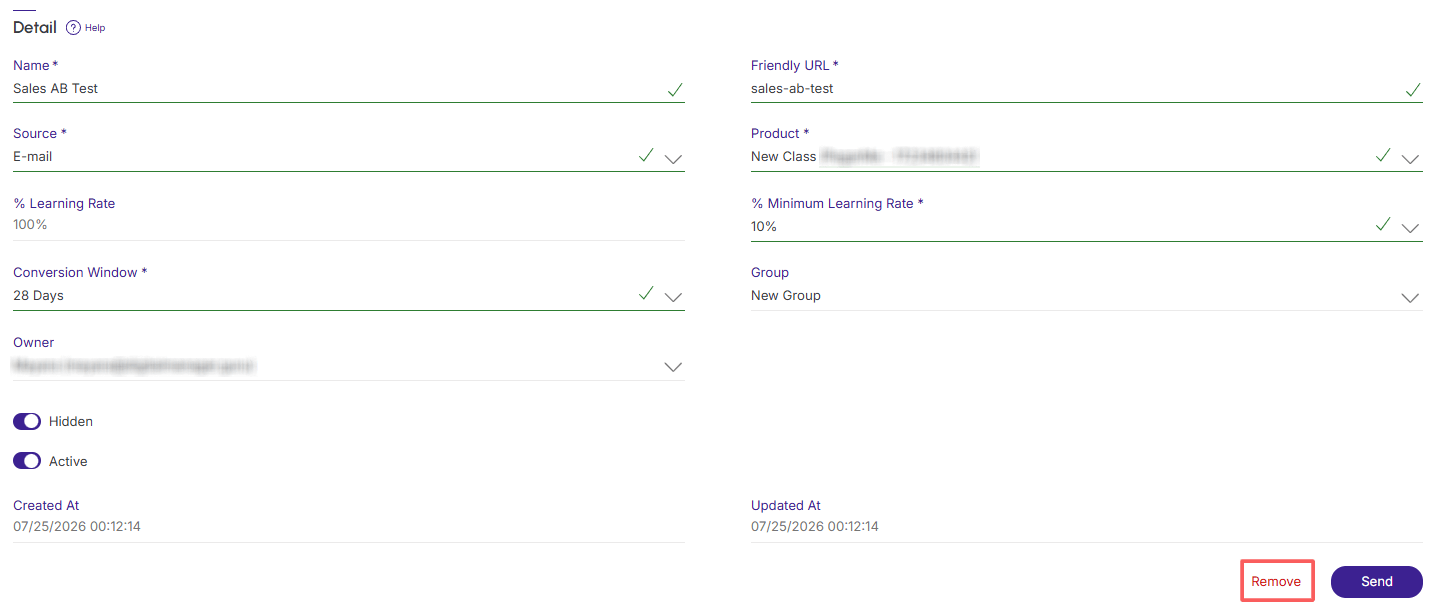
3 - In Detail, click on Remove1 .
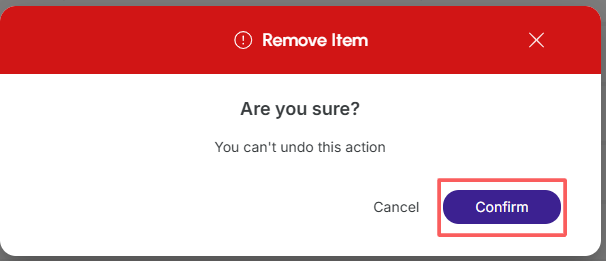
3 - A confirmation window is displayed. If you wish to proceed with the removal, click on Confirm.
(1) It will not be possible to change or delete a Neural Sales A/B Test after it has received its first click.
More Resources