
If you sell a digital product or do not require the buyer's address, you can remove this step from Checkout Guru with Stripe.
Contact the Stripe team via chat to request the activation of sales processing with a default address for checkouts without an address.
On this page:
-
Step 1: Register default address
-
Step 2: Hide address fields in Checkout Guru
Before you start, you need…
-
Sales processing with a default address activated in your Stripe account.
-
Have the active integration with Stripe.
-
Be an administrator or have permission to perform the following actions.
Step 1: Register default address
In this step, you will provide a default address for sales without an address using bank slip.
Steps:
1 - Access the guru admin with your username and password.
2 - In the side menu, access Settings > Integrations > Guru’s Checkout > Stripe.

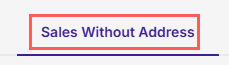
3 - In the Stripe settings, click on the tab “Sales without address”.
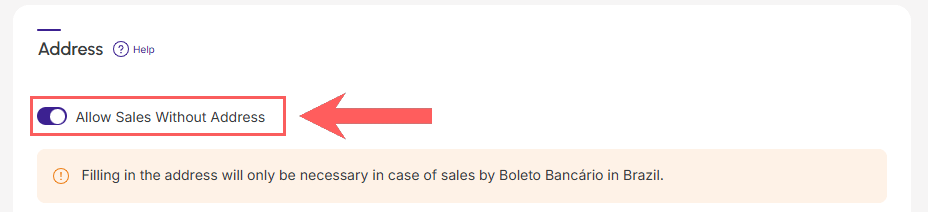
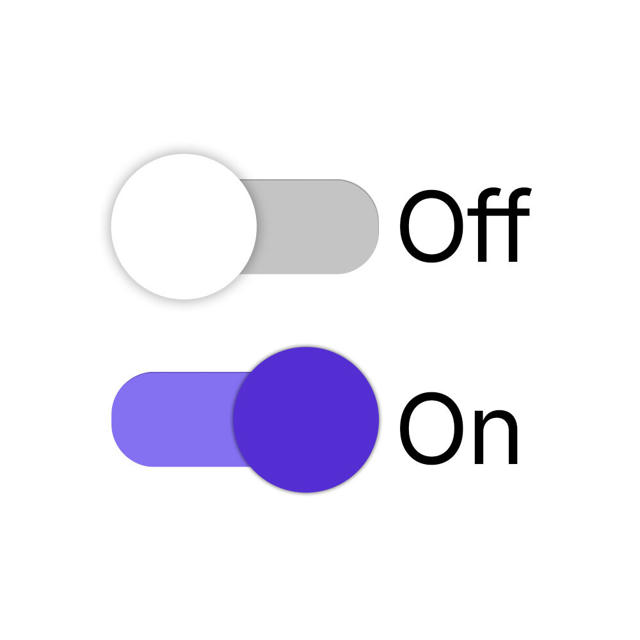
4 - Change the button to the 'on' position if you wish to allow Sales Without Address.
5 - Enter the default address that will be used for sales with billet.
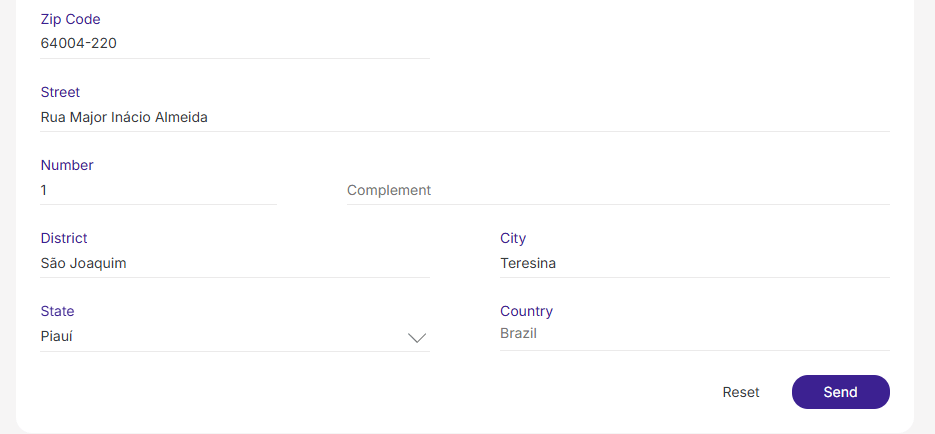
You must provide the same address as your registration in Stripe.
6 - Click on Send.
Step 2: Hide address fields in Checkout Guru
In this step, you will access the configuration of the desired product or offer and hide the address fields in Checkout Guru.
See the complete tutorial:
Hide address fields in checkout