
By integrating your D4Sign account, you can automate the generation and sending of contracts for electronic signature from approved sales or activated subscriptions in Guru.
To activate the integration, you need to connect your D4Sign account, then link a product in Guru to a contract template stored in a safe in D4Sign, and map the sale or subscription fields to fill in the contract.
On this page:
-
Step 1: Obtain API Token and CryptKey
-
Step 2: Obtain HMAC Key
-
Step 3: Activate the integration
-
What to do next
Before you begin, you need to:
-
Have an account with D4Sign.
-
Be an administrator user or have permission to perform the following actions.
Step 1: Obtain API Token and CryptKey
In this step, you must access your D4Sign account and obtain the API Token and CryptKey, which must be provided to integrate your Guru account with D4Sign.
Steps:
1 - Log in to your D4Sign account with your username and password.
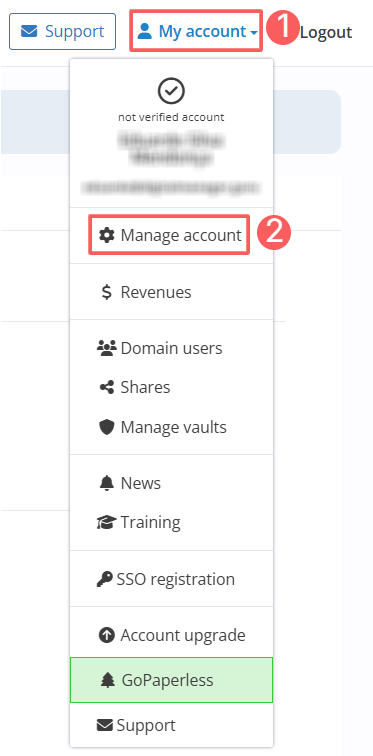
2 - In the top right corner, click on My Account and then Manage account.
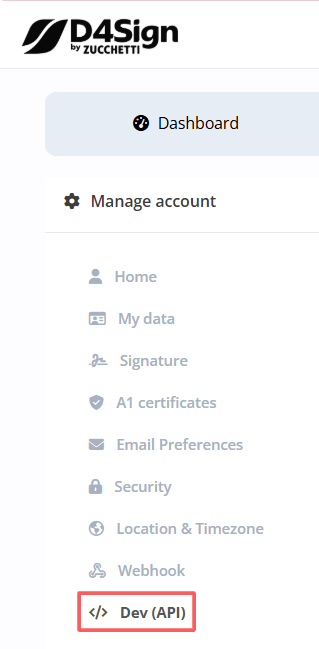
3 - In Manage account, go to Dev (API).
4 - In Dev (API), click on New API key.
5 - Enter the desired name for the API Key Name.
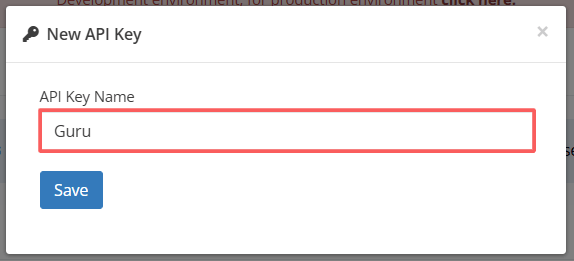
6 - Click on Save.
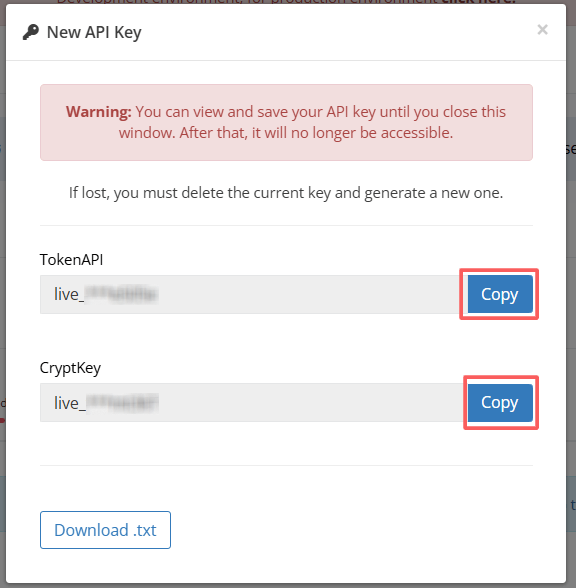
7 - Next, copy and store the TokenAPI and the CryptKey.
Step 2: Obtain HMAC Key
In this step, you must access your D4Sign account and obtain the Secret HMAC Key, used to validate the authenticity of notifications (webhooks) sent by D4Sign to Guru.
Steps:
1 - Log in to your D4Sign account with your username and password.
2 - In the top right corner, click on My Account and then Manage account.
3 - In Manage account, go to Webhooks.
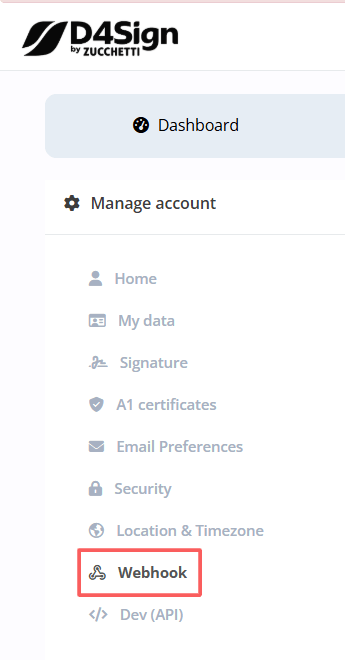
4 - Next, click on Webhook Settings.

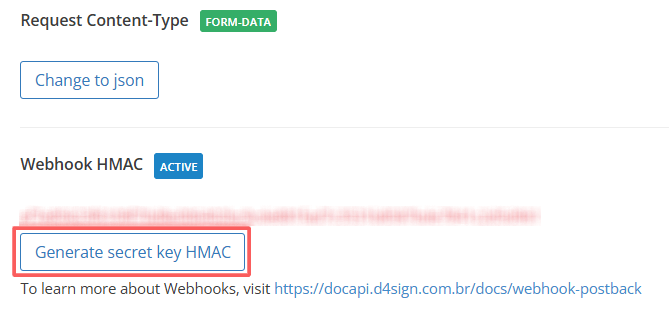
5 - Under Webhook HMAC, click on Generate Secret Key HMAC.
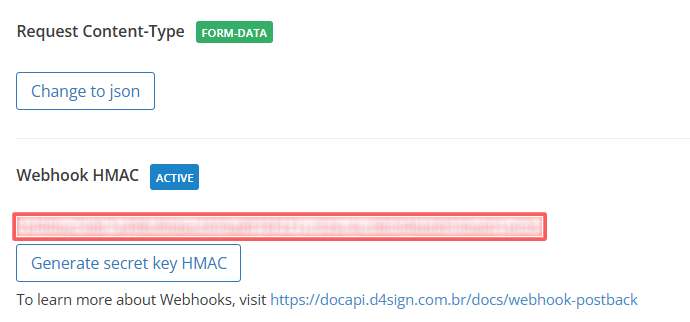
6 - Next, copy and store the generated Webhook HMAC.
Step 3: Activate the integration
In this step, you will activate the integration with D4Sign in Guru.
Steps:
1 - Log in to the Guru admin with your username and password.
2 - In the side menu, go to Settings > Integrations > Contracts > D4Sign.

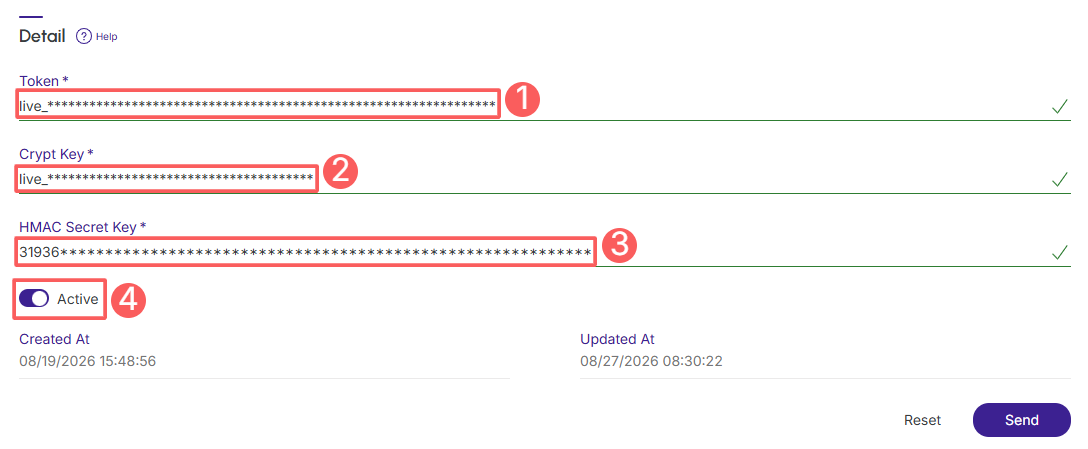
3 - In the Detail tab, enter:
-
Token: the API token - obtained from step 1 - item 7;
-
Encryption Key: the encryption key (CryptKey) - obtained from step 1 - item 7;
-
Secret HMAC Key: the secret HMAC key (webhook HMAC) - obtained from step 2 - item 6;
-
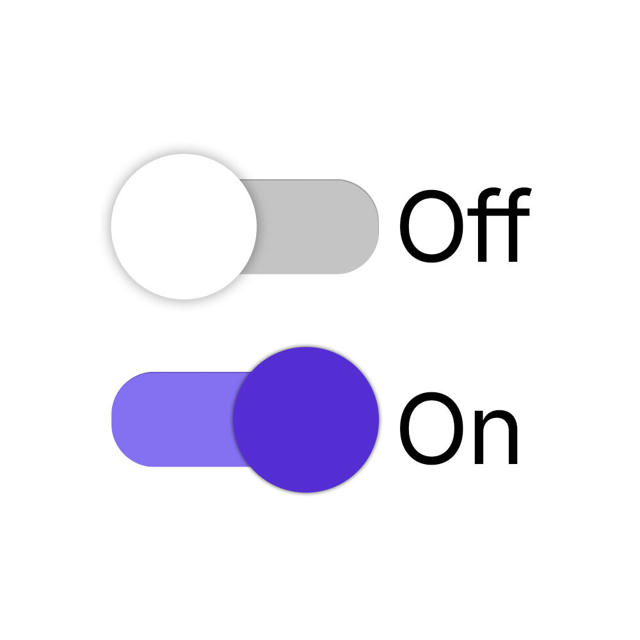
Active: toggle the Active button to the on position.
4 - Click on Send.
To confirm that the integration is active, you should see a notification in the top right corner.
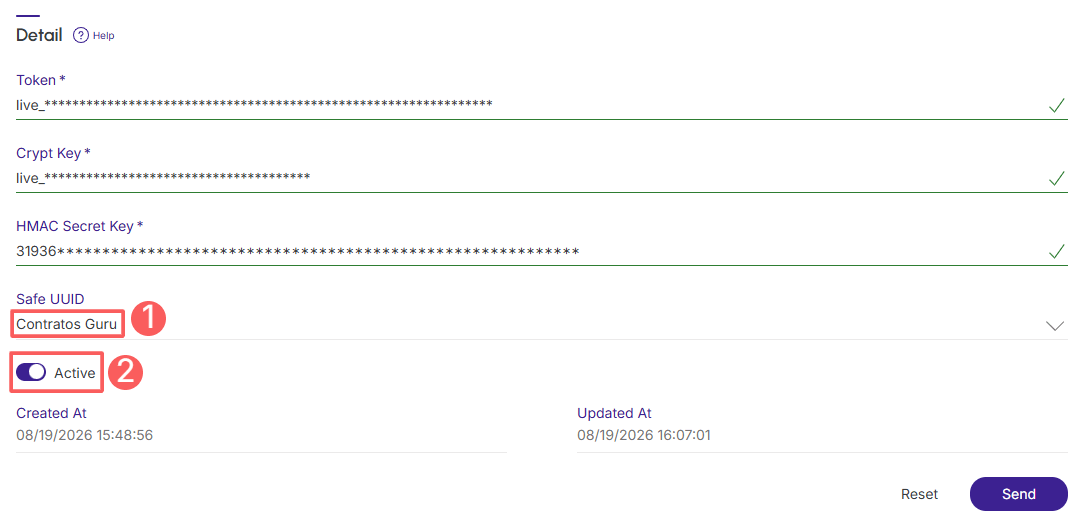
5 - Next, after activating the integration, select:
-
Safe UUID: unique identifier of a main folder (safe) in your D4Sign account;
-
Active: toggle the Active button to the on position.
6 - Click on Send.
The Safe UUID is the unique identifier of a main folder (safe) in your D4Sign account (the UUID is automatically generated when your account is created). It indicates to the integration exactly which folder your documents will be saved to or retrieved from via API. To learn more about the safe UUID, consult the D4Sign documentation.
What to do next
Once the integration with D4Sign is active, you must configure the sending of the contract in D4Sign, associate a Guru product with a contract template, and, if desired, send custom fields to fill in the contract.
This configuration is done through:
1 - Configure contract generation in D4Sign (product mapping);
2 - Configure data sending for contract generation (field mapping).