
Invoice report information displays the details and sales of subscriptions related to invoices.
On this page:
-
Detail
-
Sales
-
View sales list
-
View sales data
-
Detail
In the Detail section, you can view basic subscription information, such as current status, update dates, product, and current cycle. You can also access the options menu to modify the subscription.
Steps:
1 - Select the desired invoice - a screen with the data will be displayed.
2 - Click on Detail.
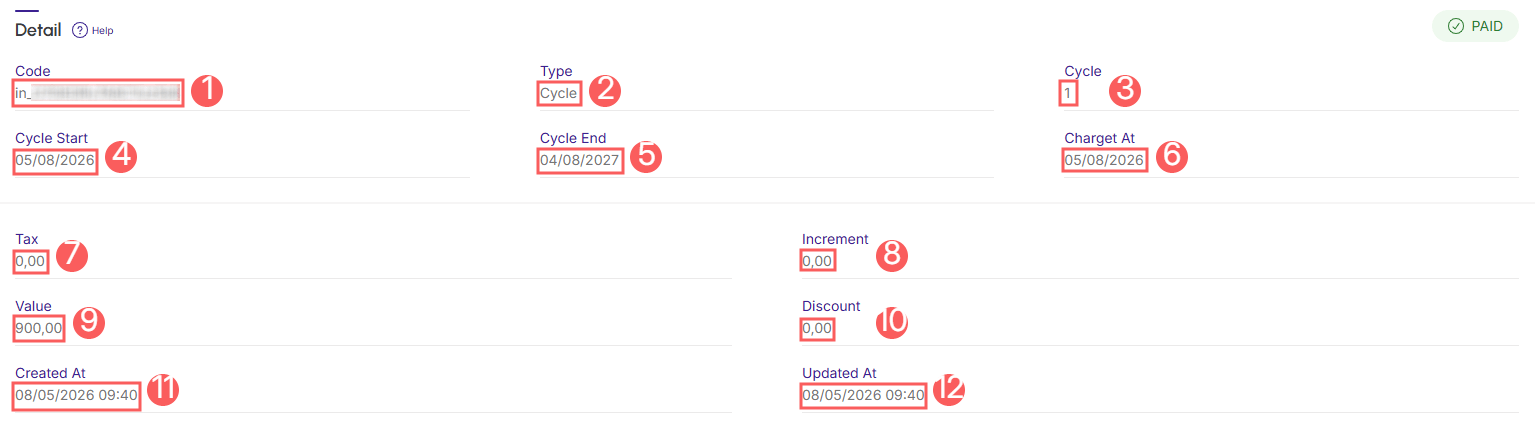
3 - Displays the detailed information of the invoice (charge) in question.
-
Code: invoice (charge) identifier code;
-
Type: type of charge made - possible values: cycle (activation/renewal), downgrade, upgrade or upsell;
-
Cycle: subscription cycle number that the invoice (charge) is associated with;
-
Cycle Start: start date of the cycle associated with the invoice;
-
Cycle End: end date of the cycle associated with the invoice;
-
Charged At: date the charge was made;
-
Payment URL: invoice payment URL;
-
Tax: tax amount;
-
Increment: surcharge amount applied to the charge;
-
Value: charge amount;
-
Discount: discount amount applied to the charge;
-
Created at: invoice creation date (scheduling);
-
Updated at: most recent invoice update date.
Sales
In the Sales section, you view the list of sales (payment transactions) associated with the invoice.
View sales list
By default, the Sales list is organized by creation date (newest to oldest). For faster page loading, only the first 30 records are displayed. If you want to view the remaining items on the list, you can scroll to the bottom of the page and click on View more at the bottom center of the screen.
Step:
1 - Select the desired invoice - a screen with the data will be displayed.
2 - Click on Sales.
3 - The list displays the following information:
-
Status: current sales status label - one of the possible sales statuses will be displayed;
-
Code: sales identification code;
-
Product: product associated with the subscription in question;
-
Ordered At: transaction (sale) creation date;
-
Value: value charged;
-
Payment method: icon indicating the payment method registered for making charges - hover over the icon to view the label.

View sales data
You can view1 all sales information or modify1 some sales data.
(1) permission is required to perform these actions.
Steps:
1 - Access the sales list - a screen with the data will be displayed.
2 - Locate the desired sale in the list.
3 - Click on the desired sale.
4 - Consult the sales information.
