
You can view or filter the list of producers. This feature is useful for finding one or more specific producers you want to view.
On this page:
-
View list of producers
-
View producer details
-
Filter list of producers
-
Manage producer filters
-
View list of producers
By default, the list of producers is organized alphabetically. For faster page loading, only the first 30 records are displayed. If you want to view the other items on the list, you can scroll to the end of the page and click on See more at the bottom center of the screen.
Steps
1 - In the side menu, go to Settings and then, Producers.
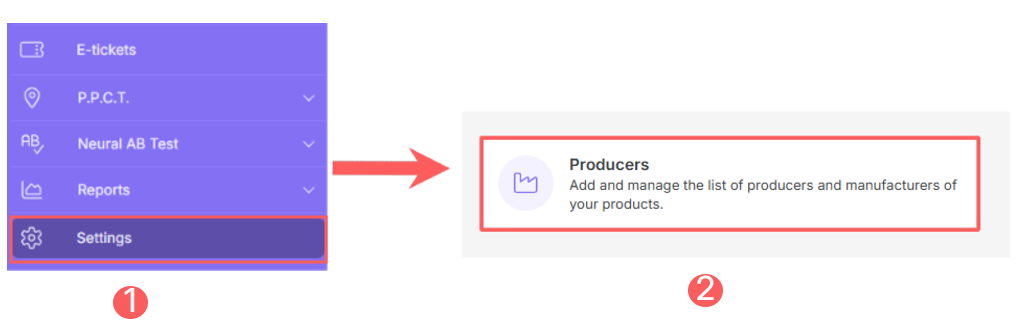
2 - In the listing, the producers will appear:
-
Name: displays the producer's name;
-
Document: displays the producer's document;
-
Marketplace: displays the marketplace to which the producer is associated - Hotmart, Eduzz, etc.

If there is a contact with the same document number as this producer, it will be automatically linked to the producer in the next integration. If you wish, you can link it manually by editing an existing contact.
View producer details
You can view the details of a producer's data.
Steps:
1 - Access the producers list - if desired, you can apply a filter.
2 - Locate the desired producer in the list.
3 - Click on the desired producer.
4 - Consult the producer information.

How to filter the list of producers
You can use filters to view a smaller subset of producers. This feature is useful for finding one or more specific producers you want to view.
Attention: list searches have a maximum selection limit of up to 100 items per filter.
Steps:
1 - In the side menu, go to Settings and then, click on Producers.
2 - In Producers, click on Filters.
3 - Fill in one or more filter options.
The list displays the following information:
-
Name: searches for the name of the producer you want to locate;
-
Document: searches for the document of the producer you want to locate;
-
Marketplaces: searches for the marketplace to which the producer is associated.

4 - Click on Filter.
To remove the applied filters and view all producers again, simply click on Clean Filters.
Manage producer filters
You can check the number of applied filters when using filters to view desired information. This feature is useful if you want to check how many filters have been applied.
In addition, it is possible to clear the filters without accessing the Filters icon again, facilitating the removal of applied filters.
View applied filters
You can check the number of applied filters.
Steps:
1 - In the side menu, go to Settings and then, click on Producers.
2 - In Producers, click on Filters.
3 - Fill in one or more filter options - apply the filters you want to check.
4 – Then, the number of applied filters will appear on the screen.

If you want to apply other filters, click How to filter the list of producers.
Clean applied filters
You can remove the applied filters without needing to click on the filters icon.
Steps:
1 - In the side menu, go to Settings and then, click on Producers.
2 - In Producers, click on Filters.
3 - Fill in one or more filter options - apply the filters you want to check.
4 – Then, click on Clean Filters.

If you want to apply other filters, click How to filter the list of producers.