
In Guru, you can change the data of an existing sales webhook or remove it, by updating, deactivating or removing a webhook.
On this page:
-
Update a sales webhook
-
Deactivate a sales webhook
-
Remove a sales webhook
Before you start, you need to…
-
Be an administrator user or have permission to perform the following actions.
-
Have one or more sales webhooks registered in Guru.
Update a sales webhook
You can update a webhook by editing information such as basic data, sending rules, and filtering records. This feature is useful when you want to change the data of an already registered webhook in Guru and do not want to create a new one.
Steps:
1 - Access the Guru admin with your username and password.
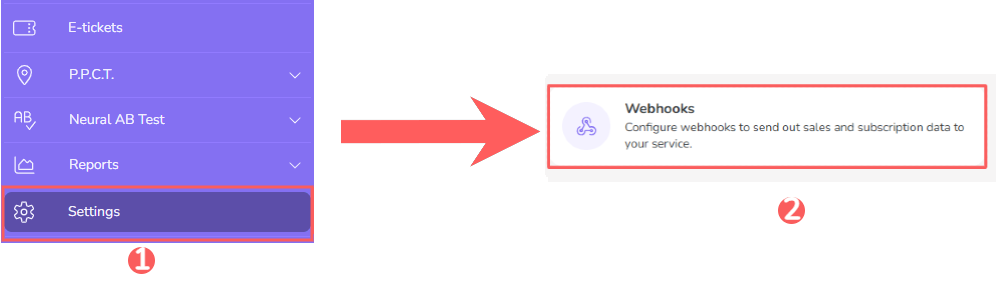
2 - In the side menu, click on Settings and then, Webhooks.
3 - Click on Sales.
4 - Select the webhook you want to change.

5 - Then, change the desired fields:
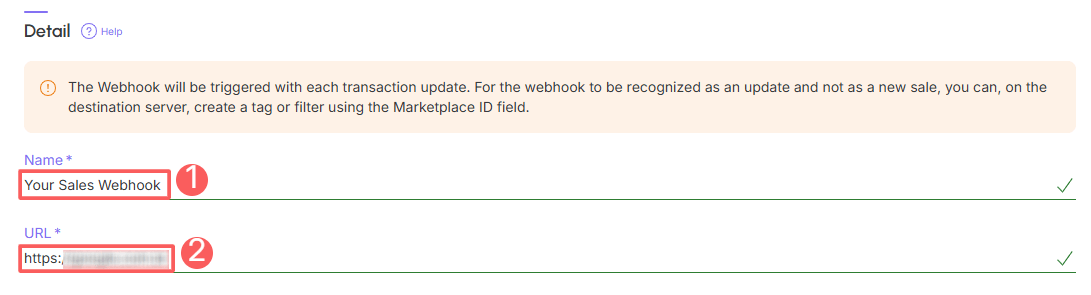
Basic Data
-
Name: name of your webhook;
-
URL: destination URL obtained from the system in question (or with the responsible developer).
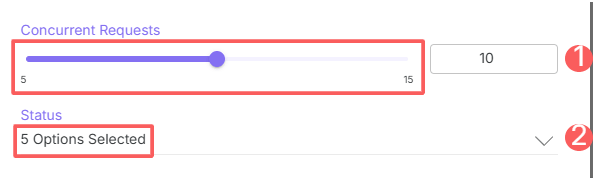
Sending Rules:
-
Concurrent Requests: maximum number of concurrent requests that Guru should perform - indicate an appropriate value to avoid overloading the destination server;
-
Status: for which sales statuses the webhook should be sent - you can select more than one.
Record Filtering
-
Filter by: check filter by
all,MarketplacesorProducts(1); -
Send on shipment update: if you want the webhook to also be sent when a carrier update is received, switch the button to the on position;
-
Active: switch the button to the on position.
(1) When choosing to filter by “all” or “marketplaces”, any new product created will be automatically associated with the webhook.
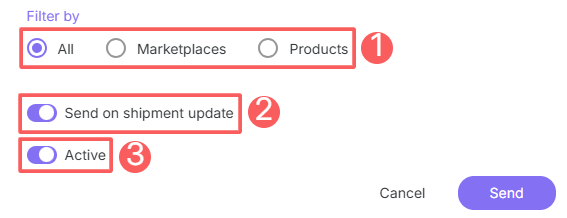
Only sales that meet the indicated filtering criteria will be sent by the webhook.
It is possible to activate the “Send on carrier update” option to send webhook updates whenever data is received from a carrier, such as tracking code or changes in shipping status.
6 - Click on Send.
Deactivate a sales webhook
You can deactivate a webhook at any time. This feature is useful when you want to deactivate a registered webhook if you no longer wish to use it.
Steps:
1 - Access the Guru admin with your username and password.
2 - In the side menu, click on Settings and then, Webhooks.
3 - Click on Sales.
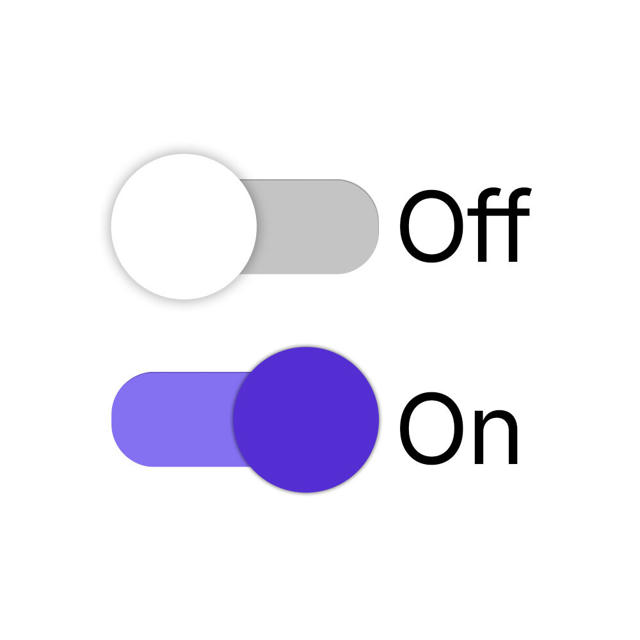
4 - Locate the desired webhook and change the selector to the desired position (activated or deactivated):

When deactivating a webhook, it stops being sent even if the sale in question meets the configured criteria.
Remove a sales webhook
it is possible to remove a webhook. When a webhook is removed, the record is permanently deleted and cannot be restored.
Webhooks with associated sales cannot be removed. Alternatively, you can deactivate the webhook.
Steps:
1 - Access the Guru admin with your username and password.
2 - In the side menu, click on Settings and then, Webhooks.
3 - Click on Sales.
4 - In the Detail of the desired webhook, click on Remove Webhook.
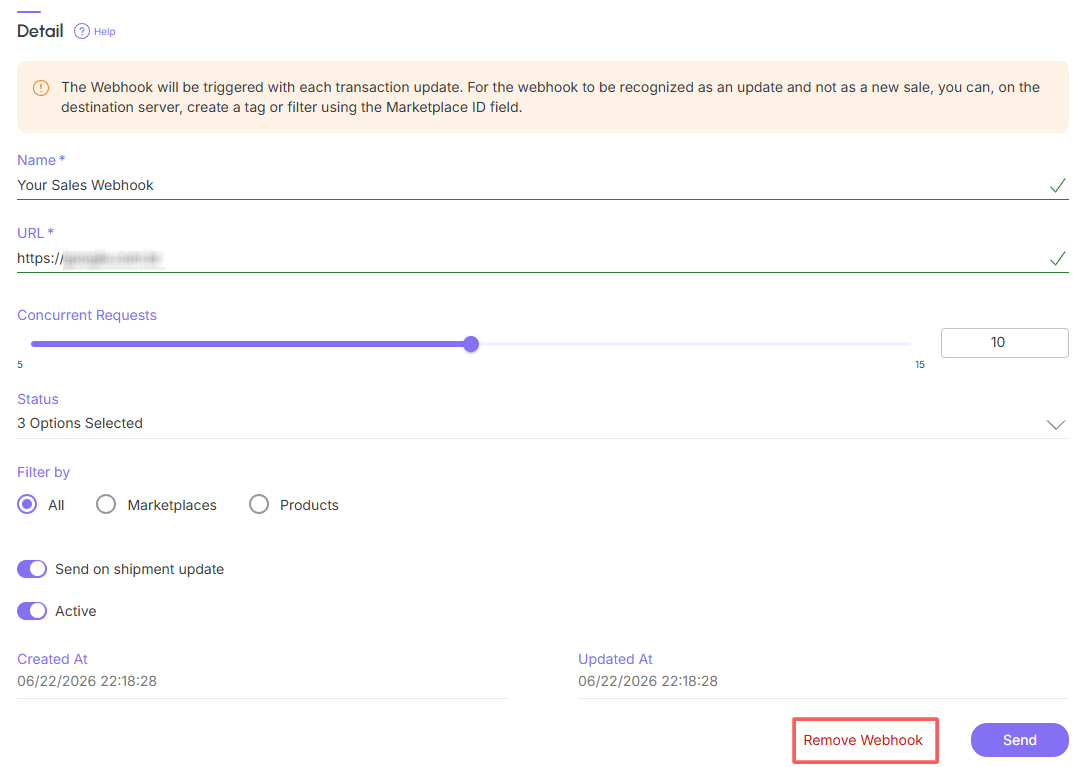
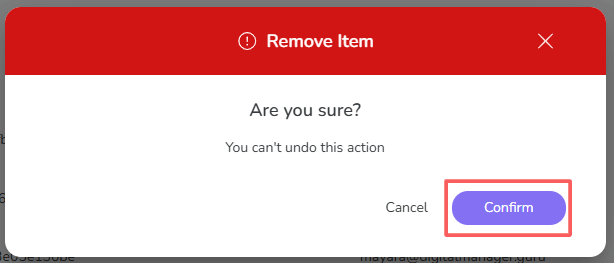
5 - A confirmation window is displayed. If you wish to proceed with the removal, click on Confirm.
More Resources