
Deactivation webhooks registered in Guru are listed automatically. To find deactivation webhooks in a list with many records, you can search and filter the list.
On this page:
-
Consult the list of deactivation webhooks
-
View the data of a deactivation webhook
-
How to filter the list of deactivation webhooks
Before you start, you need…
-
Be a administrator or have permission to perform the following actions.
-
Have one or more deactivation webhooks registered in Guru.
Consult the list of deactivation webhooks
By default, the list of deactivation webhooks is organized by update date (from newest to oldest). For faster page loading, only the first 30 records are displayed. If you want to view the other items in the list, you can scroll to the bottom of the page and click on See more at the bottom center of the screen.
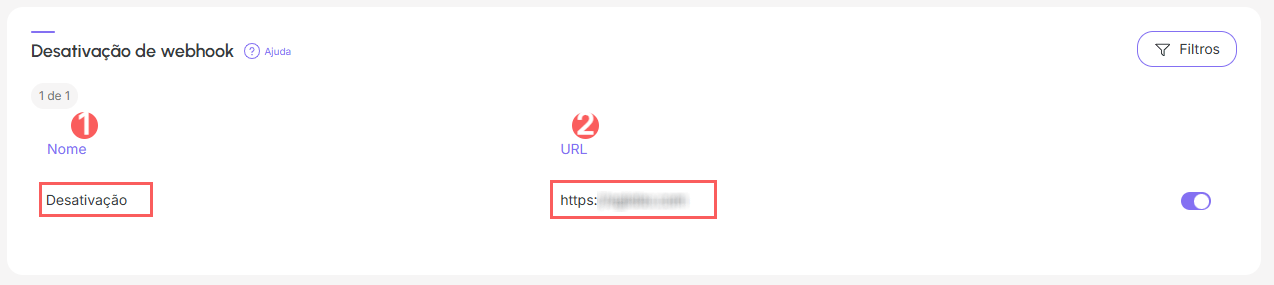
The list displays the following information:
-
Name: webhook name;
-
URL: destination URL of the deactivation webhook.
View the data of a deactivation webhook
You can view1 all webhook information or modify1 a deactivation webhook (edit, deactivate, remove, etc.).
(1) you must have permission to perform these actions.
Steps:
1 - Access the list of deactivation webhooks - if desired, you can apply a filter.
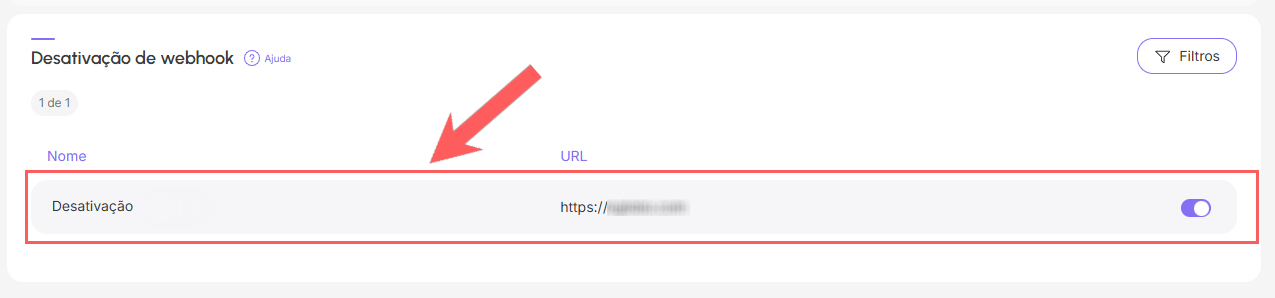
2 - Locate the desired deactivation webhook in the list.
3 - Click on the desired deactivation webhook.
4 - Consult the webhook information.
How to filter the list of deactivation webhooks
You can use filters to view a smaller subset of existing webhooks. This feature is useful for finding specific deactivation webhooks you want to view.
Attention: list searches have a maximum selection limit of up to 100 items per filter.
Steps:
1 - Access the list of deactivation webhooks - a screen with the data will be displayed.
2 - In Deactivation of Webhook, click on Filters.
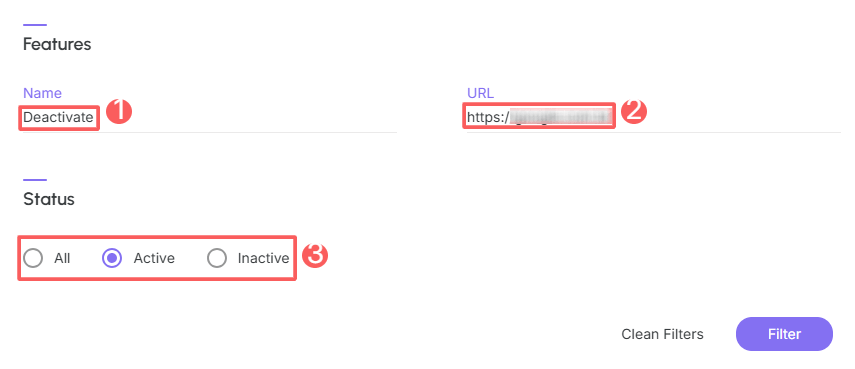
3 - Fill in one or more filter options:
-
Name: name of the deactivation webhook;
-
URL: destination URL of the deactivation webhook;
-
Status: searches for deactivation webhooks with status corresponding to the value(s) informed by webhooks that are active or inactive, or by all - you can choose more than one status for filtering.
If you add more than one filter, only webhooks that meet all the informed conditions will be displayed.
4 - Click on Filter.
To remove the applied filters, simply click on Clean Filters.