Guru allows complete management of custom rules, where you can add, update, and remove the custom rules that have been created.
On this page:
-
Add custom Tax Rate rules
-
Update custom Tax Rate rules
-
Remove custom Tax Rate rules
Before you start, you need…
-
Be an administrator or have permission to perform the following actions.
-
Have one or more tax rates registered in Guru.
Add custom Tax Rate rules
You can add a custom rule according to the country, state (optional) and enter the percentage to be applied (%).
Steps:
1 - Access the Guru admin with your username and password.
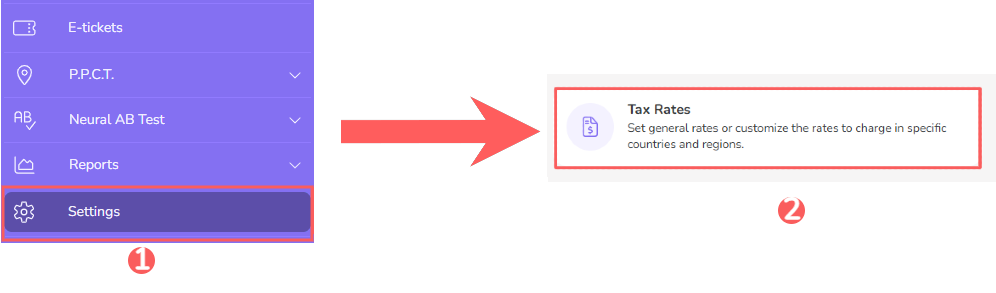
2 - In the side menu, click on Settings and then, Tax Rates.
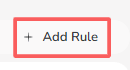
3 - Click on Add Rule.
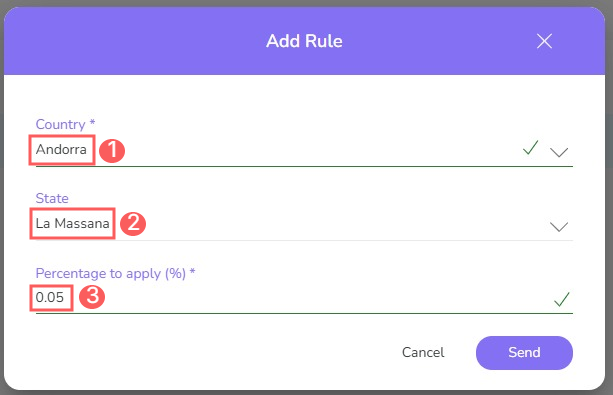
4 - In Add Rule, select the following data:
-
Country: the destination country where the tax should be applied;
-
State: the destination state to apply the specific tax (optional);
-
Percentage to apply (%): the percentage of tax to be applied added to the billing amount.
5 - Click on Send.
Update custom Tax Rate rules
After creating the rule, you can update the applied percentage (%).
Steps:
1 - Access the Guru admin with your username and password.
2 - In the side menu, click on Settings and then, Tax Rates.
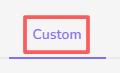
3 - Click on the Custom tab.
4 - In the listing, click on the Tax Rule you want to edit.

5 - In Update Rule, edit:
-
Percentage to apply (%): the percentage of tax to be applied added to the billing amount.
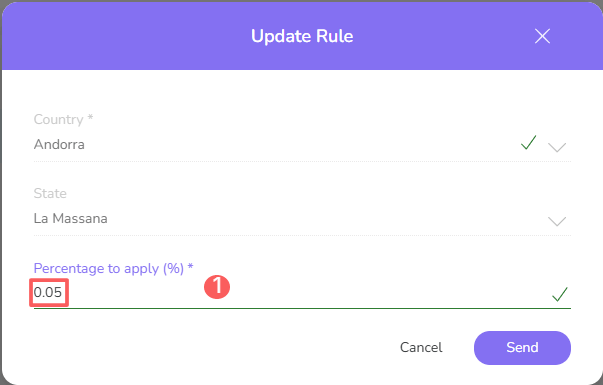
6 - Click on Send.
It is not possible to change the country and state rule, only to update the percentage applied to them.
Remove custom Tax Rate rules
It is possible to remove a custom rule. When a rule is removed, the record is permanently deleted and cannot be restored.
Steps:
1 - Access the Guru admin with your username and password.
2 - In the side menu, click on Settings and then, Tax Rates.
3 - Click on the Custom tab.
4 - In Tax Customization, click on Remove in Tax Rule desired.

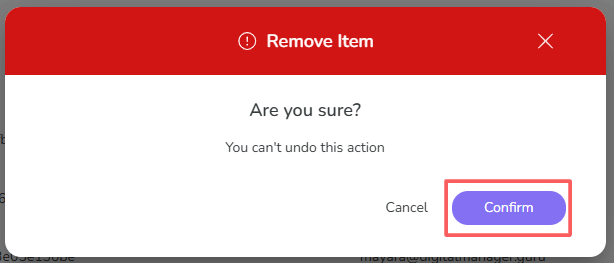
5 - A confirmation window is displayed. If you wish to proceed with the removal, click on Confirm.