
In the My Orders area, you can customize the appearance and content of the Customer and Affiliate Portal.
To do this, you can view and update the store's name and email, Whats. App and Telegram numbers. In addition, you can customize the colors of your Login and Content areas and customize the permissions for Recipients and Affiliates.
On this page:
-
How to customize the portal's look
-
View and update store name and email
-
View and update WhatsApp and Telegram numbers
-
-
Customize the colors of your area
-
Customize Recipients and Affiliates
Before you start, you need:
-
Be an administrator in Guru or have permissions to perform the following steps.
How to customize the Portal's look
You can customize the look of your My Orders area. You can view and update the store's name and email, Whats. App number, and Telegram username.
View and update store name and email
Steps:
1 - Access the Guru admin with your username and password.
2 - In the side menu, click on Settings and then, My Orders.
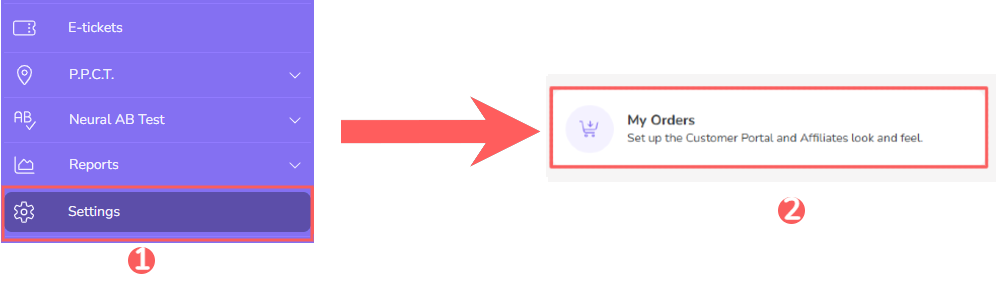
3 - In the Details ection, fill in the fields:
-
Store name: enter the name of your store/website;
-
Store email: enter the email of your store/website.

4 - Click on Send.
View and update WhatsApp and Telegram numbers
In the Detail section, you can view and update the WhatsApp and Telegram numbers for your My Orders area.
Steps:
1 - Enter:
-
WhatsApp Number: enter a valid cell phone number for WhatsApp contact;
-
Telegram Username: enter the Telegram username.

2 - Click on Send.
Customize the colors of your area
In the Detailsection, you customize the colors of your My Orders area.
Appearance
In Appearance, you can configure the colors of the header and body of the login screen, and the side menu and table on the content screen. In addition, you can preview the configuration for desktop and mobile. You can configure the colors of your orders, being able to reset the colors or use Guru's default color.
If you wish, use reset to change the colors or click on Guru Standard.
Steps:
1 - In Appearance, click on Configure My Orders Colors.

2 - In Configure My Orders Colors, select:
Login Colors
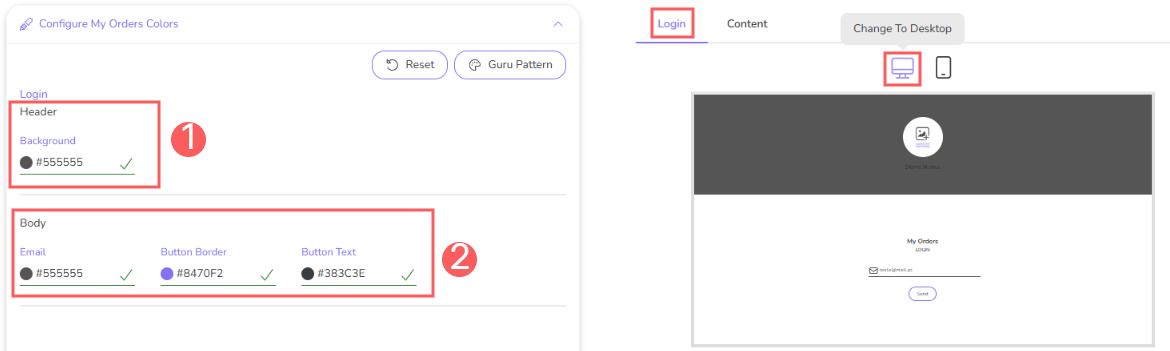
Desktop Login Colors
-
Header: select the desired header colors;
-
Body: select the desired login body colors.
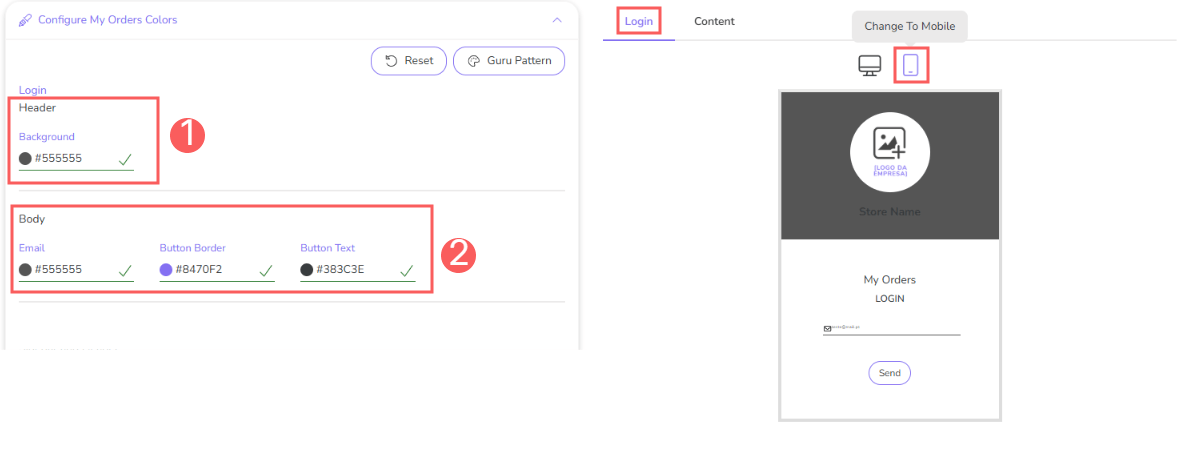
Mobile Login Colors
-
Header: select the desired header colors;
-
Body: select the desired login body colors.
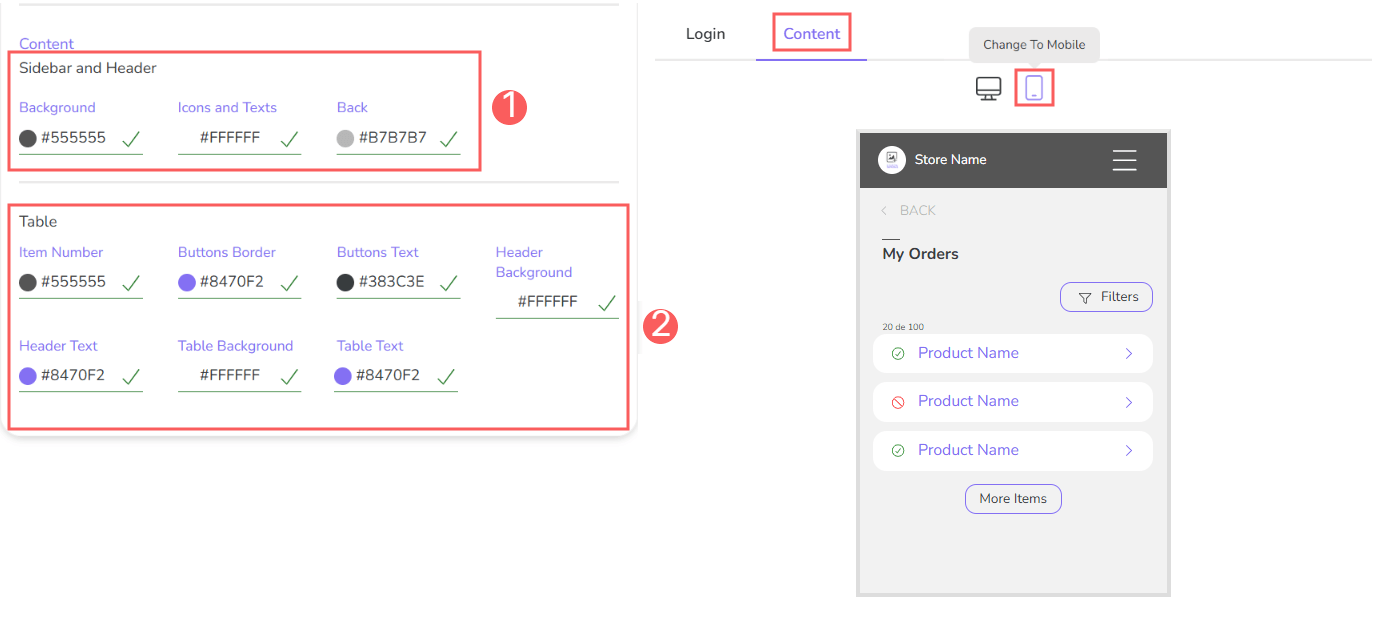
Content Colors
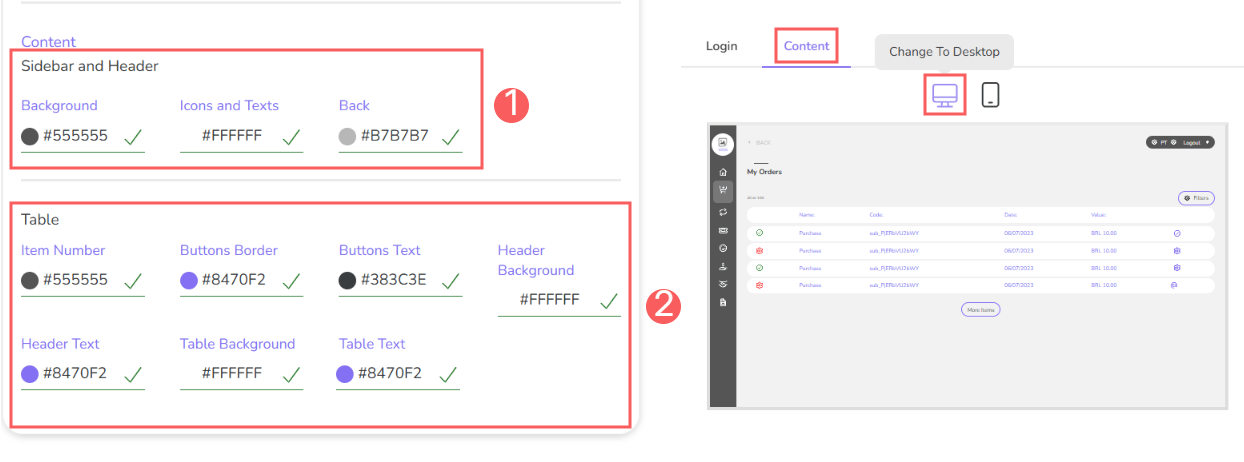
Desktop Content Colors
-
Sidebar and Header: select the colors for the sidebar and header;
-
Table: select the desired table colors.
Mobile Content Colors
-
Sidebar and Header: select the colors for the sidebar and header;
-
Table: select the desired table colors.
3 - Click on Send.
Customize Recipients and Affiliates
In the Detailsection, you customize the recipients or affiliates.
Steps:
1 - In Detail, select the desired option:
-
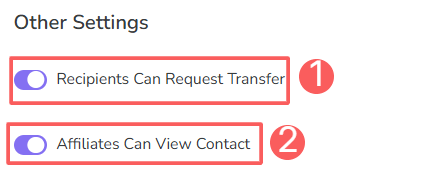
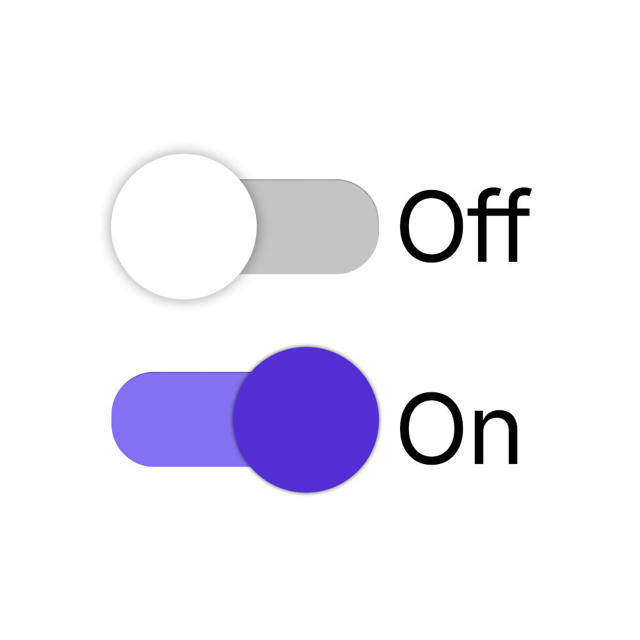
Recipients can request transfer: when enabled, recipients themselves can request the transfer;
-
Affiliates can view contacts: when enabled, allows affiliates to access contact information (information of buyers of sold products) - (available only for customers in Brazil).
2 - Click on Send.