
You can customize the images in the My Orders area. It is possible to customize Favicon, Logo, and Banner Image by rotating the image, adjusting the zoom, and removing the image.
On this page:
-
Customize Favicon
-
Customize Logo
-
Customize Banner Image
Before you start you need:
-
Be an administrator in Guru or have permissions to perform the following steps.
Customize Favicon
In the Detail section, you customize the Favicon. You can rotate the image or adjust the zoom to define the display.
Steps:
1 - In Favicon, click on Select Image.
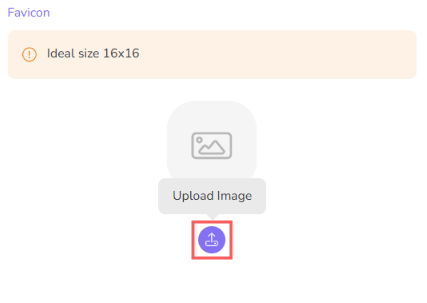
2 - Select the image you want to display for the offer.
Recommended image size: 16x16 resolution.
3 - If desired, use the control buttons to adjust the image. As you make changes, you can check the final result in the displayed image.
-
Rotate left: click to rotate the image to the left;
-
Rotate right: click to rotate the image to the right;
-
Adjust Zoom: drag the selector right/left to adjust the zoom.
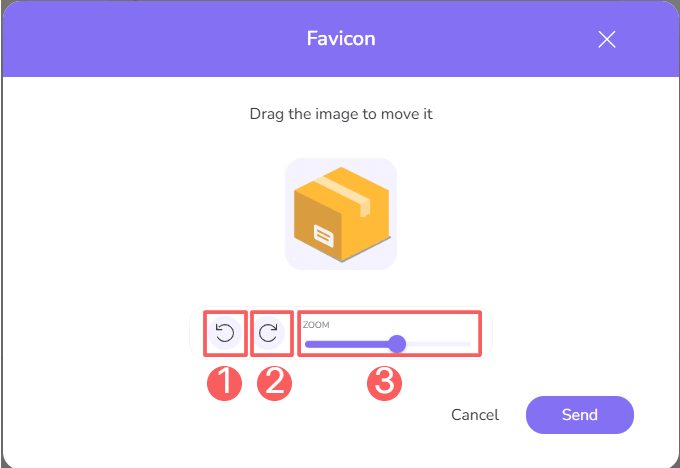
4 - When you finish the changes, click on Send.
Remove Image
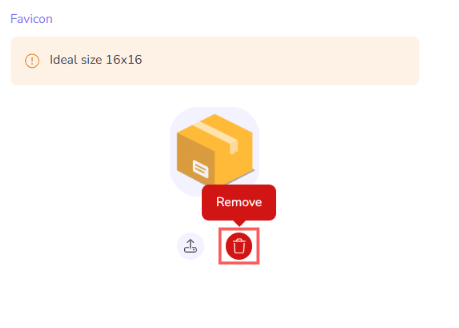
At any time, you can remove an image. This feature is useful when you want to replace the image in the My Orders area.
Steps:
1 - In Favicon, click on Remove.
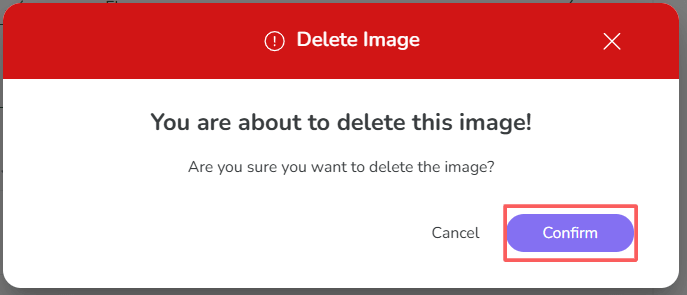
2 - A confirmation window is displayed. If you wish to proceed with the image removal, click on Confirm.
Customize Logo
In the Detail section, you customize the Logo. You can rotate the image or adjust the zoom to define the display.
Steps:
1 - In Logo, click on Select Image to upload the image you want.
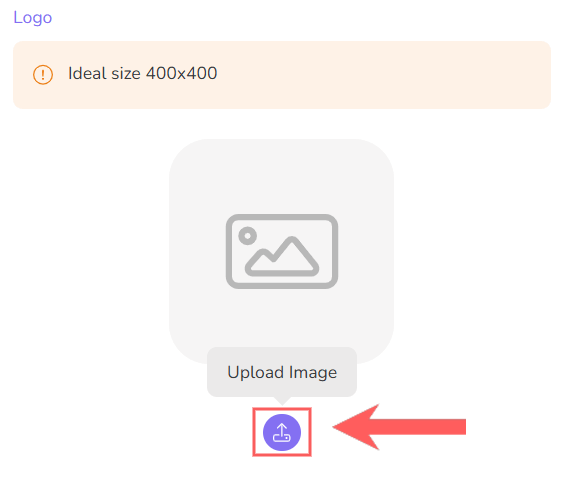
2 - Select the image you want to display for the offer.
Recommended image size: 400x400 resolution.
3 - If desired, use the control buttons to adjust the image. As you make changes, you can check the final result in the displayed image.
-
Rotate left: click to rotate the image to the left;
-
Rotate right: click to rotate the image to the right;
-
Adjust Zoom: drag the selector right/left to adjust the zoom.
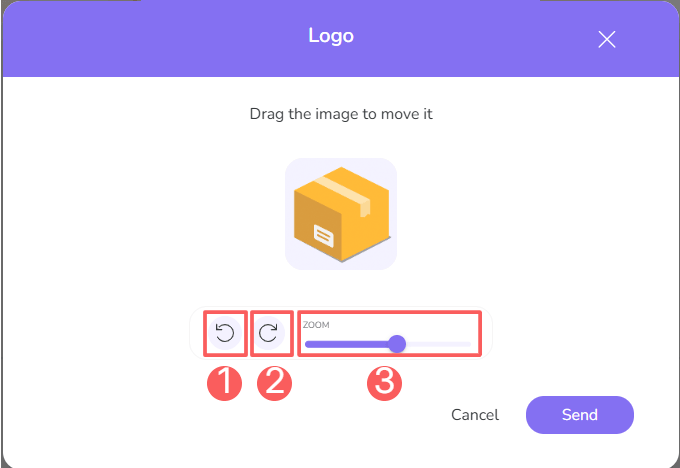
4 - When you finish the changes, click on Send.
Remove Image
At any time, you can remove an image. This feature is useful when you want to replace the image in the My Orders area.
Steps:
1 - In Logo, click on Remove.
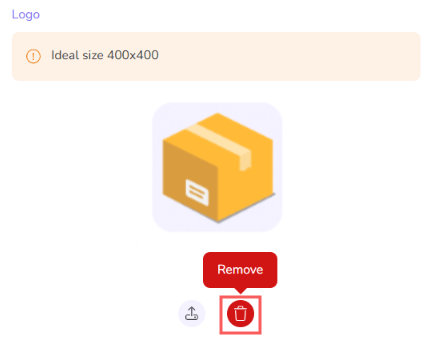
2 - A confirmation window is displayed. If you wish to proceed with the image removal, click on Confirm.
Customize Banner Image
In the Detail section, you can customize the Banner Image. You can rotate the image or adjust the zoom to define the display.
Steps:
1 - In Banner Image, click on Select Image.
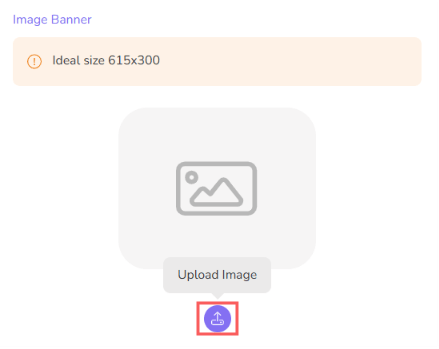
2 - Select the image you want to display for the offer.
Recommended image size: 615x300 resolution.
3 - If desired, use the control buttons to adjust the image. As you make changes, you can check the final result in the displayed image.
-
Rotate left: click to rotate the image to the left;
-
Rotate right: click to rotate the image to the right;
-
Adjust Zoom: drag the selector right/left to adjust the zoom.
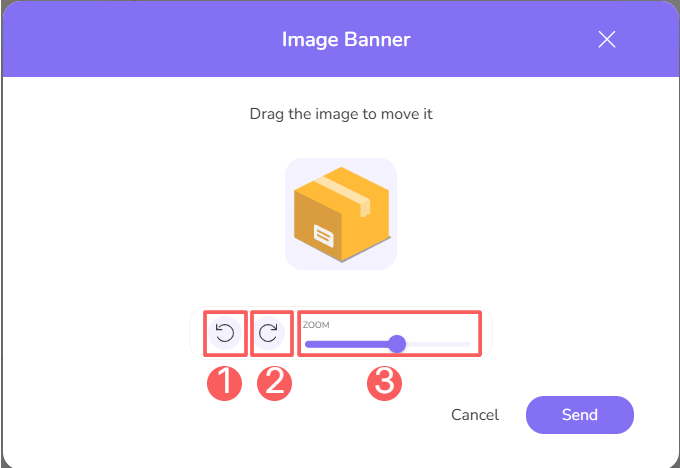
4 - When you finish the changes, click on Send.
Remove Image
AT any time, you can remove an image. This feature is useful when you want to replace the image in the My Orders area.
Steps:
1 - In Banner Image, click on Remove.
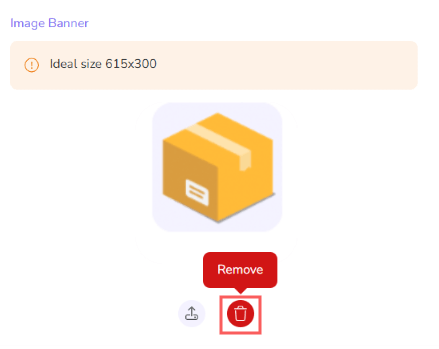
2 - A confirmation window is displayed. If you wish to proceed with the image removal, click on Confirm.