
If your business already has its own visual identity, then you can customize the appearance of Guru’s Checkout to follow the same standards as your website or sales page. Add your logo of your company, change the colors, show or hide visual elements and choose the version of the checkout.
Although you can change the colors of most visual elements and text, we recommend choosing high-contrast color combinations to ensure your customers can read what is written. Remember to check the final result using the color editor's preview tool.
The appearance of Checkout Guru can be applied at 3 levels:
-
Global Level: applies to the checkout of all registered products - default setting;
-
Product Level: applies to the product in question - overrides the definitions of item 1;
-
Offer Level: applies to the product offer in question - overrides the definitions of items 1 and 2.
In this tutorial, whenever possible, you will be guided to perform the configuration at a global level (recommended). To perform configurations at other levels, access the Checkout tab in the registration of the product or offer in question.
On this page:
-
Change Checkout Version
-
Change Checkout Page Colors
-
Other style and appearance options
Before you start, you need…
-
Be an administrator user or have permission to perform the following actions.
Change Checkout Version
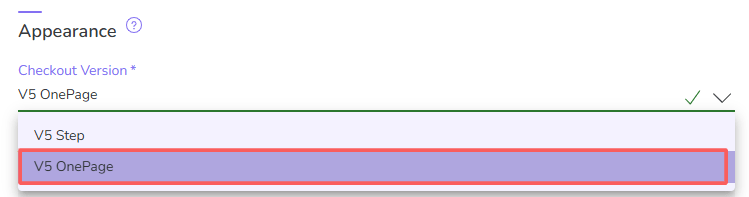
Guru has the V5 Checkout version. AND within V5, you can choose which checkout version you want to use: One Page v.5 or Multi step v.5
The One Page version concentrates all input fields on a single page. While in the Multi Step version, the payment process is divided into several pages (or steps).
You can test the checkout versions with A/B checkout testing.
Steps:
1 - According to the configuration level you want to apply:
1.1 - Global Level: access Settings » Checkout.
1.2 - Product Level: access Products » (desired product) » Checkout.
1.3 - Offer Level: access Products » (desired product) » Offers » (desired offer) » Checkout.
2 - In Appearance, select the Checkout Version you want.
3 - Click on Send.
Change the colors of the Checkout page
You can change the checkout colors to match your brand's colors, and you can also configure Checkout colors, being able to reset the colors or use Guru's default color.
If you wish, use reset to change the colors or click on Guru Standard.
Steps:
1 - According to the configuration level you want to apply:
1.1 - Global Level: access Settings » Checkout.
1.2 - Product Level: access Products » (desired product) » Checkout.
1.3 - Offer Level: access Products » (desired product) » Offers » (desired offer) » Checkout.
2 - In Appearance, click on Configure Checkout Colors.

3 - In the editing window, use the control buttons or enter the color code in hexadecimal format for each checkout element. As you make changes, you can check the result on the right side of the window.
-
Color picker: displays a color palette for selection - available for each checkout element;
-
Reset: undoes all changes made;
-
Guru Standard: returns to the Guru Checkout color standard;
-
Preview: toggles the preview between desktop and mobile device.
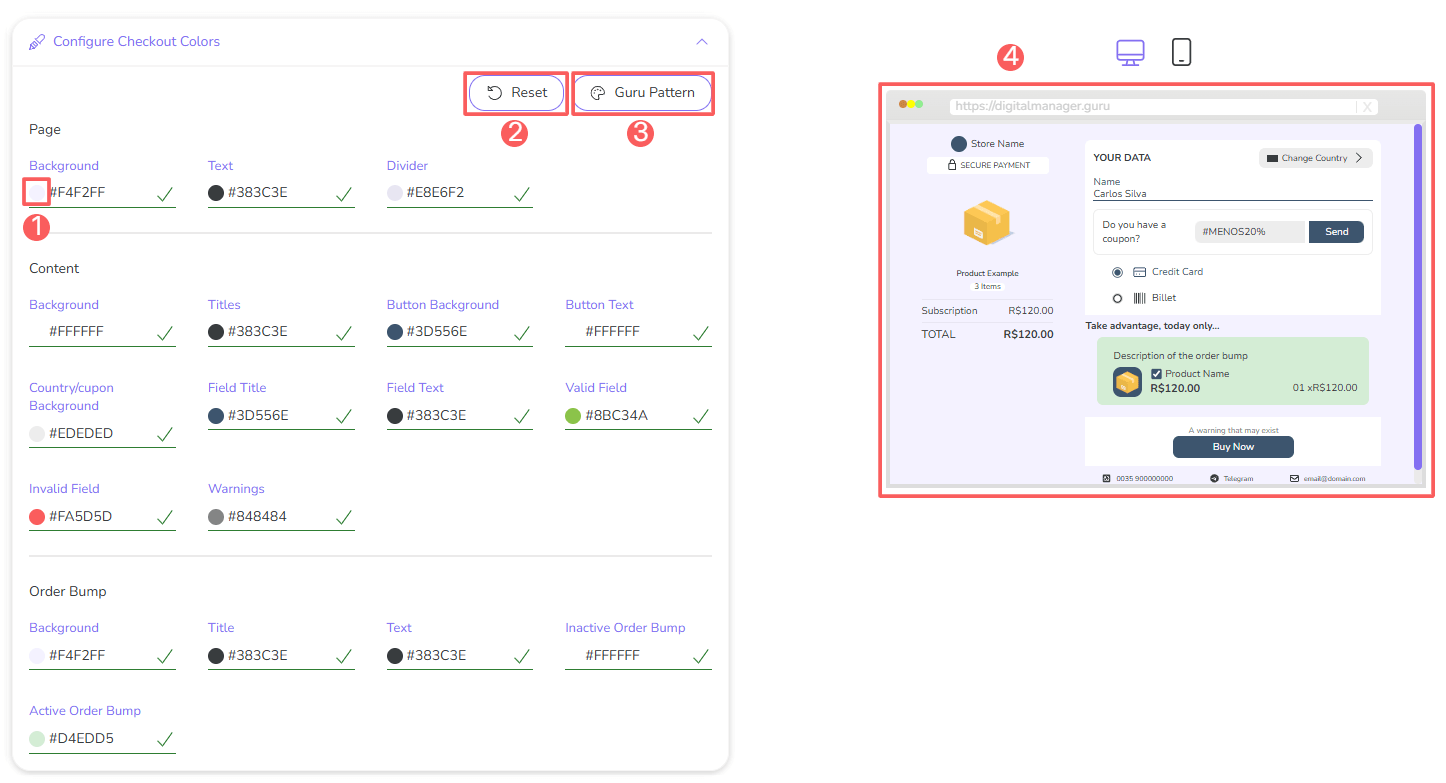
Once you have completed the changes, click on Send.
4 - Back in the Appearance section, click on Send to save the changes made.
Other style and appearance options
You can also customize the Checkout on mobile, the shipping price, and activate Recaptcha confirmation.
Steps:
1 - According to the configuration level you wish to apply:
1.1 - Global Level: access Settings » Checkout.
1.2 - Product Level: access Products » (desired product) » Checkout.
1.3 - Offer Level: access Products » (desired product) » Offers » (desired offer) » Checkout.
2 - In Appearance, you can activate the following options:
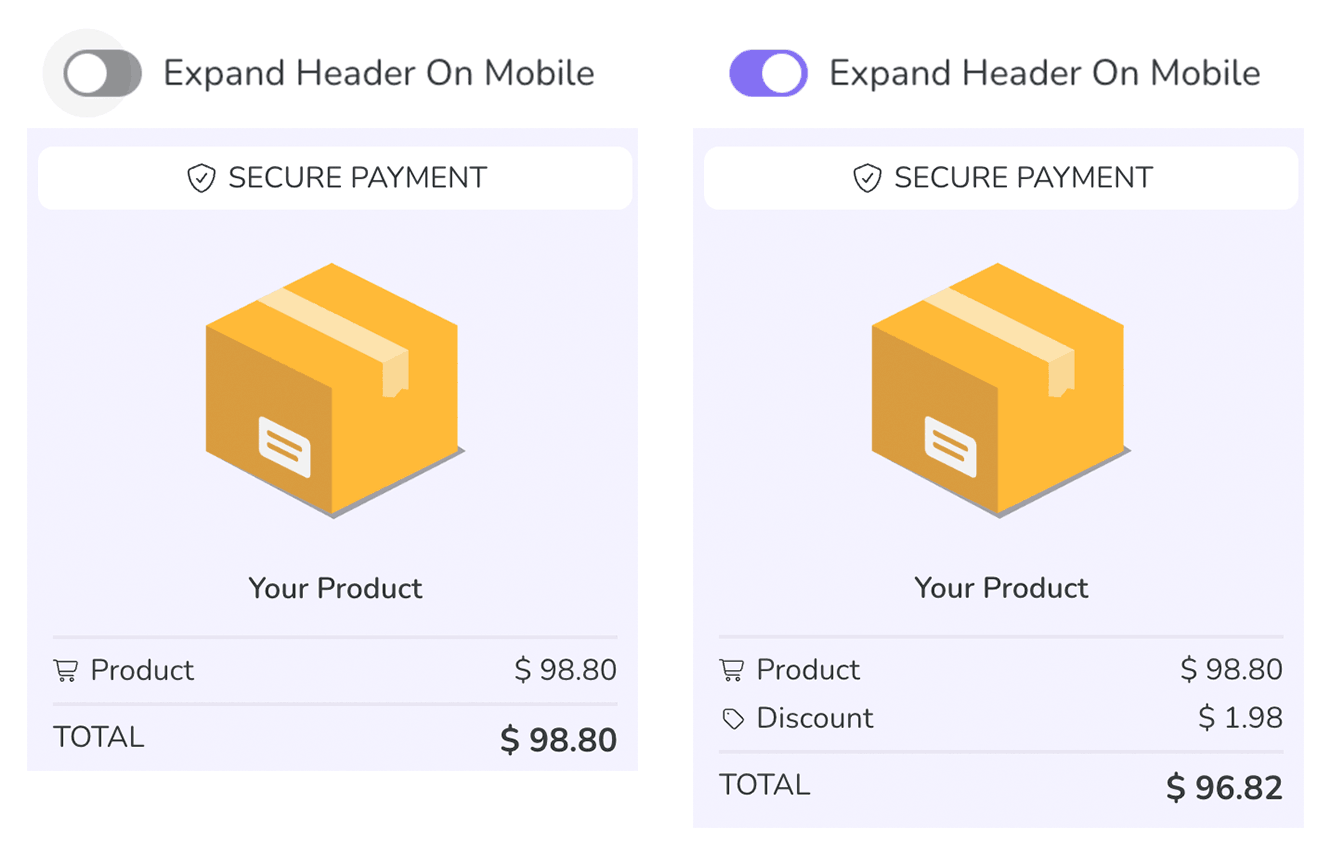
Expand Header on Mobile
When activated, it displays store name and purchase details in an expanded format on mobile devices.
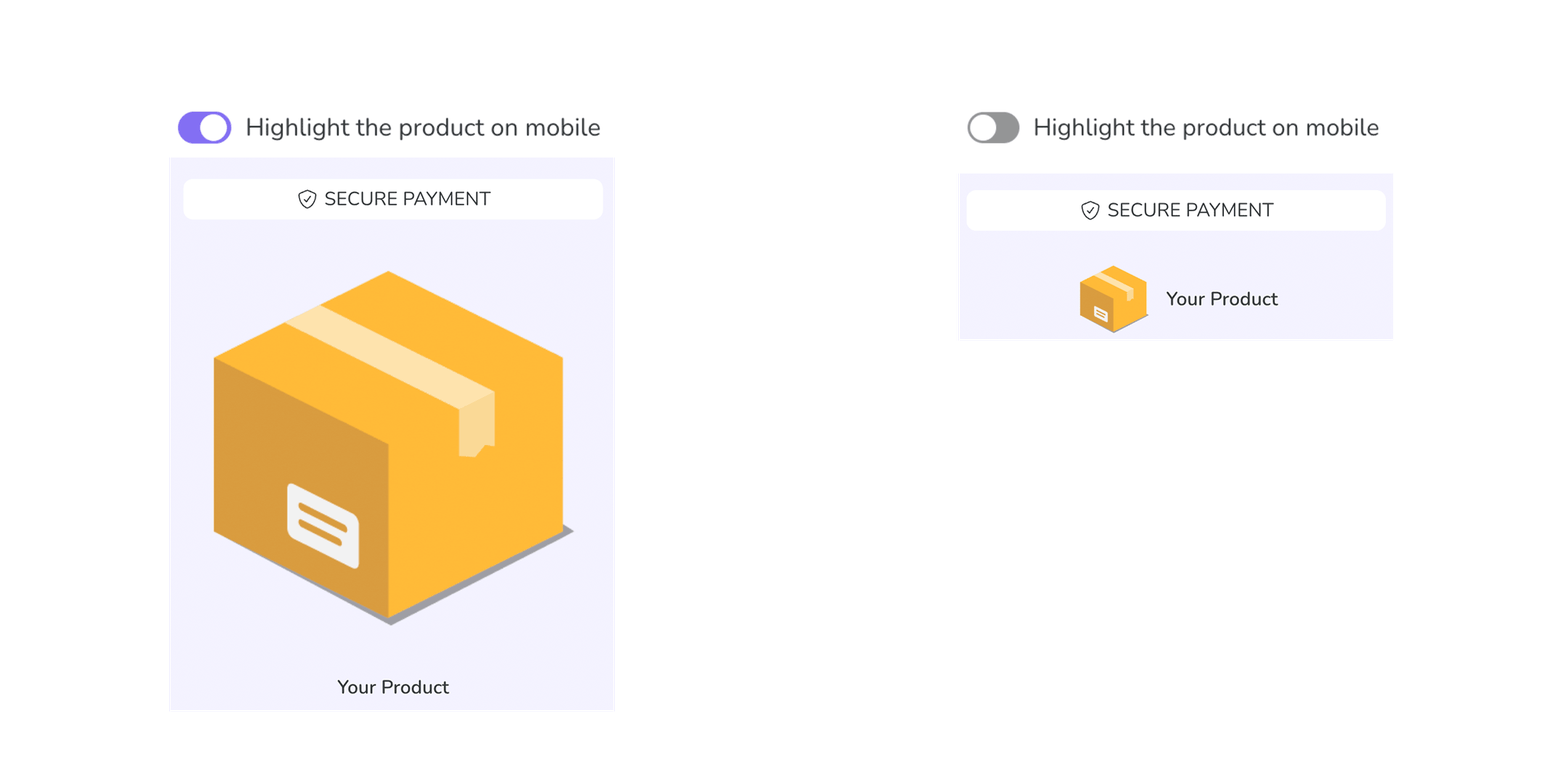
Highlight product on Mobile
When activated, instead of the store name, it displays the product image and description at the top of the checkout for mobile devices.
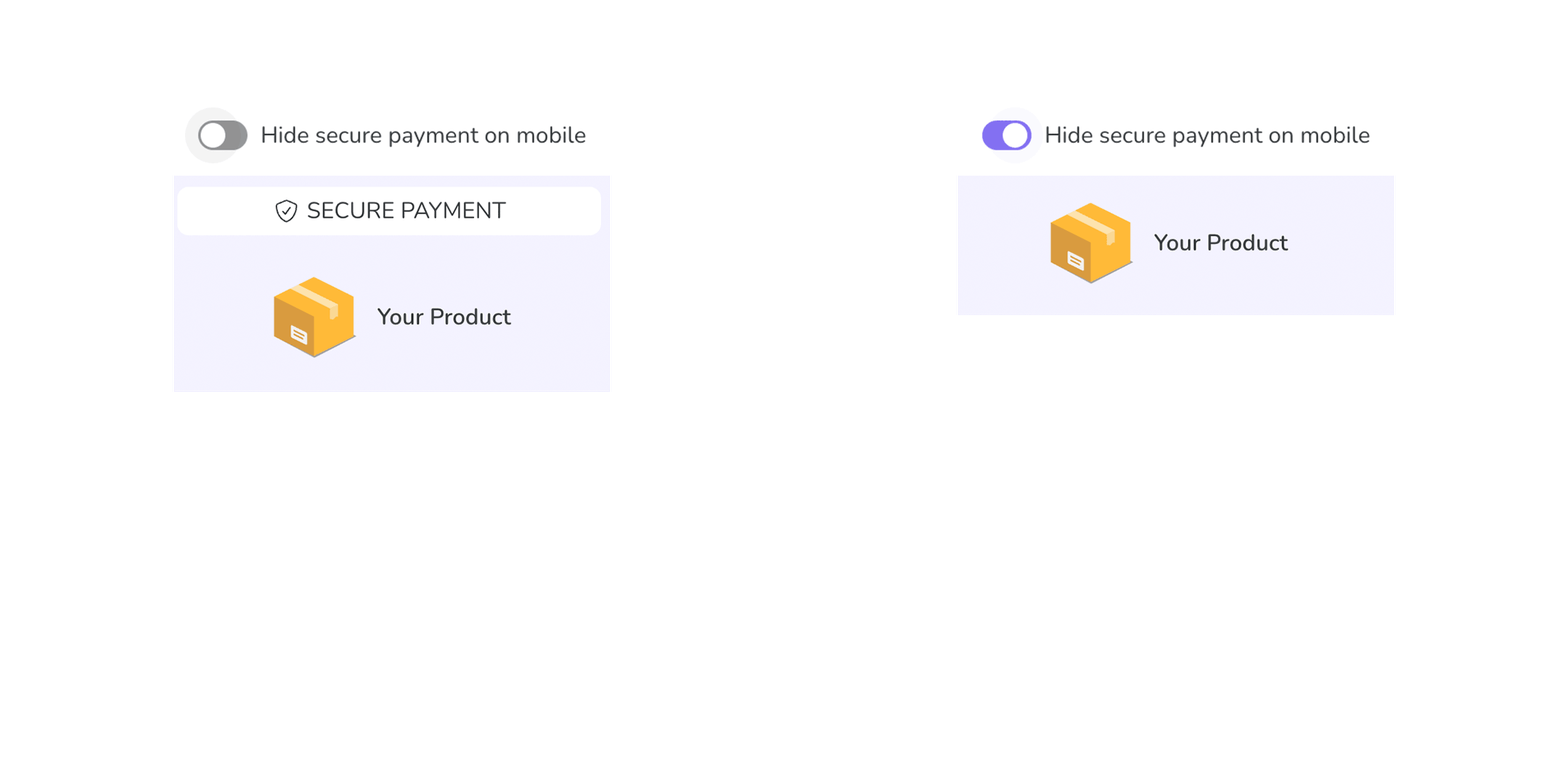
Hide Secure Payment on Mobile
When activated, it does not display the “Secure Purchase” section in the mobile version.
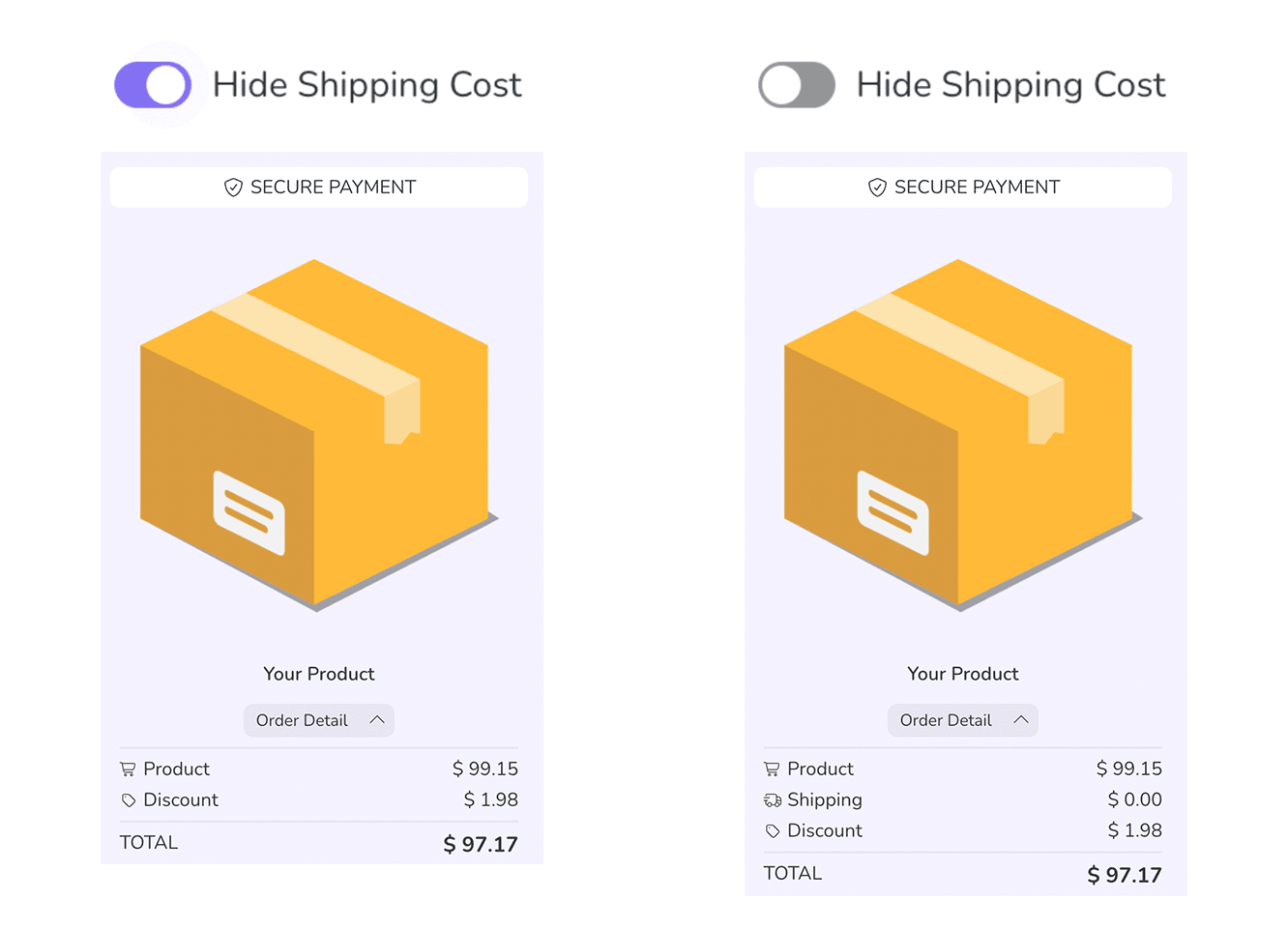
Hide shipping cost when zero
When activated, it does not display the “Shipping” item in the purchase details when the shipping cost is zero.
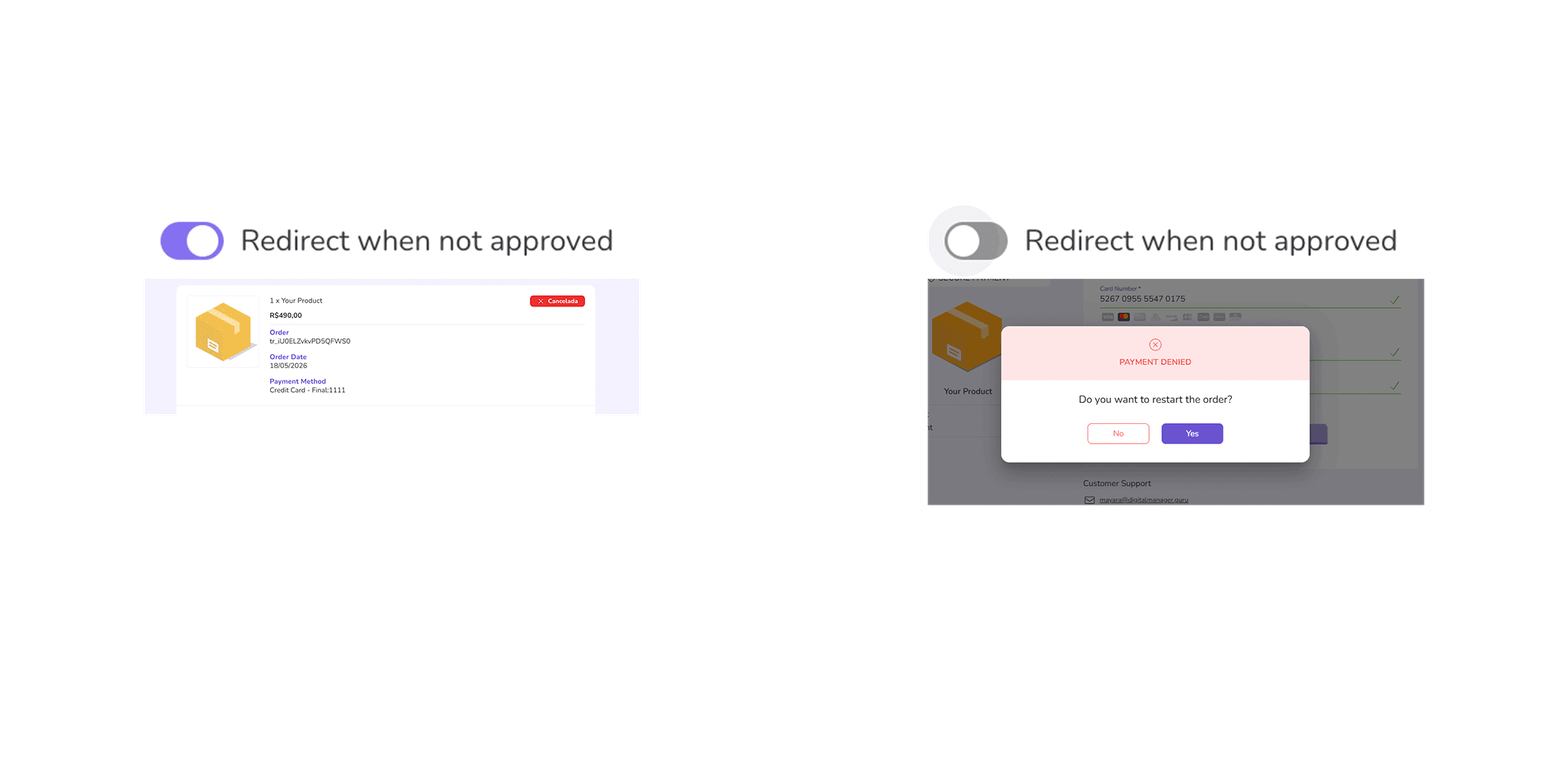
Redirect when not approved
When activated, it immediately directs the user to the denied payment page, instead of asking if the user wants to try again.
3 - Click on Send.
More Resources