
You can follow the daily stats summary to analyze as desired, viewing all sales, valid sales, or refunded sales, according to the desired filter.
Daily sales summary reports are generated when you have an active plan or are in a valid trial period.
On this page:
-
Consult the Daily Stats Summary list
-
How to filter the Daily Stats Summary Reports list
-
Manage filters for Daily Stats Summary Reports
-
Consult the Daily Stats Summary list
It is possible to consult the daily stats summary, viewing All sales, Approved sales and Refunded sales. By default, sales from the last 30 days are initially shown, but it is also possible to filter by desired dates.
Steps:
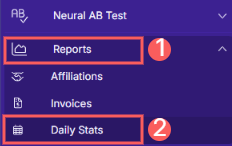
1 - In the side menu, access Reports and then, Daily Summary.
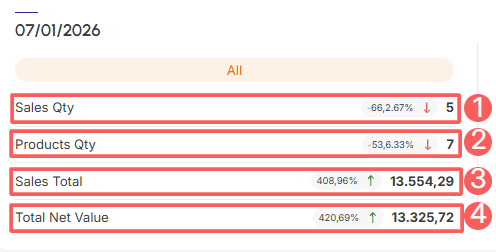
2 - In the listing, all sales will appear, displayed by date, indicating All sales, VALID and Refunded.
Daily summary All Sales
-
Sales Qty: displays the number of sales made in the period;
-
Products Qty: displays the number of products sold in that period;
-
Sales Total: displays the total value of all sales made in the period;
-
Total Net Value: displays the total net amount to be received (after deducting all expenses/commissions1)).
(1) Considered in the calculation if the marketplace sends this information to Guru. If sent, these fees are also displayed in the sales detail.
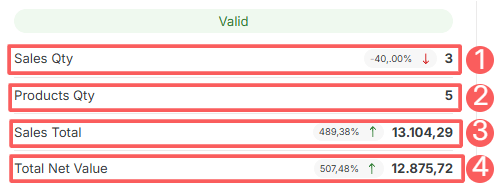
Daily summary All Valid Sales
-
Sales Qty: displays the number of sales made on that date;
-
Products Qty: displays the number of products sold in that period;
-
Sales Total: displays the total value of all sales made in the period;
Total Net Value: displays the total net amount to be received (after deducting all expenses/commissions1).
(1) Considered in the calculation if the marketplace sends this information to Guru. If sent, these fees are also displayed in the sales detail.
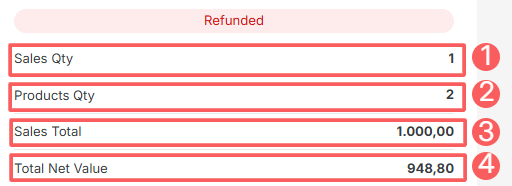
Daily summary All Refunded Sales
-
Sales Qty: displays the number of sales made on that date;
-
Products Qty: displays the number of products sold in that period;
-
Sales Total: displays the total value of all sales made in the period;
-
Total Net Value: displays the total net amount to be received (after deducting all expenses/commissions1).
(1) Considered in the calculation if the marketplace sends this information to Guru. If sent, these fees are also displayed in the sales detail.
How to filter the Daily Stats Reports list
You can use the filters to view a subset of the affiliate list to be included in your report. This feature is useful for finding reports for one or more specific affiliates you wish to view.
Attention: list searches have a maximum selection limit of up to 100 items per filter.
By default, only records from the last 28 days will be shown, but the period can be changed in the filters, in the field Period.
Steps:
1 - In the side menu, access Reports and then, Daily Summary.
2 - In Daily Summary, click on Filters.
3 - Fill in one or more filter options.
The list displays the following information:
-
Period: searches for reports from the selected period - you can use the predefined time range buttons or select the date you wish to view;
-
Type: searches for the selected sales type(s) – All, Valid or Refunded.
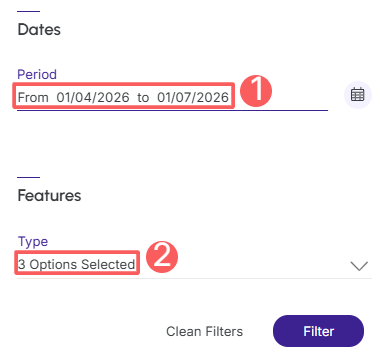
4 - Click on Filter.
To remove the applied filters, simply click on Clear Filters.
Manage filters for Daily Stats Summary Reports
You can check the number of applied filters when using filters to view desired information. This feature is useful if you want to check how many filters have been applied.
In addition, it is possible to clear the filters without accessing the Filters icon again, facilitating the removal of applied filters.
Consult applied filters
You can check the number of applied filters.
Steps:
1 - In the side menu, access Reports and then, Daily Summary.
2 - In Daily Summary, click on Filters.
3 - Fill in one or more filter options - apply the filters you want to consult.
4 - Then, the number of applied filters will appear on the screen.

If you want to apply other filters, click How to filter the Daily Stats Summary Reports list.
Clean applied filters
You can remove the applied filters without needing to click the filters icon.
Steps:
1 - In the side menu, access Reports and then, Daily Summary.
2 - In Daily Summary, click on Filters.
3 - Fill in one or more filter options - apply the filters you want to consult.
4 – Then, click on Clean Filters.

If you want to apply other filters, click How to filter the Daily Stats Summary Reports list.